Your inbox isn’t “bad”—it just needs a few defaults that match your day
You open Yahoo Mail to “do one quick thing,” and 20 minutes later you’re still scrolling because everything looks equally urgent. That’s usually not a discipline problem. It’s a settings problem.
If your inbox mixes bills, school updates, receipts, and real people in one stream, your brain has to re-decide what matters every time. Set a few defaults that match your day: which view you land on, which senders get noticed, and what you do with messages you’ve handled. Too many rules can hide mail, and too many alerts make you ignore them.
Start by making it effortless to spot the emails that actually need you the moment you open the app.
When you open Yahoo Mail, what’s the fastest way to see what actually needs you?
The moment you open Yahoo Mail, the fastest win is to reduce what you have to judge. On web, click the search bar and use the quick filters (like Unread or From) before you start scrolling. On mobile, use the filter icon to show Unread first. If the list shrinks to only what’s waiting on you, you can answer, delete, or snooze without getting pulled into older noise.
Then pick one “signal” that means action. For most people, that’s leaving messages unread until you’ve handled them, and starring only the ones you must come back to today (a form to fill out, a doctor reply, a password reset). The friction is that stars can turn into a second inbox if you star everything, so keep it strict: star is for follow-up, not for “important.”
Once you can spot action fast, the next question is where finished email should go so it doesn’t boomerang back tomorrow.
Folders, Archive, Stars—what should you use so you don’t create more work?
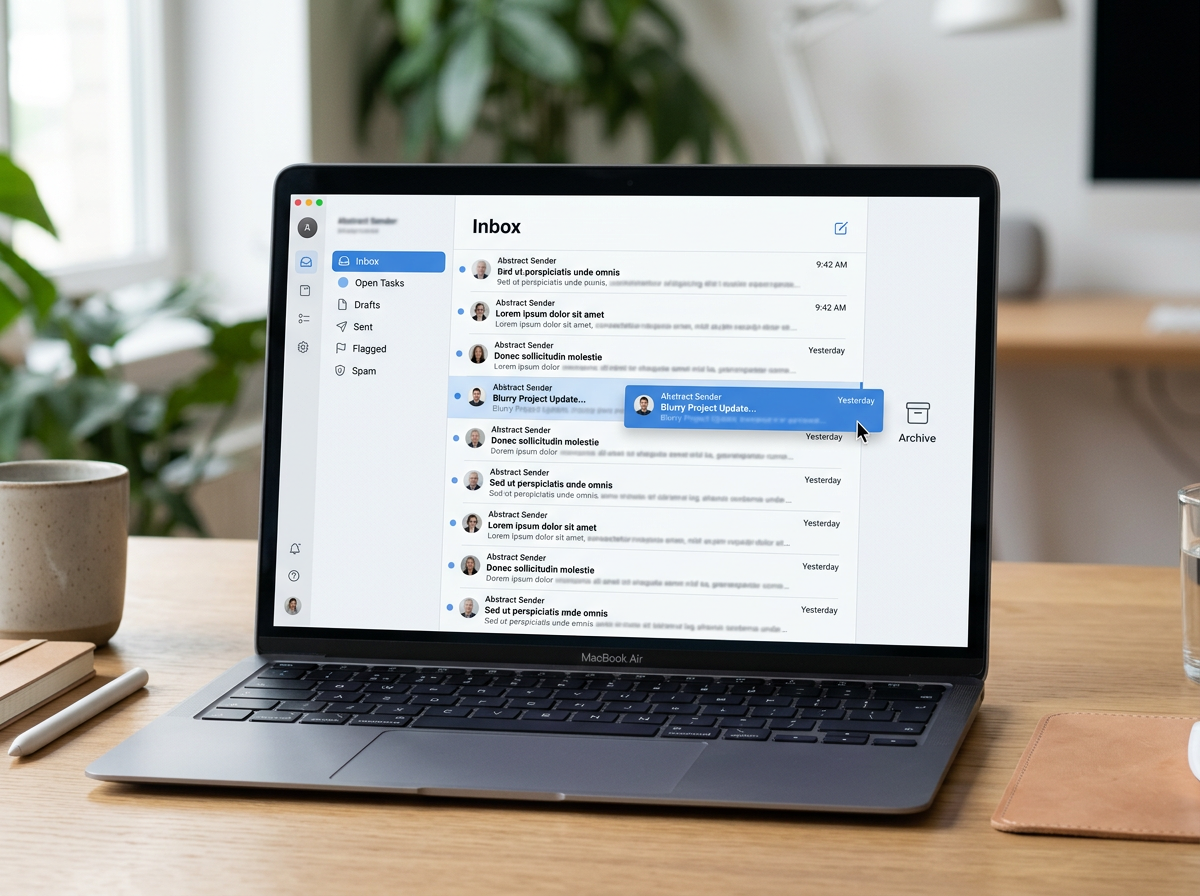
That “boomerang” effect usually happens when you delete what you might need, or you keep everything in the inbox because you’re afraid to lose it. The simplest default is: if it’s done but you may need it later, archive it. Your inbox stays for open loops. Archive becomes your record. If you ever need it, search still finds it.
Folders are best when they reduce decisions, not when they create them. Use a small set you can file without thinking: “Receipts,” “Medical,” “School,” “Travel.” If you catch yourself debating where something belongs, that folder isn’t helping. Also, manual filing is slow on mobile, so don’t make your daily flow depend on dragging messages around.
Stars should stay strict: they’re for follow-up, not for storage. If you star a message, you should plan to either reply, do the task, or unstar it the same day. Folders keep things tidy, but too many folders hide mail; archive keeps things fast, but only if you trust search. Filters are where you make it automatic.
Looking for one email shouldn’t feel like detective work
If you archive with confidence, the only time you “lose” an email is when you can’t pull it up fast. Most people start by scrolling the inbox like it’s a timeline. That works until you need one message from three weeks ago, or you can’t remember the exact subject line.
Instead, search like you remember real life. In the Yahoo Mail search bar, try the sender first (“from: Netflix” in your head, even if you just type Netflix), then add one simple detail: a month, a store name, or a dollar amount. If you’re hunting a receipt, search the merchant plus “receipt” or “order.” If it’s a password reset, search “reset” plus the service name.
The friction: search gets worse when everything has the same vague subject. When that happens, open one message you know is related, tap the sender name, and jump to all mail from that person or company. Then decide whether that sender needs a folder or a filter.
Newsletters pile up—do you unsubscribe, filter them, or just ignore them?
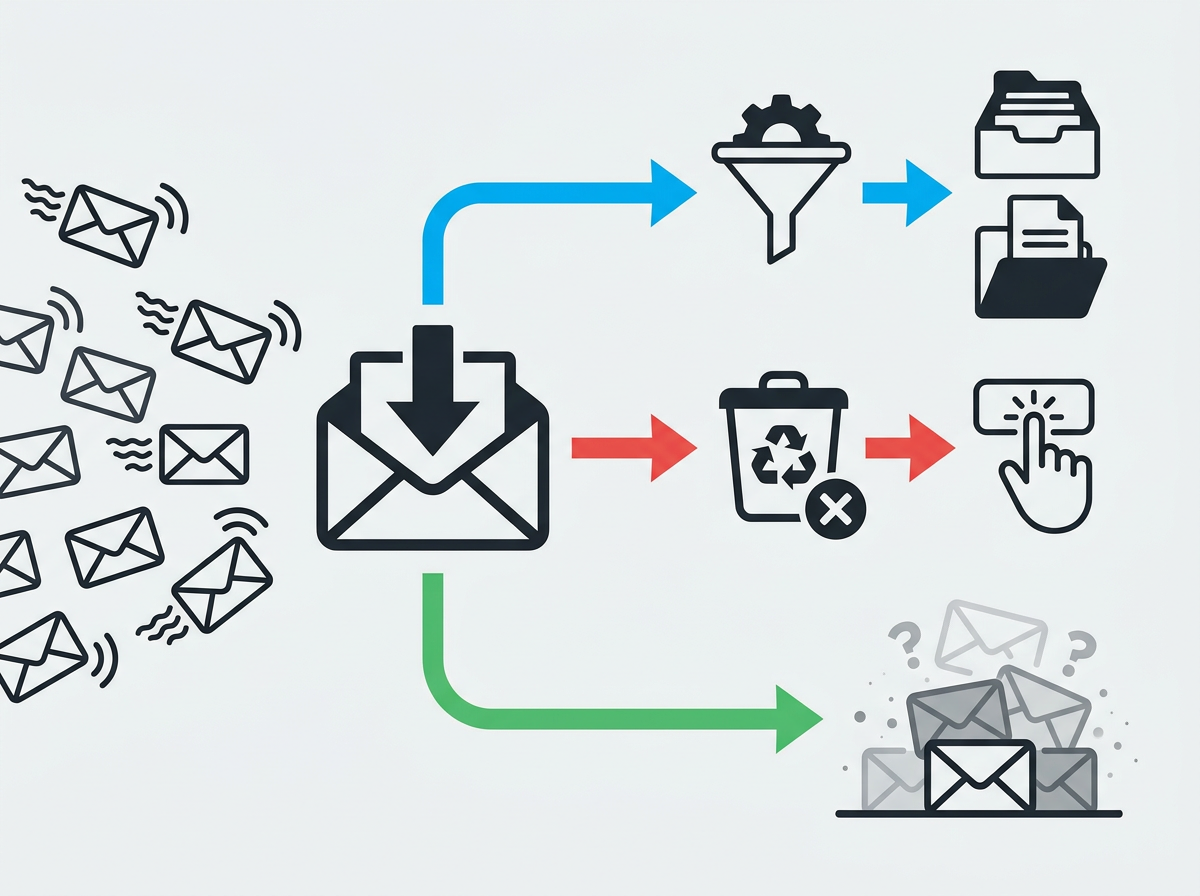
That decision—whether a sender needs a folder or a filter—hits hardest with newsletters. They look harmless until you miss a real message because “Your weekly update” pushes it down the list.
Unsubscribe when you never open it, or you only skim it “someday.” Do it from inside the message if there’s an unsubscribe link, or from your account settings on the service. The trade-off is that some companies tie promos, receipts, and security alerts to the same address, so unsubscribing can cut off email you actually need.
Filter when you like the content but don’t want it in your face. Create a rule that sends that sender to a “Newsletters” folder or archives it automatically, so search still finds it later. Ignore only when you’re okay paying for it with time: more scrolling, more “mark as read,” and a noisier inbox when something important lands.
When you’re sure you didn’t get an email at all, there are a few quick places to check before you panic.
The ‘missing email’ panic: what to check before you assume it never arrived
That “I never got it” moment usually starts when you’re waiting on something time-sensitive—an interview link, a bank code, a delivery update—and your inbox looks the same as always. Before you resend requests or blame the sender, do a fast sweep in the places Yahoo Mail hides things on purpose.
Start with search, not scrolling. Type the sender name, the company, or one unique word from the subject. Then check Spam and Trash—filters and cleanup habits can put real mail there by accident, especially if you’ve been aggressively unsubscribing or deleting. If you use a “Newsletters” folder or auto-archive rules, open those folders too; the email may have arrived and simply never touched your inbox.
On mobile, also check whether you’re viewing a filtered list (like Unread) and forgetting it’s on—messages can “disappear” if they’re already marked read. Rules save time until one mis-filed message costs you it. Once you find the missing email, fix the rule so it doesn’t happen again.
Pick your “daily 2-minute” setup so the inbox stays easy
Fixing the rule is the whole point: you want a tiny routine that keeps problems from piling up. Once a day, open Yahoo Mail and flip to Unread. Reply to anything that takes under a minute, and if it needs time, star it and leave it unread.
Then do one cleanup pass: archive every message that’s “done,” and delete obvious junk. If something keeps showing up (a store promo, a school digest), either unsubscribe or make one filter to send it to a single folder like “Newsletters.” The trade-off is that filters can misfile mail, so keep them simple and re-check Spam once a week.
Two minutes, one view, one signal. That’s how the inbox stays easy.