
Your internet feels “fast” sometimes—so why is it suddenly awful for calls and streaming?
You run a speed test and it looks fine, yet a video call freezes the moment someone starts talking, or Netflix drops to blurry in the middle of a scene. That mismatch is common because “fast” on paper isn’t the same as “smooth” in real life. Calls and gaming care about delay and sudden hiccups, not just top speed.
The annoying part is you can trigger the problem without changing your plan: walking one room over, a neighbor’s Wi‑Fi getting busy, a laptop doing a cloud backup, or one device clinging to a weak signal. If you buy more speed before you isolate where the slowdown starts, you can waste money and still get stutters.
The quickest win is to stop guessing and split the problem in two: is it your Wi‑Fi inside the house, or the internet line coming in?
The two-minute split test: is the slowdown on Wi‑Fi, or coming from the ISP line?
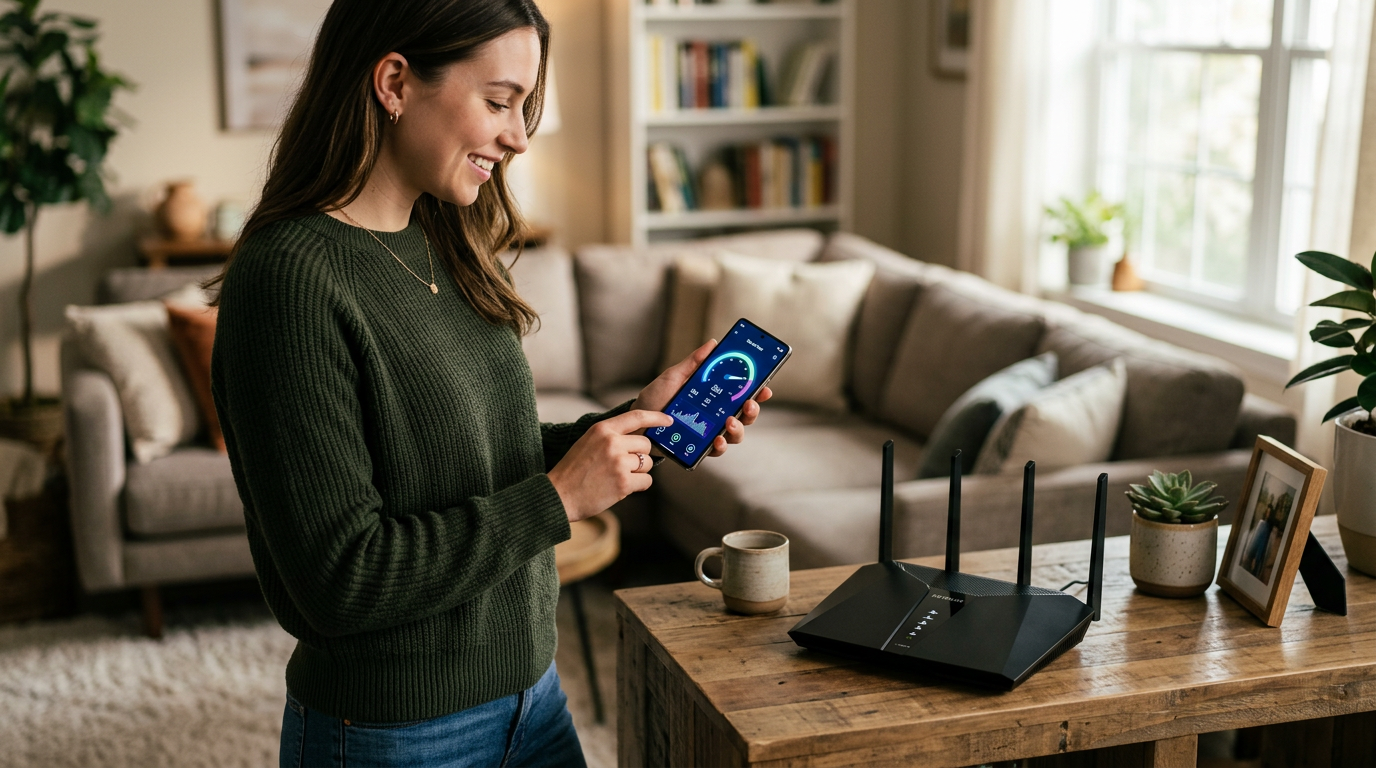
That split—Wi‑Fi vs. the line coming in—gets clear with one quick check. When a call gets choppy, most people rerun a speed test on the same spot and call it “the internet.” Instead, you want to compare your connection with Wi‑Fi removed from the equation.
Step 1: stand right next to the router and run a speed test on your phone or laptop. Note the download, upload, and especially the ping if it shows it. Step 2: plug a computer into the router with an Ethernet cable and run the same test (or, if you can’t do Ethernet, run the test again on Wi‑Fi but with every other device paused for a minute). If the wired result is steady but Wi‑Fi drops, you’re chasing a Wi‑Fi problem: signal, interference, or device behavior. If both tests are poor—or the ping jumps all over—you’re likely dealing with the ISP line, modem issues, or neighborhood congestion.
The friction: many homes don’t have an Ethernet adapter or easy cable access, so people skip this and keep tweaking settings blindly. Even a borrowed cable for two minutes can save you hours and an unnecessary plan upgrade.
When only one phone or laptop is struggling, don’t touch the router yet
Once you’ve split Wi‑Fi from the ISP line, the next clue is whether every device struggles or just one. If your TV streams fine and another laptop can join a call cleanly, the router probably isn’t the first thing to mess with. It’s usually that device’s connection, settings, or a bad local signal decision.
Start simple: on the problem device, toggle Airplane Mode on/off (or disable/enable Wi‑Fi) and reconnect to your network, not a guest network. Forget the network and rejoin if it keeps clinging to a weak connection. A quick restart of the device fixes stuck network drivers more often than people expect.
The trade-off is time: it’s tempting to reboot the router because it feels decisive, but it can mask a device-specific issue and you’ll be back here tomorrow. If the same device only fails in one room while others are fine, that points straight to a signal problem, not an ISP problem.
Free fix #1–2: reboot/refresh the router, then put it where Wi‑Fi can actually reach you
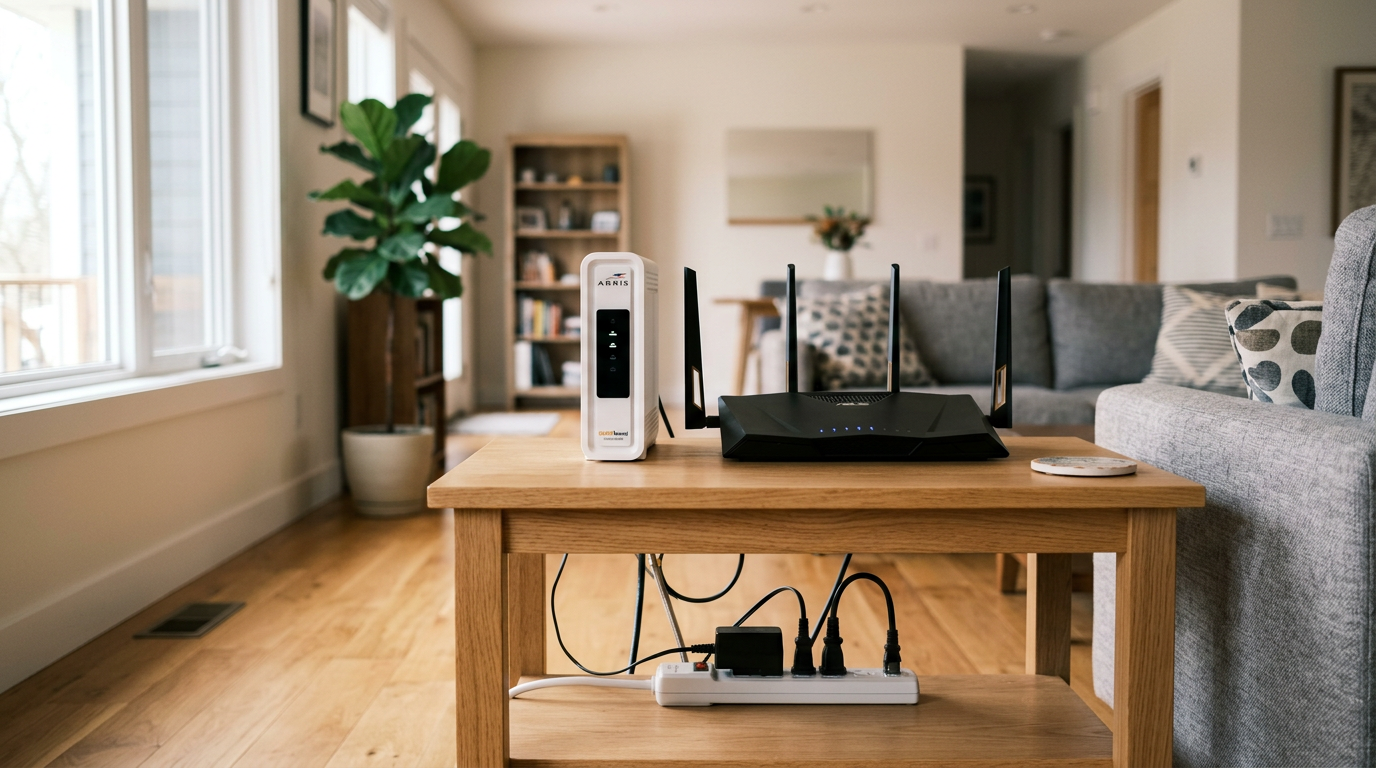
If the same device only fails in one room, signal is the likely problem. But if multiple devices have been getting flaky over days—calls drop, streams buffer, gaming spikes—do the boring reset before you change anything else: power-cycle the modem and router. Unplug both. Wait 30–60 seconds. Plug the modem in first, wait until it’s fully online, then plug the router in. If you rent ISP gear, also check the ISP app/account page for a firmware update or “refresh” option; updates often fix random instability.
Then make sure the Wi‑Fi can actually reach you. Routers work best out in the open, closer to the middle of where you use devices—not on the floor, not inside a cabinet, and not behind a TV. A practical friction: moving it may mean a longer modem cable, or the router ends up in an awkward spot. It’s still a free win. If things improve near the router but fall apart a room away, you’ve just confirmed the next problem to chase.
If it’s fast next to the router but laggy in the next room, this is the culprit
That “good by the router, bad one room over” pattern almost always means you’re losing signal strength fast, or your signal is getting absorbed on the way. Drywall is usually fine; dense stuff is not. Brick, tile, mirrors, metal ducting, a fridge, a fish tank, and even a big TV can knock Wi‑Fi down hard if they sit between you and the router.
You’ll feel it most in calls and gaming because once the signal gets weak, your device starts retransmitting packets and the delay jumps. The speed test might still look “okay,” but you get micro-stutters: voices clip, the video turns blocky, and the game rubber-bands. A common gotcha is a “one bar” device sticking to 5 GHz from the next room instead of using a stronger 2.4 GHz connection, so it keeps trying to push a fragile link.
The consequence is you can reboot forever and never fix physics. If you can’t move the router closer to that room, you’ll need to change how Wi‑Fi travels there—which starts with choosing the right band and cutting down nearby interference.
Free fix #3–4: switch to the right band and stop Wi‑Fi from fighting your neighbors
That “fragile link” is often just the wrong band for the distance. If you’re one room away (or going through brick, tile, a fridge, or ducting), 2.4 GHz usually holds on better, even if its top speed is lower. If you’re close to the router and want the cleanest, lowest-lag link for calls or gaming, 5 GHz is often smoother because it avoids a lot of household noise. The practical friction: many phones and laptops will stubbornly stick to a weak 5 GHz signal, so you have to force the choice.
Free fix #3: split your Wi‑Fi names. In the router settings, create separate SSIDs like “Home-2.4” and “Home-5” (or temporarily disable one band), then connect the problem device to the one that matches the room. Free fix #4: change the Wi‑Fi channel so you’re not sharing the same lane with neighbors. On 2.4 GHz, use 1, 6, or 11. On 5 GHz, try a different channel group and retest a call. If the room still stutters after a clean band/channel choice, it’s time to look at what else is chewing bandwidth.
Free fix #5: tame the bandwidth hogs so gaming and video calls stay smooth
“Chewing bandwidth” usually looks like this: your call is fine, then someone’s phone starts uploading photos, a laptop kicks off a cloud backup, or a console begins a game update—and your ping spikes. Downloads can cause it too, but uploads are the common surprise because many plans have much less upload speed than download. When the upload gets pinned at 100%, video calls and games start taking turns waiting.
Free fix #5: put the hogs on a leash. First, pause or schedule big uploads/downloads (cloud backup, OS updates, Steam/console updates) for overnight. Then log into your router and turn on QoS, “Smart Queue,” or “Traffic Prioritization,” and prioritize “video conferencing” or the device you use for calls/gaming. If your router lets you set a bandwidth limit per device, cap the backup laptop so it can’t take the whole upload lane.
QoS works best when you set your max speeds slightly below your real plan speed, which can make speed tests look worse while calls feel better. If none of this changes the stutter—even with everything paused—that’s when the line itself becomes the suspect.
What these free fixes won’t solve (and how to know it’s time to call your ISP)
When stutter still shows up with every other device paused, right next to the router, that’s when the “inside the house” fixes run out. If a wired speed test has wild ping spikes, random packet loss, or the upload drops to almost nothing at busy hours, you’re likely dealing with the modem, the coax/fiber line, or neighborhood congestion—not your Wi‑Fi settings.
Call your ISP when you can describe it clearly: “Wired test to the router shows unstable ping and low upload,” plus the exact times it happens. Ask them to check signal levels, errors, and line noise, and to replace the modem if it’s old or flaky. The friction is you may need to repeat tests while they watch, but that’s what gets truck rolls and fixes approved.
If the ISP line checks out, the last “not free” culprit is failing hardware: a router that overheats, drops clients, or can’t handle modern traffic. That’s the point where a better router or a simple mesh kit actually makes sense.