You found the HDMI port labeled “eARC”—so why doesn’t “best port” mean “best for everything”?
You’re behind the TV, you spot an HDMI port labeled “eARC,” and it’s tempting to treat it like the premium input. Then the soundbar goes quiet, the TV flips to the wrong input, or volume control gets flaky after you power everything back on.
That label doesn’t mean “best for any device.” It means “this is the one port meant to send audio back to a soundbar or receiver,” usually over the same connection that also carries HDMI-CEC control. If you plug a console or cable box into that port, you’re asking one HDMI jack to do two jobs, and handshakes get touchy. The simplest setup starts by reserving eARC for audio return, not sources.
When the soundbar suddenly goes silent (or flips inputs), the wiring question gets real
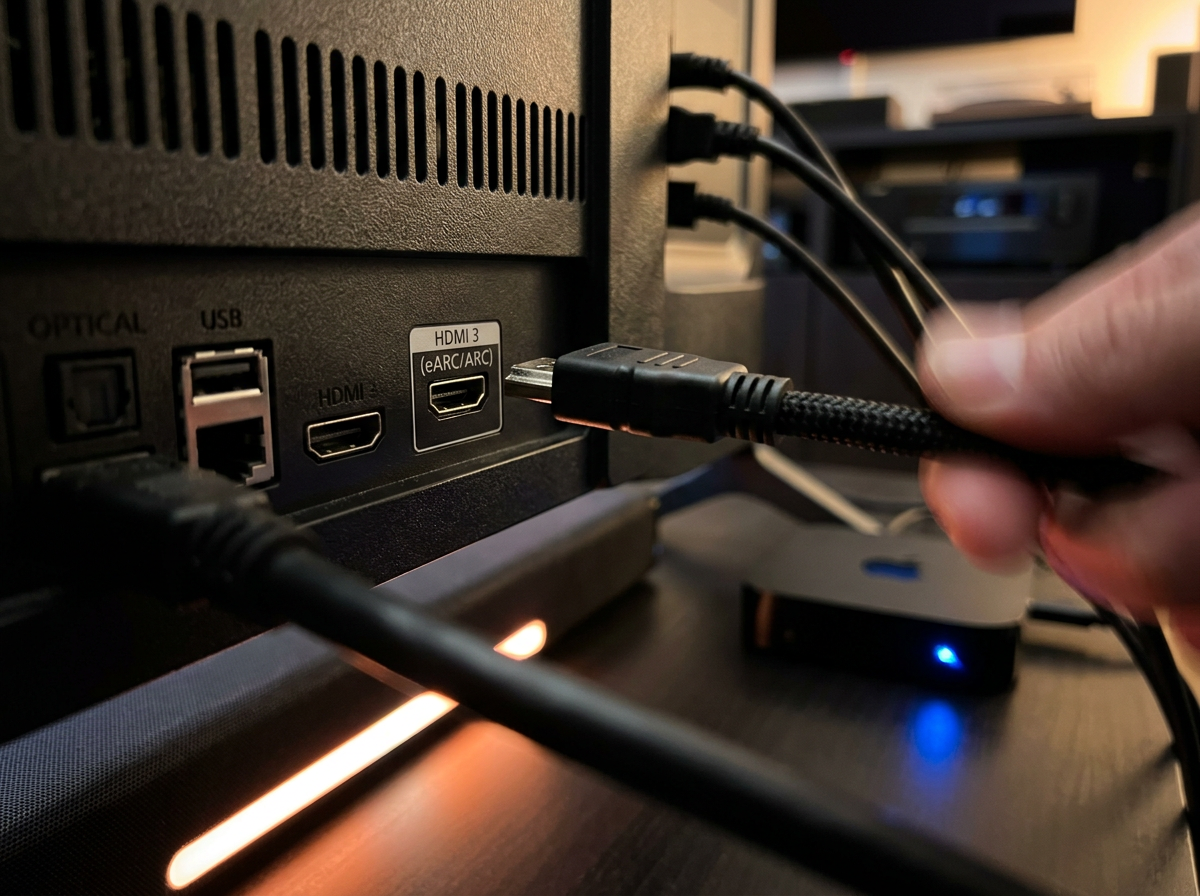
Reserving eARC sounds clean until you hit the moment that forces you to care: you turn everything on, and the soundbar is silent, or the TV jumps to a different HDMI input like it picked the “last thing that spoke” on the cable.
Most of the time, that’s HDMI-CEC and the HDMI handshake doing what they always do—just not in the order you expected. If a source device is on the eARC-labeled port, it can fight with the soundbar/receiver for control and timing. A console wakes up to check for updates and steals focus. A cable box decides it’s “active” and triggers an input switch. Then eARC audio return drops for a second, and the TV falls back to TV speakers or the wrong audio format.
One “smart” port can’t be your cleanest connection and your busiest input at the same time.
What the TV’s eARC port is actually for—and what it competes with
That “one smart port” is designed for a very specific job: carrying sound from the TV back out to your soundbar or AV receiver. That includes everything the TV itself plays (built-in streaming apps, over-the-air TV) and audio from any other HDMI inputs, all returning over that single cable.
To do that, the eARC port also leans on HDMI-CEC, because the TV and sound system have to agree on basics like power, volume, and which device is in charge. The competition shows up when you treat that jack like a normal input. A source device plugged there still tries to run its usual “I’m active” routine, while the TV is trying to keep the same port reserved for audio return. That’s when you see input flips, disappearing audio, or the TV quietly falling back to stereo because the negotiation restarted.
So the eARC port isn’t “best.” It’s “reserved,” and your sources need somewhere else to live.
Three devices that are most likely to misbehave on the eARC-labeled HDMI
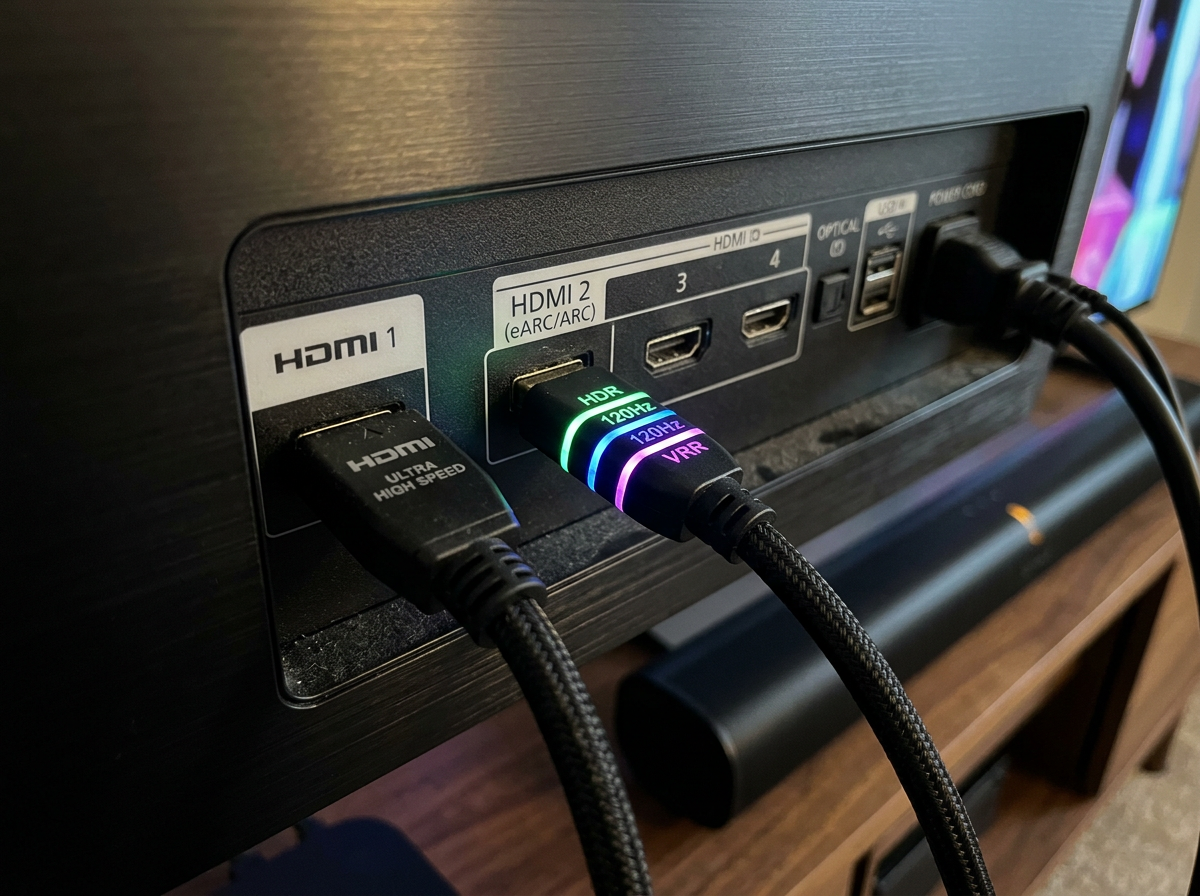
Once you treat that eARC jack like “reserved,” the pattern gets easier to spot: the devices that act up are the ones that love to wake themselves up, announce they’re active, or renegotiate video settings on the fly.
Game consoles are frequent offenders. They poll for updates, switch modes for HDR/120Hz/VRR, and can send CEC “power on” or “switch to me” messages at inconvenient times. That can be enough to interrupt audio return and make the TV fall back to its speakers for a moment.
Cable/satellite boxes are another. Many never really sleep. They’ll refresh the guide, record in the background, or re-handshake after a brief signal hiccup, and the TV may treat that as “new activity” and flip inputs.
Streaming sticks/boxes can also be noisy on CEC. Some wake when the TV wakes, then try to claim the screen immediately. The trade-off is convenience versus control: the more “auto” the source behaves, the less stable eARC tends to be when it shares that port.
So where should each one go instead, if you want the simplest, most reliable setup?
“Reserved” only helps if you actually give everything else a sane home. Start with one rule: the TV’s eARC HDMI goes only to the soundbar or AV receiver, and nothing else shares that port.
Then put your noisiest sources on the most “boring” regular HDMI inputs. Plug the game console into a standard HDMI input that supports its best video features (often the TV’s HDMI 2.1-labeled port), because it will re-handshake for 120Hz/VRR/HDR and you don’t want that traffic on eARC. Put the cable/satellite box on another regular HDMI and disable CEC on the box if it keeps stealing focus—losing “auto switching” is the trade-off for a stable system. Place the streaming stick/box on a regular HDMI too, and if it’s the worst offender, turn off its “one-touch play” CEC setting.
If your soundbar has HDMI inputs, only route sources through it when you’re short on ports or you need a format the TV won’t pass back reliably.
Running out of HDMI ports: the least-painful ways to expand without breaking eARC
If you’re out of HDMI ports, the temptation is to “borrow” the eARC jack for a source and hope it behaves. That usually works right up until the day a console wakes up, the cable box refreshes, and your audio return drops. Keep eARC reserved, then expand around it.
The least-painful option is using HDMI inputs on the soundbar or AV receiver, if you have them. Put the fussiest source there (often a console), and send one HDMI from the sound system to the TV’s eARC port. The trade-off is troubleshooting: when video flakes out, you now have one more link in the chain.
If you need more ports on the TV, use a simple HDMI switch on a regular HDMI input, not on eARC. Pick a switch with its own remote or button and keep CEC off on the switch if possible, because auto-switching is where things get weird. Then eARC stays boring—which is the goal.
A final sanity check before you close the cabinet: what “correct” looks like
Once eARC stays “boring,” you can do a quick pass before you push the TV back and lose access. With everything off, confirm the TV’s HDMI labeled eARC/ARC goes straight to the soundbar/receiver’s eARC/TV port, and that no source is plugged into the TV’s eARC jack.
Power on the TV first, then the sound system, then one source. You should get sound from the soundbar every time, and the TV shouldn’t jump inputs by itself. Check one real thing: a built-in TV app should still play through the soundbar, and switching to a console or cable box shouldn’t make audio fall back to TV speakers. If it does, turn off CEC “one-touch play” on the device that triggered it.