Windows 8.1 feels “fine”—so why change now?
If your Windows 8.1 PC still starts up, gets you to email, and prints a shipping label, it’s easy to leave it alone. The problem is what you don’t see: fewer security fixes, more websites and apps that quietly stop supporting older Windows versions, and hardware makers that stop publishing new drivers.
That can turn a normal day into a scramble. A browser update won’t install, your bank site nags you, or a new printer just won’t show up. Windows 8.1 support ended on January 10, 2023, so the safety net is already gone.
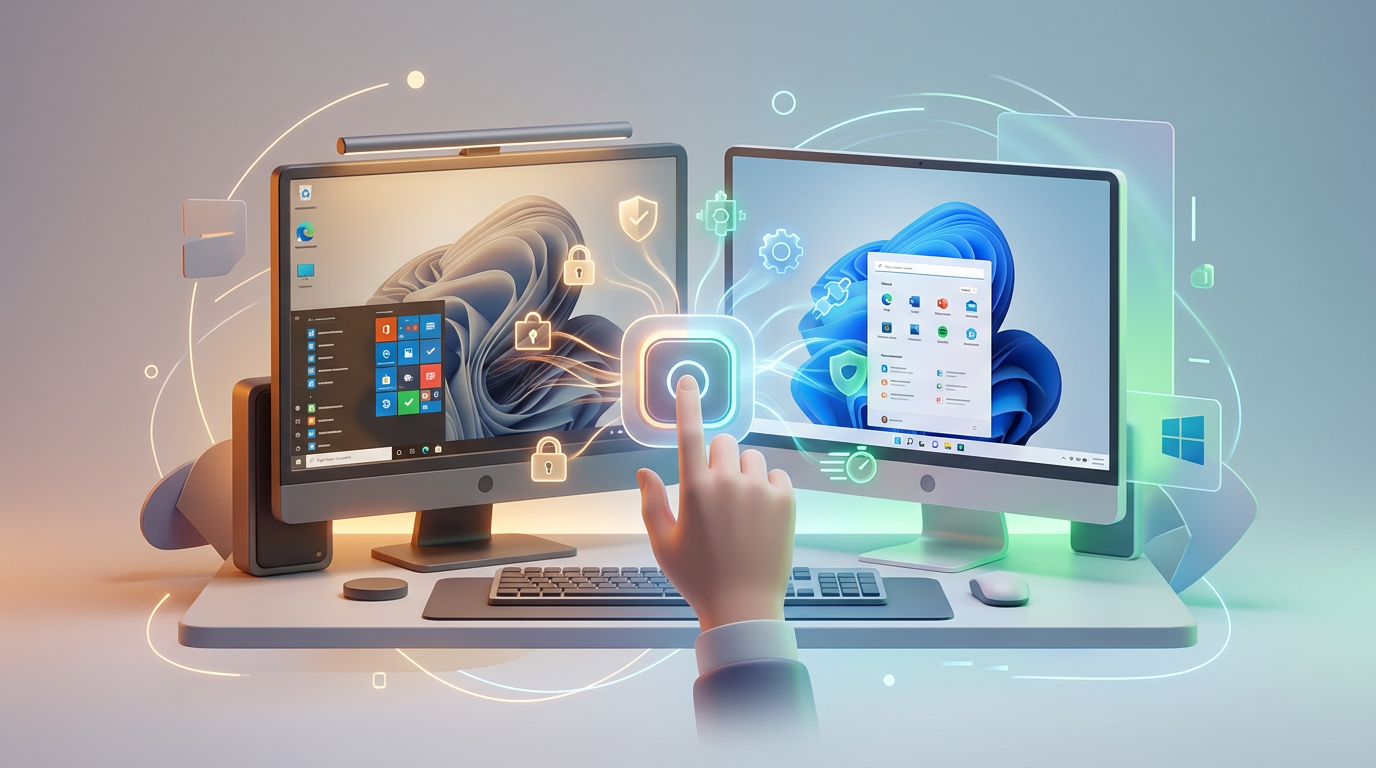
Now the real decision isn’t “upgrade or not.” It’s whether to upgrade this PC, try for Windows 11, or replace it.
Your first fork: upgrade this PC, try Windows 11, or replace it?
That fork usually shows up as a simple question: do you want the least disruption, the longest runway, or the cleanest break? If this PC already does what you need and you mostly want to stop the warnings and keep your apps, Windows 10 is often the calmest landing. It runs on a lot of older hardware, and the “upgrade and keep my files” path tends to work when the machine is in decent shape.
Windows 11 is different. It may run fast once installed, but it has stricter hardware rules, so older PCs often fail the check before you even start. If you’re hoping for Windows 11, plan on verifying compatibility early so you don’t waste a weekend.
Replacing the PC is the pricey option, but it can be the quickest way out if yours is slow, has a dying hard drive, or keeps dropping Wi‑Fi. The catch: you’ll spend more time moving programs, settings, and printers over—so choose it on purpose, not in a panic.
A quick compatibility reality check (without going down a rabbit hole)
Verifying compatibility early is what saves your weekend. Most people start by clicking around Windows Update and hoping the installer will “just tell them,” but a quick check upfront tells you whether you’re aiming for Windows 10, realistically trying Windows 11, or shopping for a replacement.
On Windows 8.1, start with the basics: press Windows key + Pause/Break to see your CPU and RAM, and check whether it says System type: 64-bit. Windows 10 strongly prefers 64-bit and at least 4GB RAM, and you’ll want far more free storage than you think—if you’re down to a few GB, upgrades fail in boring, time-wasting ways. For Windows 11, don’t guess: you’ll need TPM 2.0 and Secure Boot, and many older CPUs simply won’t qualify.
The practical snag is drivers. Before you commit, search your PC model on the maker’s site and confirm they list Windows 10 drivers for Wi‑Fi and your graphics—if they don’t, Windows 10 may still install, but you could lose network access right when you need it most. Next, you’ll protect your files like you expect something to go wrong.
Before you touch anything: the backup that prevents disaster
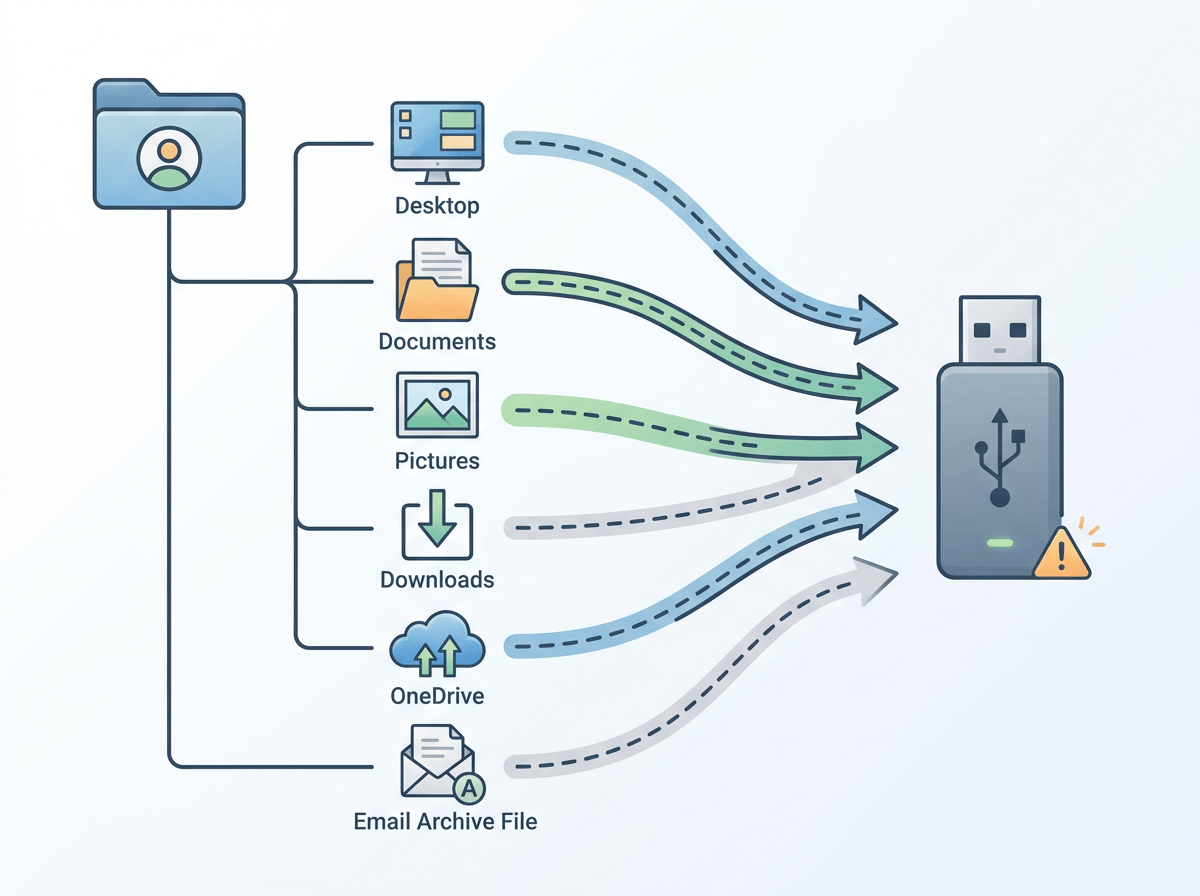
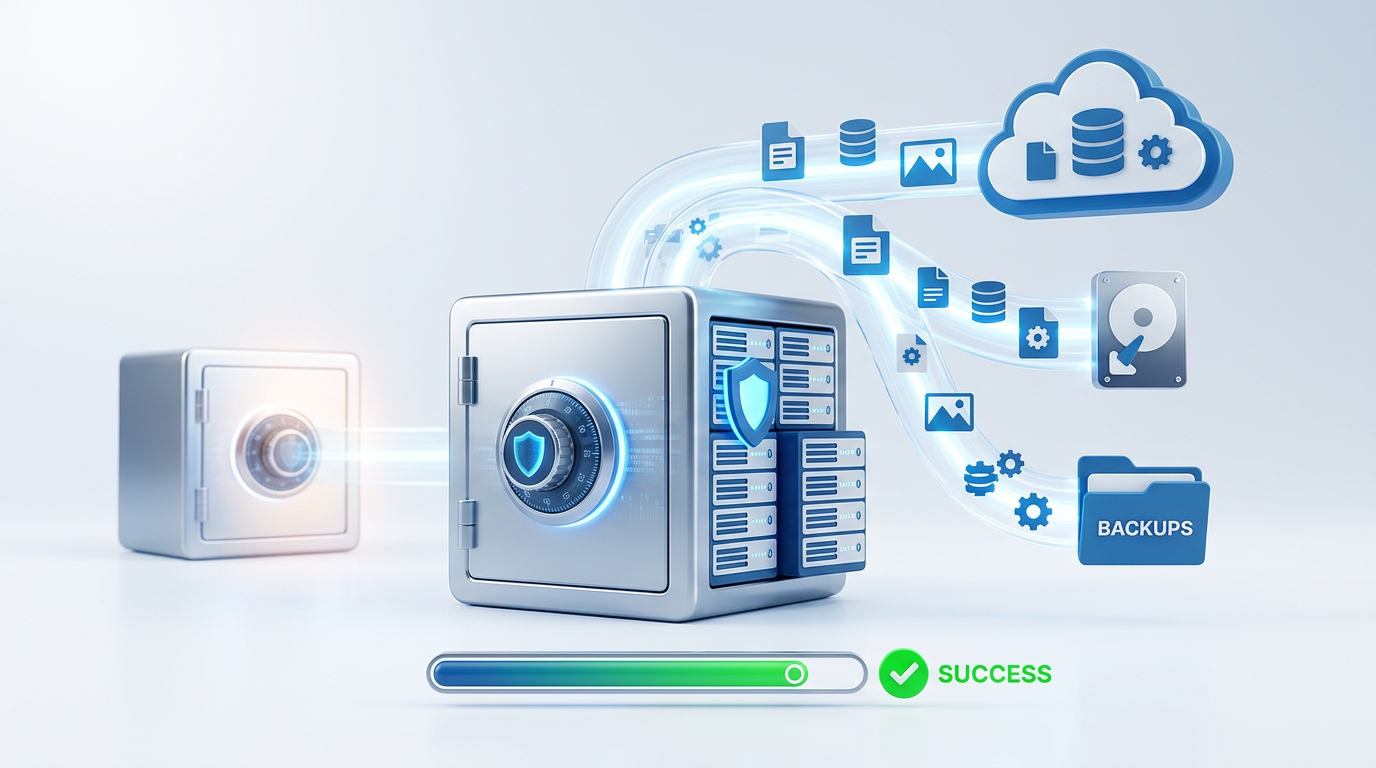
Protecting your files means assuming the upgrade can fail at the worst possible moment: halfway through, the PC won’t boot, or the sign-in screen appears and your desktop looks empty. The easiest way to stay calm is to make a backup you can plug into another computer and browse like a normal folder.
Use an external USB drive that has more free space than the data you care about (photos and videos add up fast). Copy your whole user folder: C:\Users\YourName, including Desktop, Documents, Pictures, Downloads, and anything you keep in OneDrive (make sure it’s actually synced). If you use Outlook, also grab your .pst file. Export browser bookmarks, and if you have a small-business app, find its data folder or export feature before you touch Windows.
Plan for a real-world snag: copying 200GB over an old USB drive can take hours, and a failing hard drive may error out mid-copy. If you see read errors, don’t “try again” for a day—move the most important folders first. With a backup done, you can think about whether Windows will ask you to pay again.
Licensing and cost: will Windows ask you to pay again?
That question—whether Windows will ask you to pay again—usually hits right after the backup finishes and you start picturing an “Activate Windows” watermark. On most home PCs that came with Windows preinstalled, activation is tied to the machine, not the hard drive. If you upgrade this same PC to Windows 10 using Microsoft’s installer, it typically activates automatically once you’re online, even if you do a clean install later.
The place people get surprised is when the PC didn’t come with Windows, or it was set up with a cheap key that was meant for one-time use. If activation fails, you’ll either need to sign in with the Microsoft account that holds the digital license, or you’ll be buying a new Windows license. Budget for that before you start, because it’s hard to troubleshoot licensing when you’re already stuck without Wi‑Fi.
To keep it simple, check your current activation status now, then choose your install style based on how much you trust this system.
Choose your upgrade style: “keep my files” vs a clean install
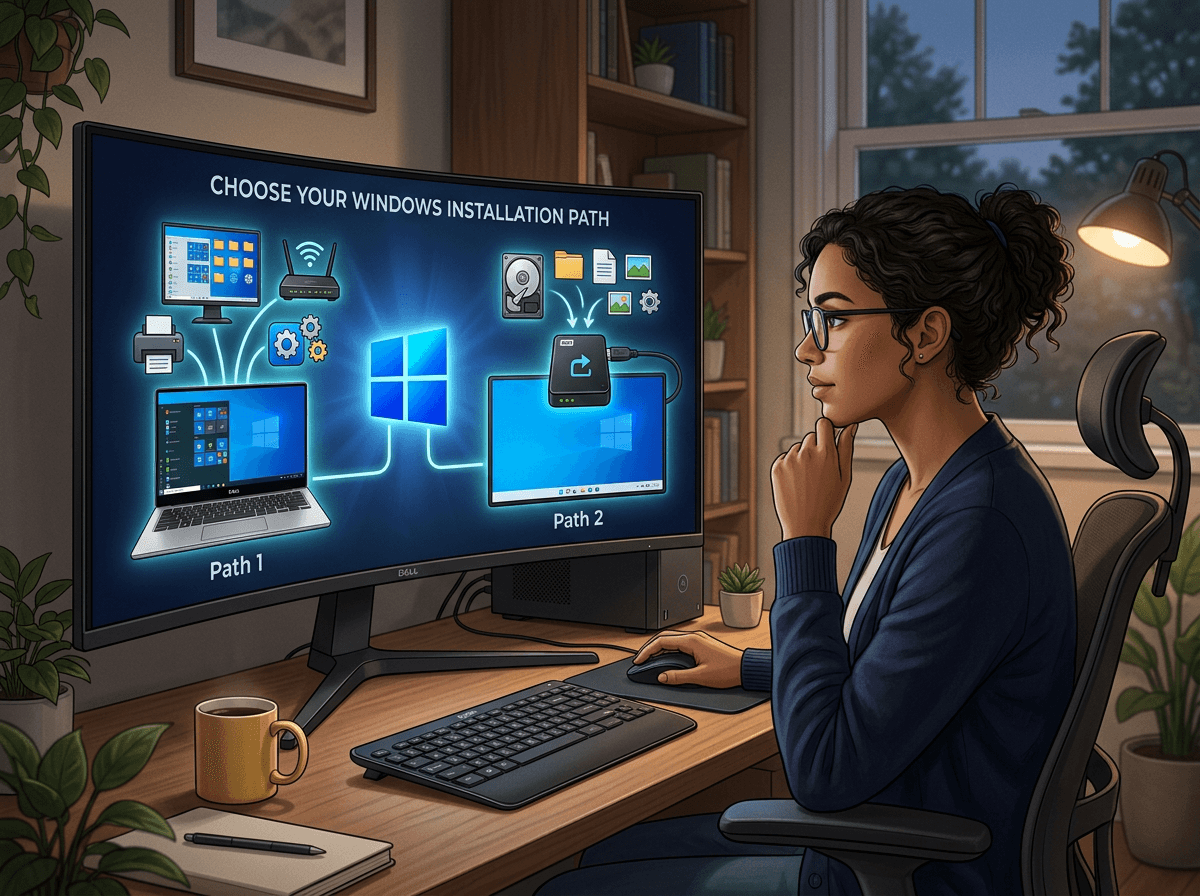
How much you trust this system is the deciding factor. If the PC boots reliably, you don’t see constant crashes, and you mainly want a safer Windows without rebuilding everything, choose the upgrade option that keeps your files and apps. It’s usually the fastest path to “back to work,” and it preserves things people forget about until they’re gone—printer installs, saved Wi‑Fi networks, and app settings.
If the machine feels “haunted” (slow logins, random errors, mystery toolbars, years of half-uninstalled programs), a clean install is often the calmer choice long-term. You install Windows fresh, then copy your files back from the backup. The real cost is time: you’ll need installers and sign-ins for your apps, and you may discover you can’t reinstall an old program because you can’t find the license key or download anymore.
Whichever route you pick, plan on at least one driver surprise on upgrade day.
Upgrade day: common snags (Wi‑Fi, printers, drivers) and the calm way through
That “one driver surprise” usually shows up right when you need the internet. After the first reboot, Wi‑Fi may be missing, stuck on airplane mode, or only “Ethernet” appears. If you can, plug in a network cable or use your phone’s USB tethering so Windows Update can pull the right drivers. If you can’t get online at all, use another computer to download the Wi‑Fi driver for your exact PC model onto a USB stick, then install it manually.
Printers are the next common stumble. A printer that worked yesterday may show “Offline” or vanish, especially with older USB models. Start simple: power-cycle the printer, try a different USB port, then remove the printer in Windows and add it again. If it’s a business label printer or scanner, go straight to the manufacturer’s Windows 10/11 driver package—Windows’ generic driver often prints, but skips special features.
Graphics and sound issues usually mean you’re on a basic driver. If the screen is blurry or you can’t change resolution, install the chipset/graphics driver from the PC maker first, then the GPU vendor if needed. Expect this to take a couple of restarts and some waiting; don’t stack five driver installs at once. Once things feel stable, you’re not done—you’ll spend the next 30 minutes locking in the “safe” state.
What success looks like—and your next 30 minutes to stay safe
That “safe” state looks boring: you can sign in, Wi‑Fi works, Device Manager has no obvious yellow warnings, and your files are where you expect. Before you declare victory, run Windows Update until it says you’re up to date, then reboot once more. Open your browser, sign into email and banking, and print a test page—small checks catch big problems early.
Then spend 30 minutes reducing rollback pain. Turn on BitLocker (or at least set a strong password), confirm your backup drive still opens on another PC, and create a restore point. The annoying part: updates and driver installs can take longer than your patience, especially on older hard drives. Let it finish. Tomorrow-you will thank you.