You want to game on a Chromebook—what “counts” as possible here?
You open a Chromebook, search your favorite game, and the answers don’t line up: “Just use Steam,” “Download the Android app,” “Play it in the browser,” or “Stream it.” The confusion is real because “can a Chromebook game?” depends less on the name of the laptop and more on which route you’re using.
In practice, you have four lanes: browser games (fastest, usually the least demanding), Android games (sometimes smooth, sometimes awkward with keyboard/mouse), cloud gaming (runs big games but needs steady internet), and Linux/Steam (can work, but setup and performance vary a lot). The downside is that the “best” option can flip based on one detail—your chip, RAM, or Wi‑Fi.
Before you install anything, a quick check can tell you which lanes are actually open on your specific Chromebook.
Before you install anything: a 2‑minute check that saves an hour of frustration
That quick check starts with what you already have in front of you: your exact Chromebook model and a few settings screens. Open Settings → About ChromeOS and confirm you’re up to date. Then check Settings → Apps: if you see Google Play Store, Android games are at least on the table. If you see Linux development environment, the Linux/Steam lane might be open too.
Now do the two numbers that decide whether installs feel fine or painful: RAM and storage. In Settings → Device → Storage management, make sure you have room (a big Android game can eat several GB; Linux plus a single Steam game can take much more). For RAM, look up your model’s specs (or the box/receipt). If you’re on 4GB, expect more stutter and fewer tabs while gaming; 8GB+ is simply easier to live with.
Last: internet reality. Run a quick speed test on your usual Wi‑Fi spot. If it’s unstable, cloud gaming will “work” and still feel bad. With those answers, picking a lane stops being guesswork.
If you just want to click and play, are browser games enough?
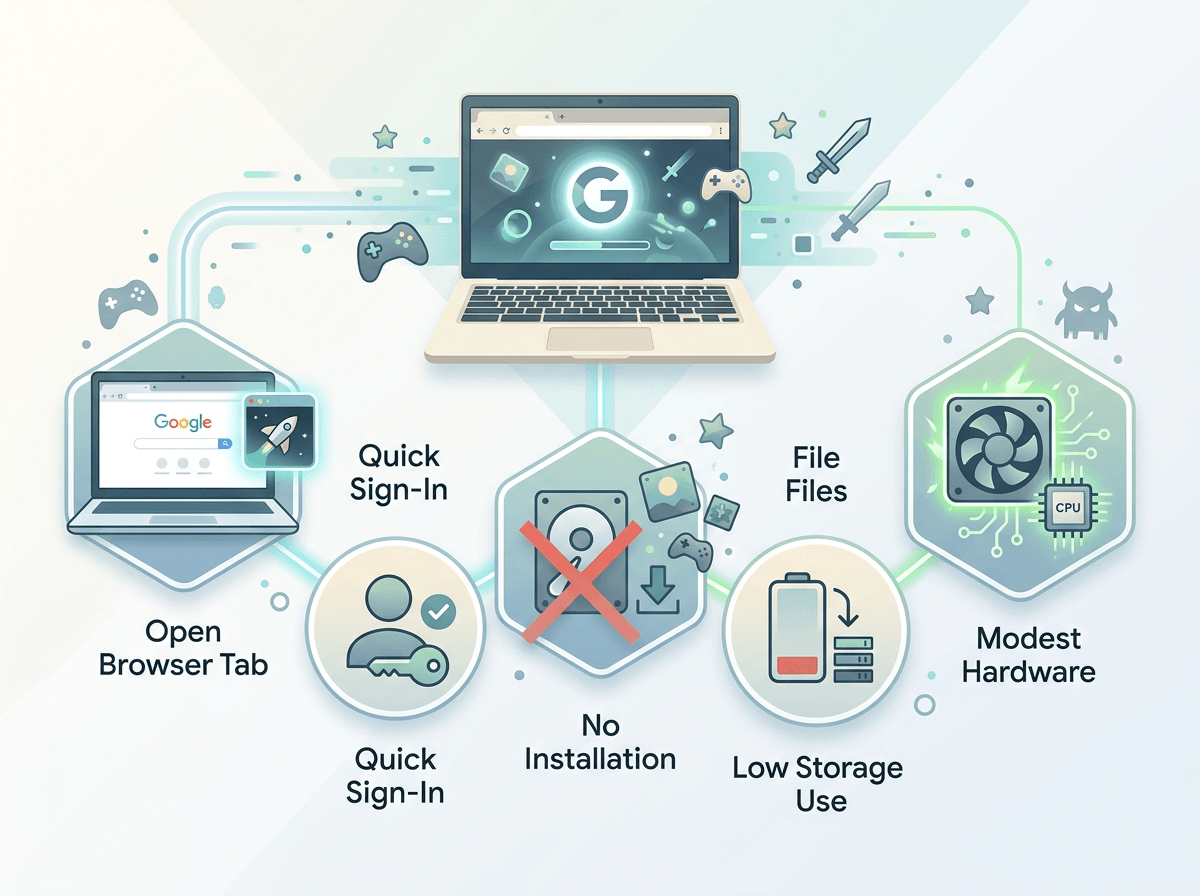
Once picking a lane stops being guesswork, the browser lane is usually the quickest win. You open a tab, sign in, and you’re playing—no installs, no storage math, no wondering whether Linux support is half-finished on your model.
Browser games are “enough” if what you want is instant, casual, and forgiving: puzzle games, card games, many .io titles, and plenty of indie-style games that run fine on modest hardware. They also fit real Chromebook life. If you’re on 4GB of RAM, closing extra tabs and extensions can be the difference between smooth and choppy.
The hard limit is what a browser can’t fake: heavy 3D graphics, big open worlds, and anything that expects a gaming-class GPU. Controls can be another snag—some web games feel great on a trackpad, others punish you for not having a mouse. When that’s the ceiling, Android is the next “simple” option to test.
When Android games work great—and when they feel broken
That “simple” Android option usually starts well: you install from the Play Store, it opens fast, and performance can be surprisingly smooth for popular mobile titles. If the game was built around touch and doesn’t demand perfect timing, a Chromebook can feel like a bigger-screen phone. This is where casual hits and many strategy or turn-based games tend to behave.
The problems show up when a game expects a certain kind of input. Some Android games map keyboard and mouse cleanly, but many don’t—right-click does nothing, the camera won’t drag, or menus assume taps and swipes. Even when it runs, the controls can feel “off” in a way you can’t fix with settings. Another common headache is storage: a few big Android installs can quietly fill a 64GB Chromebook and slow everything down.
If an Android game loads but feels wrong to play, that’s usually your cue to stop fighting it and consider streaming the same kind of game through cloud gaming instead.
Cloud gaming: the ‘my Chromebook is weak but I want AAA’ moment
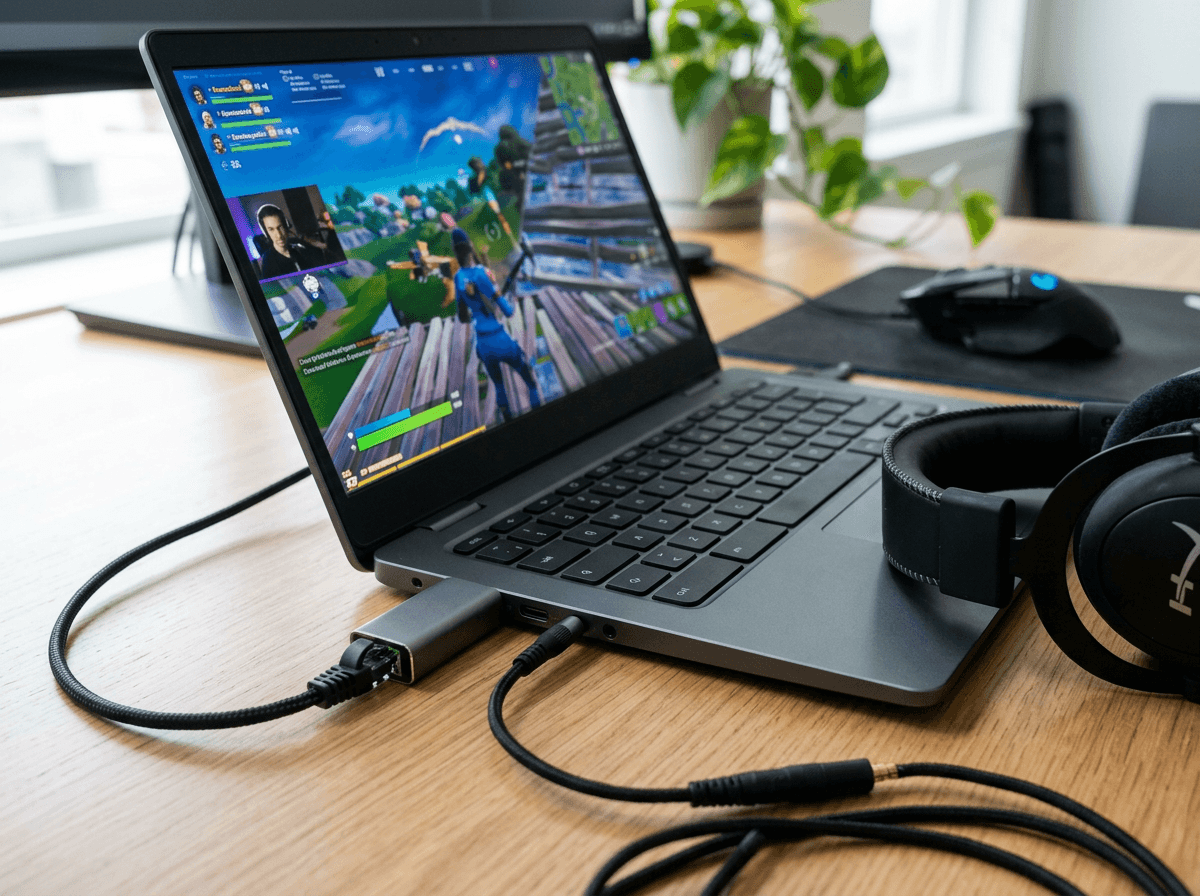
That “stop fighting it” moment is where cloud gaming makes sense: the game runs on a remote gaming PC, and your Chromebook is basically handling video and input. So even a modest Chromebook can play big titles, as long as your connection behaves. In real life, this looks like opening a web app, logging in, and jumping into the same kinds of games that would never install locally—large shooters, open-world games, and newer releases.
The make-or-break detail isn’t top speed; it’s stability. If your Wi‑Fi drops for two seconds during a match, you’ll feel it as a hitch or a sudden blur. If your home has lots of devices, you may need to play closer to the router, switch to 5GHz, or plug in Ethernet (many Chromebooks need a USB-C adapter). Headphones help too, because Bluetooth audio lag can stack on top of streaming delay.
Cloud gaming also comes with ongoing costs: a subscription, and sometimes you still need to own the game. If that’s fine, the next question is whether you want “no setup” streaming—or you’re ready to gamble on Linux and Steam.
Trying Linux/Steam on a Chromebook without getting stuck in setup hell
That “ready to gamble” feeling usually starts the same way: you enable Linux, install Steam, hit Install on a game you already own—and then it crawls, errors, or launches to a black window. Linux on ChromeOS can work well, but only when your Chromebook’s basics line up: enough storage, enough RAM, and the right kind of processor.
Before you sink time into tweaks, check two deal-breakers. If your Chromebook uses an ARM chip, many Steam games won’t run at all (they’re built for x86). And if you’re on 4GB of RAM or very tight storage, Linux installs and updates can feel slow even when nothing is “wrong.” Give Linux room to breathe: keep at least 15–20GB free if you want more than one game, and expect big downloads to take longer than on Windows.
When you do try Steam, start small on purpose. Pick an older 2D indie or a lightweight title, then see if it launches cleanly before you touch “compatibility” settings. If that test game fights you, it’s a sign to switch back to cloud for AAA—and save Linux for the few games it runs smoothly.
Pick your path and get a game running today (plus the 5 pitfalls to avoid)
If that small Steam test game fought you, treat it like a signal, not a challenge. Pick the lane that gets you playing fastest: web if you want instant and light, Android if the game feels good with keyboard/mouse, cloud if you want big titles and your Wi‑Fi stays steady, Linux/Steam if you have x86, 8GB+ RAM, and space to spare.
Do this today: choose one game, then commit to one lane for 20 minutes. Avoid five common pitfalls: installing before checking Play Store/Linux support, filling storage until updates stall, trying Linux on ARM for x86-only games, testing cloud gaming on shaky school Wi‑Fi, and leaving a dozen tabs/extensions open while you play.