Want to keep one Drive file truly private (and not just “Drive-private”)?
You drop a tax PDF or a client contract into Google Drive, set it to “Restricted,” and feel done. Then a teammate gets added to the folder, your account gets phished, or you realize an admin at work can reset access. Suddenly “private in Drive” means “private unless the wrong person gets Drive access.”
If you want one file to stay unreadable without your password or key, you need to lock the contents before Drive ever sees them. That’s the part most people skip because it sounds like it will break previews, search, and opening the file on a phone.
The good news: you can do this without turning your whole setup upside down—once you’re clear on what you’re actually protecting against.
“Doesn’t Google Drive already encrypt everything?” (Yes—and why that still isn’t what you mean)
That “protecting against” question is where people say, “Doesn’t Google Drive already encrypt everything?” Yes. Drive encrypts data in transit and at rest, which means a random person sniffing Wi‑Fi or stealing a hard drive in a data center shouldn’t get readable files.
But that isn’t the same as you being the only one who can unlock the document. In normal Drive use, Google can still serve the file to whoever successfully signs in as you (including someone who phished your password), to an admin with the right controls, or to anyone you accidentally share it with. Drive also needs access to show previews, index text for search, and convert formats—so the “key” that makes those features work exists on Google’s side.
If your goal is “unreadable unless someone has my password/key,” you’re talking about encrypting the file before upload, then deciding whether you’re storing it solo or expecting others to open it.
Before choosing a tool, name the one thing you’re protecting against
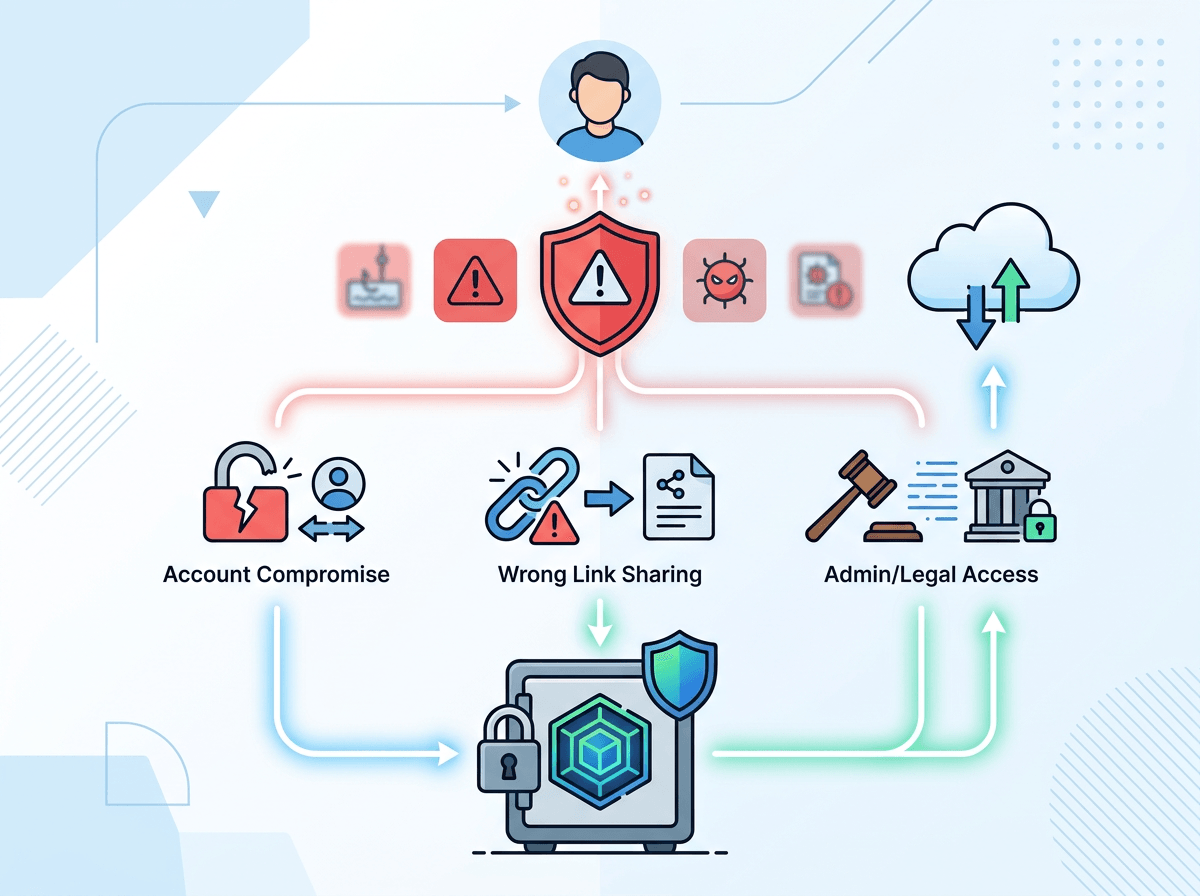
That “solo vs. others need to open it” choice usually shows up as a tool question, but it’s really a threat question. If the main risk is “someone gets into my Google account,” you need encryption that stays locked even after a successful sign-in. If the risk is “I shared the wrong link,” you need something that stays unreadable even when the file is downloadable. If the risk is “a workspace admin or a legal request,” you’re in the same bucket: the contents have to be locked before Drive stores them.
Pick one primary worry, not five. Otherwise you’ll choose a setup you won’t use. For example, if you mostly fear phishing, a strong local-encryption workflow plus better sign-in security solves a lot. If you mostly fear accidental sharing, you’ll want a separate encrypted copy you never share directly.
The catch: the more you lock down, the more you lose Drive conveniences like preview, search, and “open on my phone.” The next step is choosing what pain you can live with.
If it’s just you: the easiest way to make a file unreadable in Drive
That “pain” usually looks like this: you click the file in Drive and nothing previews, nothing searches, and your phone can’t open it in one tap. If it’s just you who needs access, that’s acceptable—and it buys you the simplest kind of end-to-end control.
The easiest workflow is to encrypt locally, then upload the encrypted wrapper. For a single document, a password-protected archive is often enough: use 7‑Zip (Windows), Keka (macOS), or a similar tool to create an AES‑encrypted .7z/.zip around the file, then store that archive in Drive. When you need it, download the archive, decrypt locally, edit, then re-encrypt and re-upload. If you want fewer “decrypt/re-encrypt” steps, use an encrypted container (like VeraCrypt) and keep the file inside it, but that’s more setup.
The real snag is password handling. If you forget it, the file is gone. And if you store it in the same Drive, you didn’t really fix the problem. Once someone else needs to open it, the “just encrypt it” approach gets complicated fast.
Sharing it changes everything: can you collaborate without giving up end-to-end control?
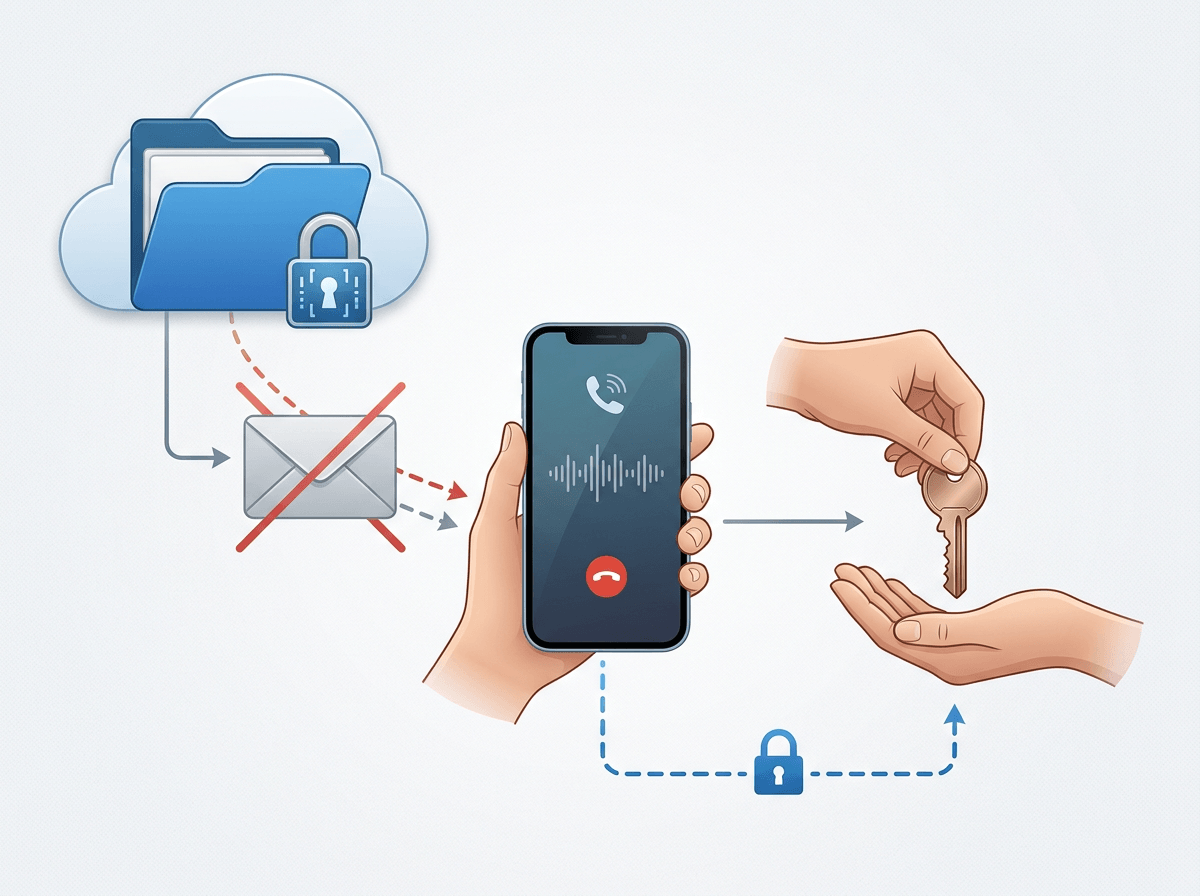
Once someone else needs to open it, the problem stops being “how do I encrypt?” and becomes “how do we share the key without leaking it?” The moment you email a password in the same thread as the Drive link, or drop it in a shared chat, you’ve rebuilt the same weak point you were trying to avoid.
If you only need “they can read it,” keep the file encrypted, share the encrypted archive in Drive, and send the password out-of-band (a phone call, an in-person handoff, or a one-time secret link). It works, but collaboration is clunky: nobody can preview, comment, or edit in Google Docs, and every revision means decrypting, editing, and re-encrypting.
If you truly need “we can work on it,” you either accept losing native Drive collaboration, or you move the editing somewhere that supports end-to-end keys. A common compromise is a shared encrypted vault (for example, a Cryptomator-style folder synced through Drive) where people exchange keys once, then drop files in. Real-world snag: conflicts and “can’t open it on my phone” issues show up fast if the team isn’t disciplined about how they edit and where they store the key.
Where people usually mess up: password storage, key exchange, and “I can’t open it on my phone”
That “can’t open it on my phone” moment usually happens right after you did everything “right”: you uploaded an encrypted archive or a vault folder, then tried to grab it in the Drive app. Drive can store it, but it can’t decrypt it, preview it, or hand it to the right tool without extra steps. If you don’t already have a compatible app installed (and the file set to open with it), you end up stuck at the worst time—airport, client call, or deadline.
The other two common failures are boring and brutal. People save the password in the same Drive (“Passwords.txt” next to the archive) or in the same Google account’s password manager, which doesn’t help if the account is what got compromised. And for sharing, they send the key in the same email or chat as the Drive link, so whoever sees one will likely see the other.
Even when you do key exchange well, expect friction: lost devices, changed phones, and “which version did you decrypt and edit?” If you want this to be repeatable, you need a simple checklist you’ll actually follow.
Your one-file encryption checklist (so you’ll actually do it next time)
If you want this to be repeatable, treat it like a pre-flight check you run every time you upload that one sensitive file.
Pick the scenario: solo storage (encrypted archive/container) or shared access (encrypted file plus out-of-band key exchange, or a shared vault). Encrypt locally first, then upload only the encrypted wrapper. Name the file clearly (date + “ENCRYPTED”) so you don’t open the wrong copy. Store the password/key in a password manager that’s not tied to the same Google sign-in you’re trying to protect against. Test on your phone once, at home, before you need it.
When sharing, send the file link and the key via different channels, and agree on who re-encrypts after edits. Expect no previews, no search, and extra steps—plan for that.