I loved my iPad—until I tried to read for an hour
I bought my iPad thinking it would replace every “single-purpose” device in my bag. For quick articles and short chapters, it felt perfect—fast, sharp, and always there.
Then I tried to read for an hour. My eyes started working harder than the story deserved: the screen stayed a little too bright, reflections kept pulling my focus, and the text felt less steady than paper. Even when I silenced notifications, I still caught myself checking messages because the iPad makes that one swipe away. The upside is flexibility; the cost is that it takes effort to stay comfortable and locked in.
Before you buy (or keep) a Kindle, it helps to name what’s actually bothering you.
What exactly is bothering your eyes: glare, brightness, or the way text moves?
That “something is off” feeling usually shows up the same way: you keep shifting the iPad, squinting a little, or rereading lines you normally glide through. The fix depends on which of three problems is doing the damage.
If your eyes feel fine until you tilt the screen and suddenly see a window, you’re fighting glare. It’s not about the text at all—it’s the reflections stealing contrast. If your eyes feel cooked even in a dim room, it’s brightness (and often white backgrounds) pushing more light than you need. The giveaway is you keep lowering the slider but the page still feels like it’s “on.”
If you can’t settle into the flow—letters look too sharp, scrolling feels jittery, or you lose your place when the page moves—that’s motion and rendering. This is where iPad reading can feel less “paper-steady,” and it’s the one people misdiagnose as brightness. Once you can name your culprit, you can tune the right settings instead of chasing all of them.
Screen tweaks that got me 80% of the way to an e‑reader feel
Once you can name your culprit, you can stop guessing and make the iPad behave more like a page. For glare, I set brightness lower than I think I can tolerate, then turn on Auto-Brightness so it doesn’t jump around when a cloud passes. If reflections are the real issue, the “fix” is often angle: rotate the iPad a few degrees and the window disappears.
For brightness and harsh white backgrounds, I lean on three knobs: Dark Mode in the reading app, True Tone (so the screen matches the room), and Night Shift in the evening. If the page still feels too “on,” I use Reduce White Point and map it to Accessibility Shortcut so it takes three clicks to toggle.
For the “text won’t sit still” problem, I avoid scrolling and switch to page turns, then bump the font size one step bigger than my pride wants. The trade-off is you’ll turn pages more often, but your eyes stop doing tiny corrections all night.
When notifications win: building a reading-only iPad mode
That “three-click” shortcut is great until a banner pops up mid-paragraph and your thumb does what it always does: swipe, reply, wander. The iPad isn’t trying to distract you, but it keeps the exits close. If you want it to feel like a Kindle, you have to make leaving slightly annoying.
I set up a reading-only mode with Focus. Create a “Reading” Focus, allow only your reading app, and silence everything else (including badges). Then put the Focus toggle in Control Center so it’s a one-swipe habit. The friction: if you’re expecting a time-sensitive message, you’ll miss it. That’s the point—so use it for planned sessions, not “I’m half-available” reading.
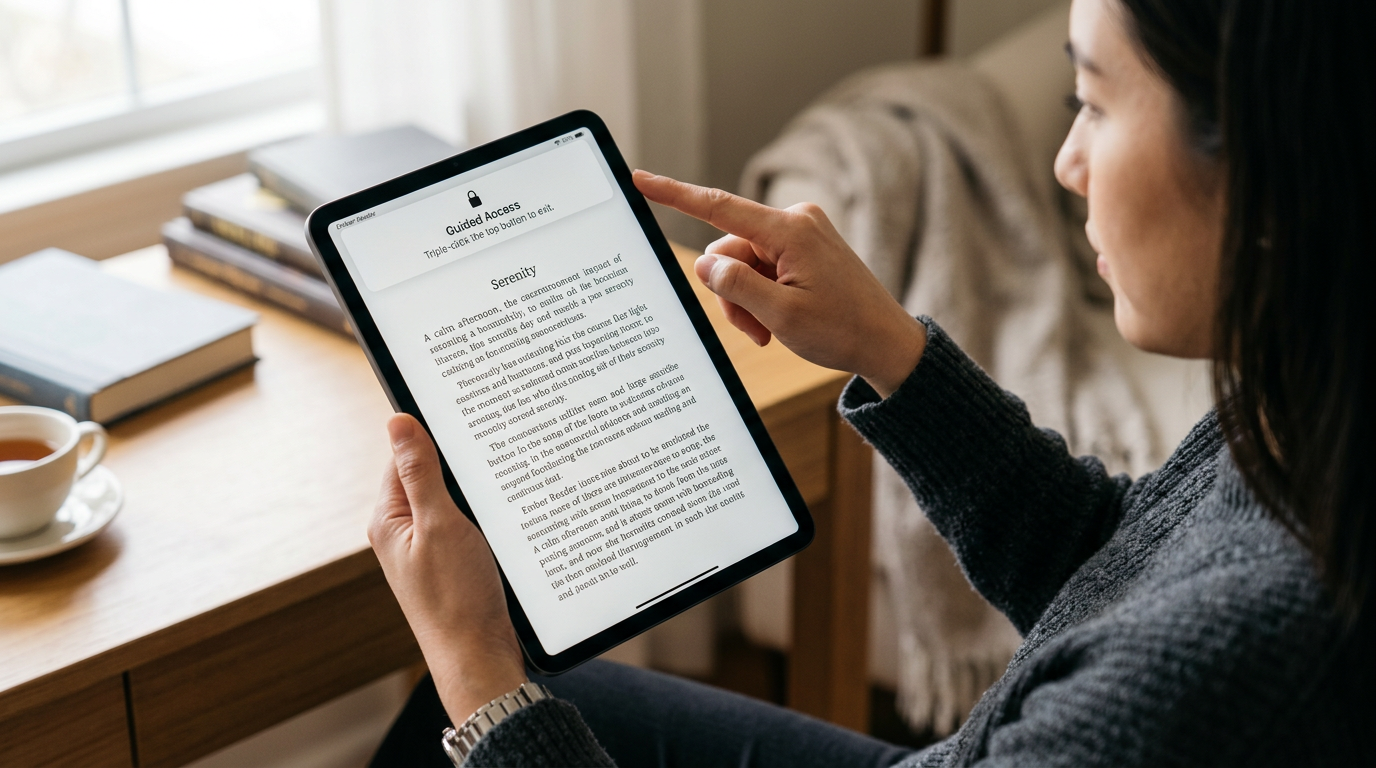
For the strongest guardrails, use Guided Access. Turn it on in Accessibility, start it inside your reading app, and triple-click the side/top button to lock the iPad to that app. You can still adjust brightness, but you can’t casually hop to Mail. That small barrier is what makes an hour feel normal again, and it sets you up to pick a reading app that doesn’t fight you.
Picking a reading app you won’t fight with halfway through a chapter
That “small barrier” only works if the reading app itself doesn’t tempt you to fiddle. If you’re hunting for the brightness control inside the app, or a tap brings up a noisy menu, you’ll break your own rhythm. The best reading apps get out of the way: one-tap page turns, a clean full-screen mode, and settings you can change once and forget.
I look for four basics. First: true page turns (not forced scrolling) and a fast, predictable tap zone. Second: tight control over the page—font, margins, line spacing, and a warm background option—because “almost comfortable” usually means the lines feel cramped or too stark. Third: a stable highlight and notes system that doesn’t cover half the page when you touch a word. Fourth: lock-screen behavior that’s friendly to Focus and Guided Access, so the app doesn’t nag you with store banners or “streak” popups.
The more features an app adds, the more it tends to pull you into menus. Once you’ve picked one that stays quiet, you can solve the next problem—holding the iPad like a book for an hour.
Reading comfort is physical: the stand, the grip, and the lighting problem
Holding the iPad like a book usually feels fine—until your wrists start negotiating and you realize you’ve been pinching the edge to keep it from sliding. A simple stand fixes more than posture: it stops the micro-tilts that bring glare back, and it keeps the screen at a steady distance so your eyes aren’t constantly refocusing. The trade-off is you lose that “curl up anywhere” freedom unless you pick a stand that works in your lap, not just on a desk.
Grip matters just as much. A case with a hand strap or a grippy back lets you relax your fingers instead of clamping down for an hour. If you read in bed, a lightweight case beats a “tough” one; extra protection often means extra weight, and weight is what makes you shift every few pages.
Then there’s the lighting problem: most people blame the screen when it’s really the room. If an overhead light reflects, you’ll keep chasing angles. A small reading lamp placed to the side (not behind you) cuts reflections and lets you run the iPad dimmer, which is where it starts to feel less like a device and more like a page. Once the setup disappears, you’ll notice whether you still miss the Kindle—or if the iPad finally holds the line.
The moment I stopped missing my Kindle (and the times I still would)
Once the setup disappeared, I stopped thinking “iPad” and started thinking “book.” That happened the first week I could sit down, flip pages in full-screen, and finish a 45–60 minute session without nudging brightness or shifting to dodge a reflection. Guided Access did more than I expected: knowing I couldn’t casually jump out made my brain stop scanning for exits. The trade-off is you’ll feel a little boxed in—if you like looking up names, sending quotes, or bouncing between a novel and a note app, you’ll either disable the lock or accept more interruptions.
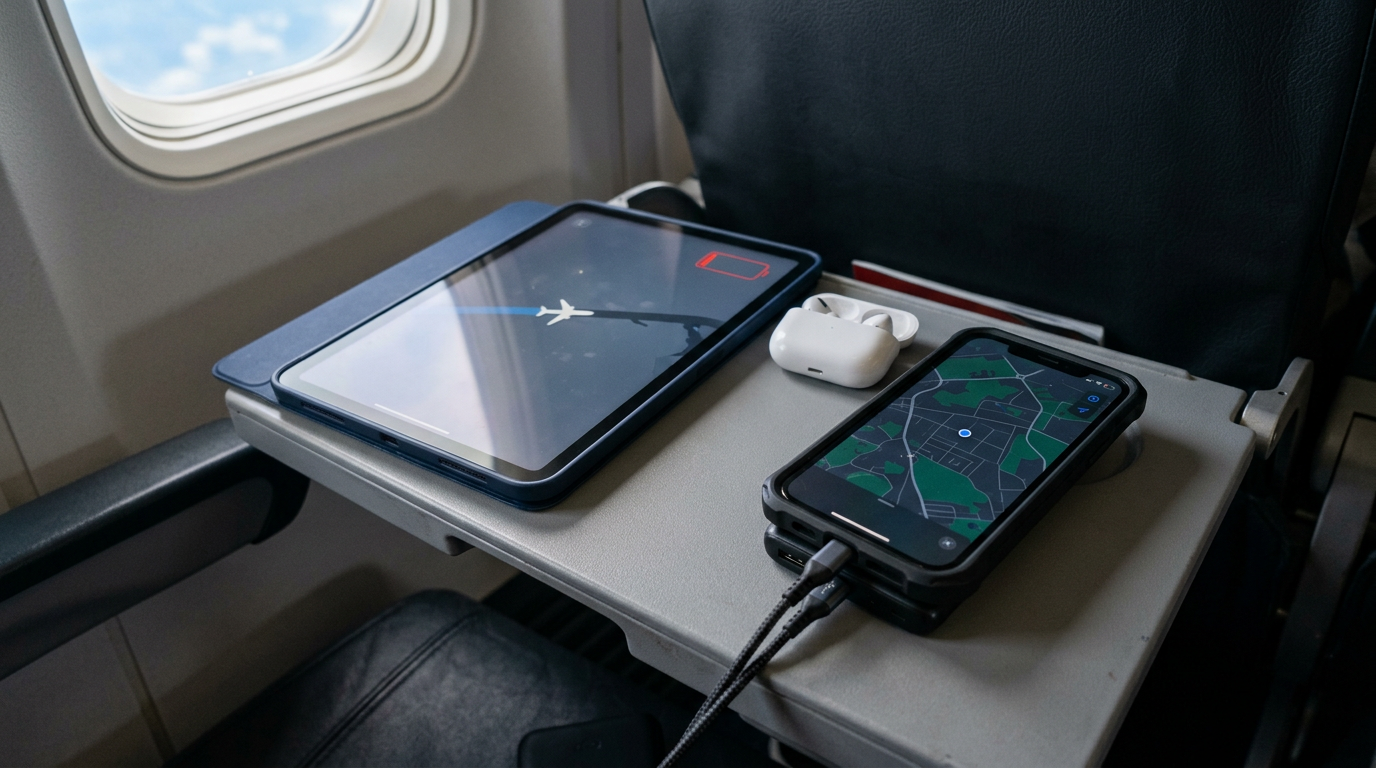
I still miss the Kindle in a few specific situations. Outdoors or near big windows, e-ink is simply easier to aim and easier to keep readable without cranking light. Late at night with a partner sleeping, the iPad can get dim, but it’s still a lit panel; an e-reader stays calmer in the room. And on travel days, the iPad battery has more jobs to do, so “I’ll read for hours” competes with maps, boarding passes, and streaming. If those are your normal reading conditions, that’s where the Kindle still wins—and it sets up the only question that matters before you spend again.
Your ‘good enough’ checklist before you spend another dollar
That “only question that matters” comes down to whether your iPad can pass a few repeatable tests. Can you read 45–60 minutes with brightness set once, no squinting, no constant tilting, and no urge to tweak fonts mid-chapter? Can you start a Reading Focus in one swipe and trust that nothing will pop up, including badges?
Then check the frictions you’ll actually live with. If you need Guided Access every time just to stay on the page, that’s a sign the iPad is still doing too much for your habits. If you mostly read near windows, outdoors, late in a dark room, or on travel days when battery matters, that’s where a Kindle still earns its space. If not, stop shopping and make your current setup the default.