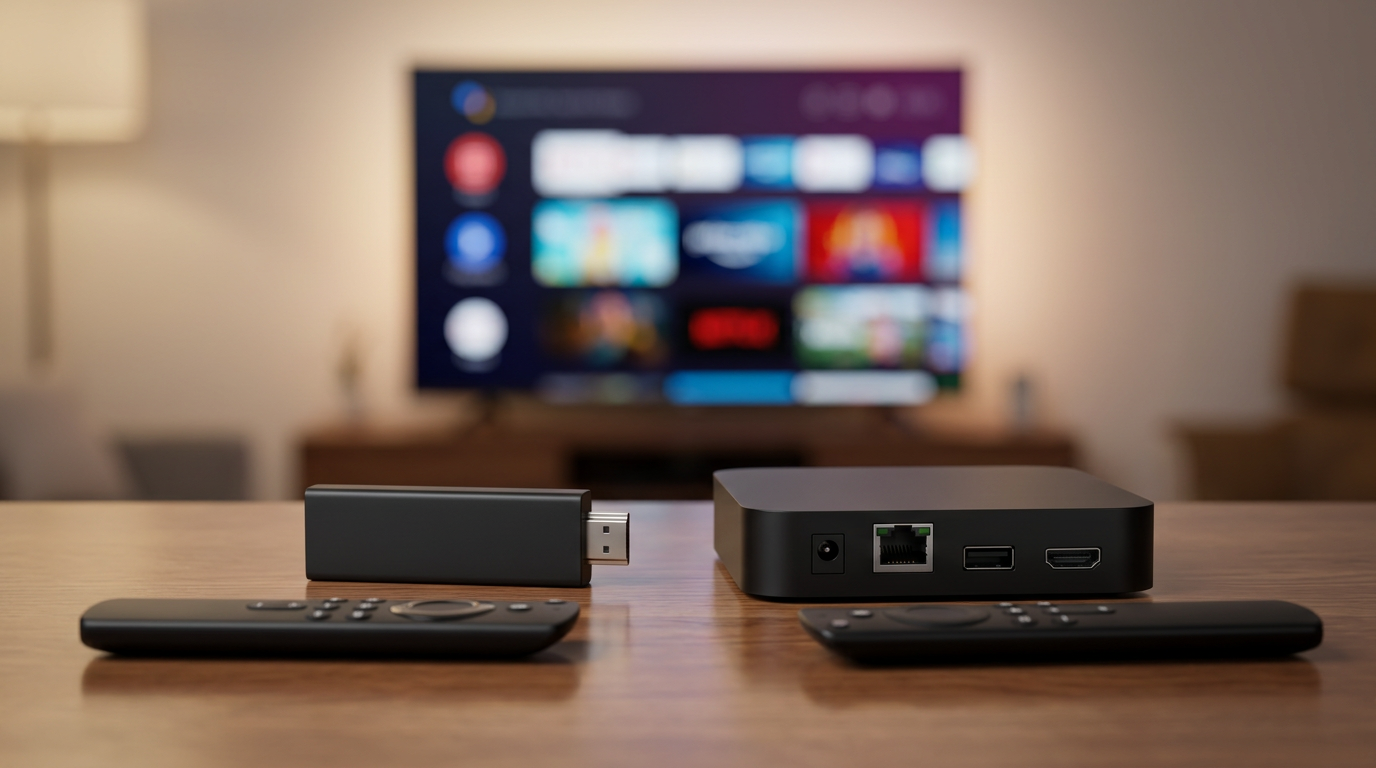
Every time you turn on your Roku, it feels like you're wading through a swamp of junk you never asked for. Random channels, unwanted previews, rows of suggestions, auto-playing promos—it's like your home screen's been hijacked. You just want to watch something, but instead you're stuck scrolling past clutter.
Roku might be a solid streaming device, but its home screen is a loud, messy billboard by default. If you’re tired of feeling like a guest in your own setup, you’re not alone. Cleaning it up isn’t hard, but Roku doesn’t exactly make the process obvious. With a few steps, though, you can take back control and make your screen look like it belongs to you again.
Remove Unwanted Channels One by One
First, let’s deal with the obvious stuff: the channels you never use but somehow ended up in your list. Roku adds channels automatically in some cases, especially if you’ve used your account on other devices. These include games, niche services, or streaming platforms you tried once and forgot.
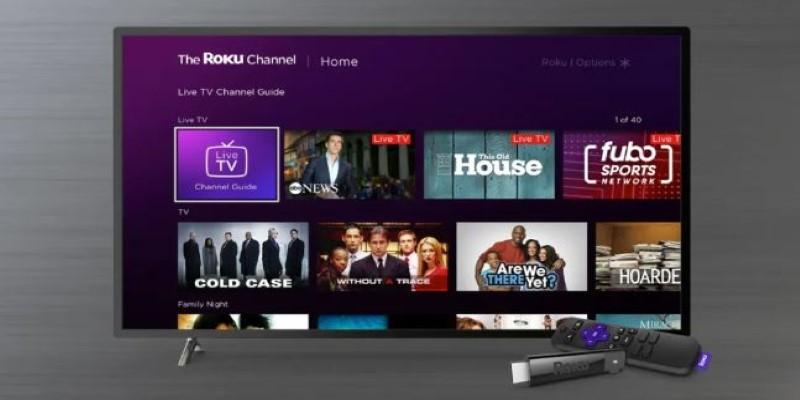
From the home screen, use your remote to highlight the channel you want gone. Press the * button (the star) and you’ll see a menu pop up. One of the options is “Remove channel.” Click it. That’s it—it’s gone. Repeat this for anything you don’t recognize or don’t plan to use. This helps cut down on clutter and makes it easier to get to the stuff you actually care about.
Keep in mind: removing a channel doesn’t cancel any subscription tied to it. If you signed up for something through Roku, head to your account at my.roku.com and cancel it there to avoid monthly charges.
Turn Off Personalized Ads and Content Suggestions
Even after you remove all the channels you don’t want, your Roku home screen may still look like it’s been hijacked by marketing. Big ads show up in the right-hand column, often autoplaying or recommending shows. Below that, there’s usually a carousel of trending shows or promoted apps. Roku calls this "Featured Free" or “What to Watch.” These aren’t based on what you like—they’re paid placements.
Unfortunately, you can’t remove these entirely. But you can minimize how much of your data gets used to show you this stuff. Go to Settings > Privacy > Advertising. Here, turn on Limit ad tracking. You’ll still see ads, but they’ll be less tailored. Under Settings > Home screen, look for any options that let you toggle off rows like “Featured Free” or “Shortcuts.” Not all Rokus have these, but some do. If the toggle’s there, use it.
You can also go to Settings > Home screen > What to Watch and disable that row if your model allows it. The same goes for "Live TV" or "Sports," which can take up space even if you never use them. Roku doesn't make this easy or obvious, so it's worth digging through every sub-menu under Home Screen to see what you can shut off.
Reorder and Organize the Channels You Keep
Once you’ve removed the junk and cut down on promo content, you’re left with what you actually use. Now’s the time to organize it so you’re not scrolling all over the place every time you want to watch something.
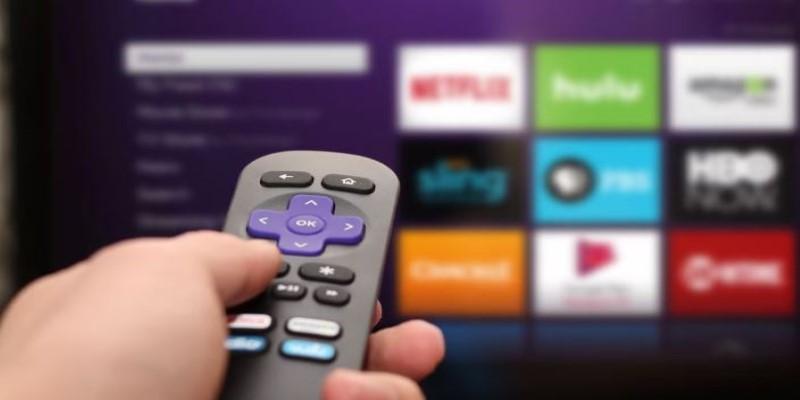
To move a channel, highlight it with your remote, press the * button again, then select Move channel. You can now shift it around wherever you want. Put your most-used services—Netflix, Hulu, Max, Prime Video—at the top. Push lesser-used ones to the bottom. This is how you regain some sense of control over the home screen layout.
The Roku home screen doesn’t have folders or deep customization options, so this is about as streamlined as it gets. Still, just putting your favorite apps in the top row makes the whole experience faster. You’ll spend less time scrolling and more time watching what you want.
Disable Automatic Channel Updates (If You Really Want Control)
By default, Roku updates its software and channels in the background. That sounds fine—except sometimes those updates bring back things you’ve already removed or shuffle your home screen. If you're someone who wants full control and doesn't mind checking for updates manually, you can limit some of this behavior.
Go to Settings > System > System update and choose Update now if needed. Then check under Settings > System > Advanced system settings. Some models allow deeper control over updates or automatic restarts, which can help reduce unwanted changes. You won’t find a magical switch that stops Roku from pushing system updates completely, but if the goal is to freeze your setup and avoid surprises, it’s something to consider—especially if you prefer a stable layout without sudden changes or reboots that mess with your settings.
You can’t fully turn off channel updates for individual apps, but if your screen keeps getting repopulated with channels you deleted, consider unlinking and re-adding your Roku device from your Roku account online. Sometimes syncing issues between devices can cause channels to reappear unexpectedly and override your preferences.
Conclusion: Getting Back to a Clean, Usable Roku
Roku keeps things simple, but that clean interface hides a bunch of clutter—ads, suggestions, and channels you never asked for. You probably got it for the ease of use, not to scroll past junk just to watch something. While you can’t wipe the entire screen clean, you can remove most of the bloat. Delete the channels you don’t use, move the ones you do to the top, and turn off as many suggestions as Roku allows. Tweak a few privacy settings and suddenly things feel better. It’s your device, your setup, and it should look the way you want it to.