PowerToys felt like overkill—until you try to remove it
You install PowerToys for one small thing—maybe FancyZones, PowerRename, or Run—and then months later it’s still sitting there, updating, asking for admin rights, and running in the background. On paper, that feels like an easy delete. In practice, the first day without it is when your workflow starts snagging.
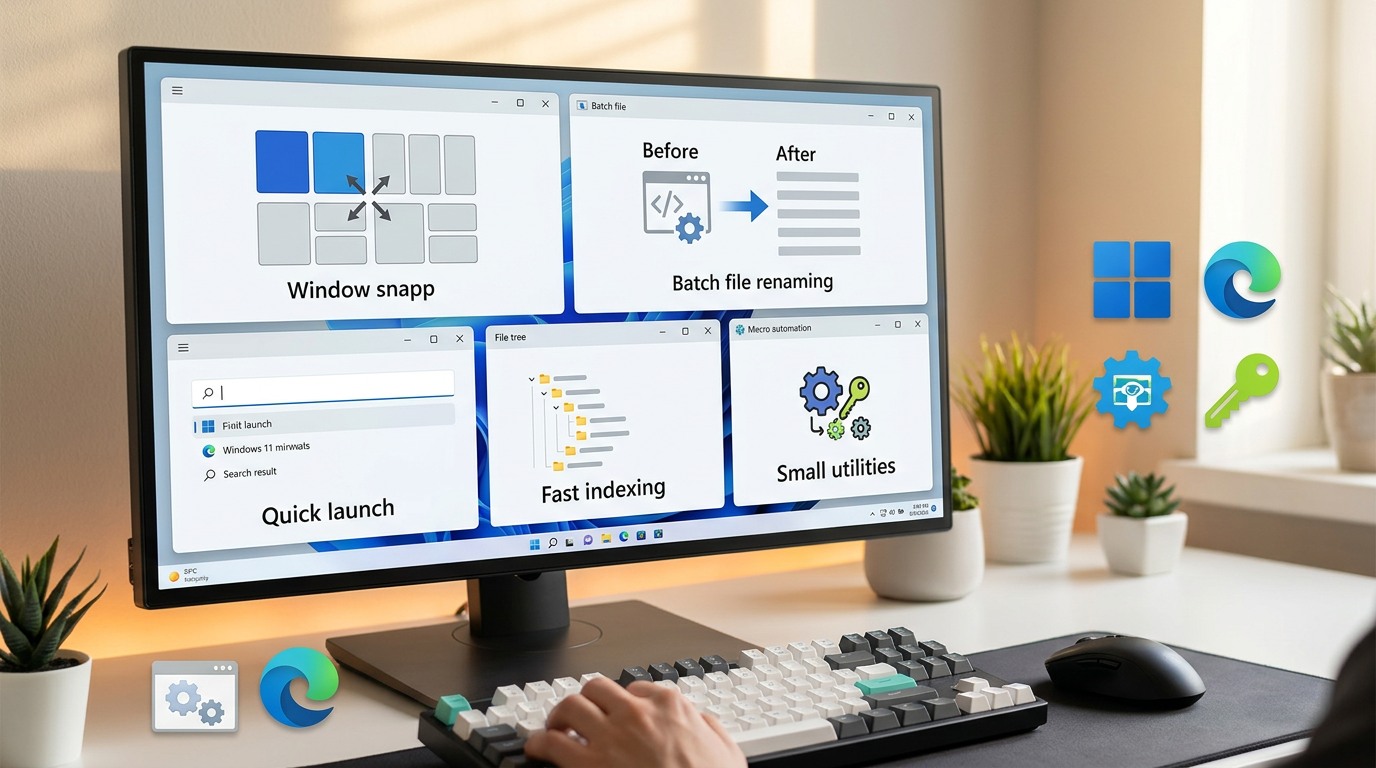
The catch is that PowerToys doesn’t fail loudly. Your windows just stop landing where your hands expect. Bulk renames turn into a slow, error-prone click-fest. Quick search becomes “open a browser and hunt.” Replacing it is less about finding “better,” and more about avoiding new habits.
The fastest way out is to name what you’d actually miss tomorrow morning.
First, list the 3–5 things you’d genuinely miss tomorrow morning
Tomorrow morning, you won’t miss “PowerToys.” You’ll miss the two or three moments where your hands expect a shortcut to work and it just doesn’t. So make this concrete: open a blank note and write 3–5 things you do on autopilot before you even think about them.
Start with verbs, not feature names. “Snap four apps into my usual layout.” “Rename 40 screenshots into a clean pattern.” “Hit a hotkey, type three letters, and launch the right app.” “Find a file I touched yesterday without digging through folders.” If you can’t phrase it as an action, it’s probably not part of your daily flow.
Then add one line per item: what triggers it (mouse corner, Win+Shift+arrow, Alt+Space) and what breaks if it’s slower. That friction matters, because the best replacement is often the one that keeps your trigger the same—even if it costs a few dollars or takes 15 minutes to set up.
Once that list is real, window snapping usually becomes the make-or-break swap.
If FancyZones is muscle memory, window snapping is the make-or-break swap
That’s because the first thing you feel without FancyZones is physical: you drag a window, it doesn’t “catch,” and you lose five seconds—then you do it 50 times. Windows 11 Snap Layouts can cover basic grids, but it won’t replicate the same triggers or custom zones if you rely on odd splits (like a thin chat column plus two stacked panes).
If your muscle memory is “hold Shift and drop anywhere,” look at tools that keep that exact motion. FancyWM (tiling-style) and DisplayFusion (powerful, paid) can get you close, while WindowGrid and WinSplit Revolution can mimic zone-based snapping with fewer moving parts. The trade-off is setup: you’ll spend 10–30 minutes rebuilding layouts and testing hotkeys, and some apps (older installers, certain admin windows) won’t always obey snapping rules.
Before you uninstall, recreate one real layout you use daily and run it for a full work session. If you stop thinking about window placement again, you’ve cleared the hardest dependency.
Renaming chaos: replacing PowerRename without losing Explorer convenience
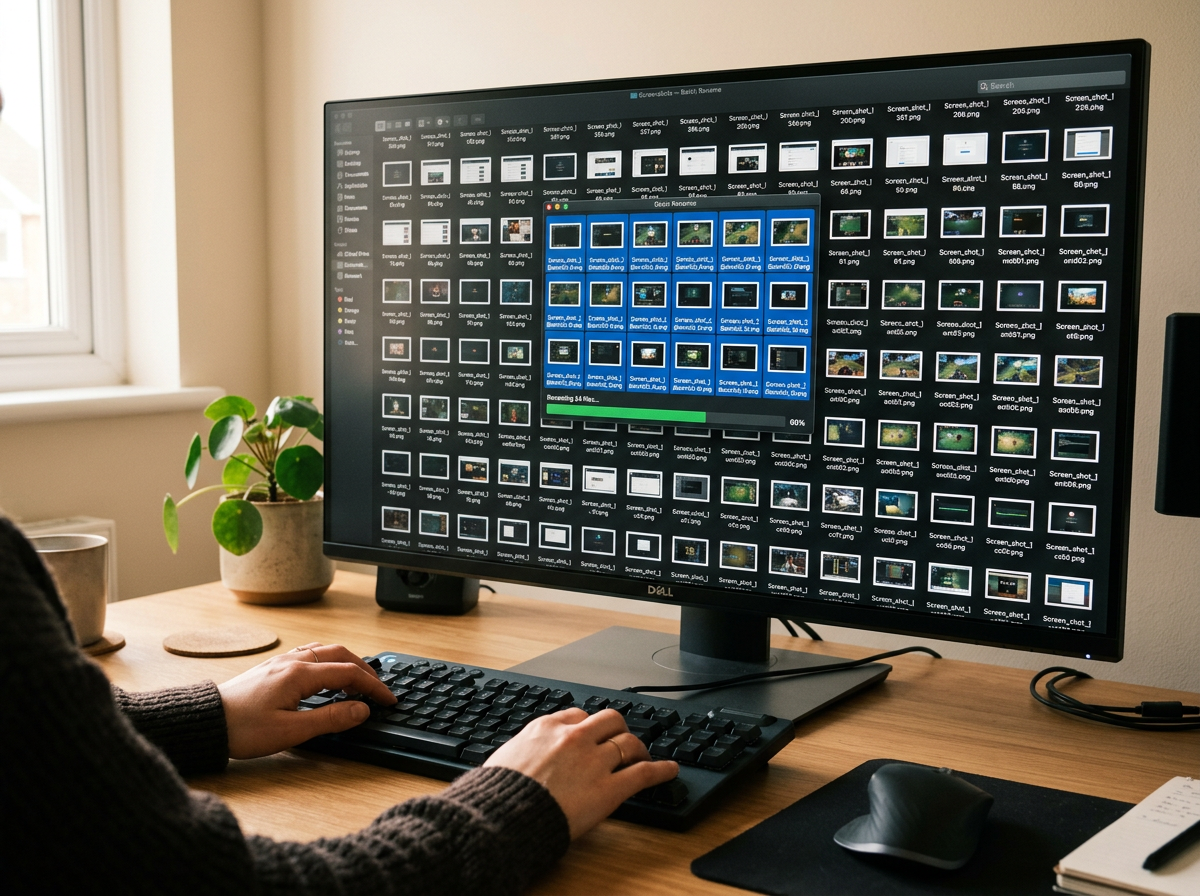
After window layouts, the next snag usually hits inside File Explorer: you select a batch of files, right-click, and the rename pattern you rely on is simply gone. Windows can do basic “File (1), File (2)” renames, but it won’t handle search/replace, numbering with padding, or previewing changes the way PowerRename does. If you rename photos, downloads, or project exports in bulk, that gap shows up fast.
If keeping an Explorer right-click option matters, start with tools that plug in cleanly. Advanced Renamer gives powerful rules and a solid preview, but it’s a separate app, so it adds a step. Bulk Rename Utility is fast and free, but the UI can feel like a control panel—great once you learn it, slow the first week. For simpler jobs, ReNamer or FileRenamer-style apps can cover common patterns with less setup.
Shell extensions are convenient, but they can make Explorer feel less stable if they misbehave. Install one renamer, test a 30-file batch in a throwaway folder, and confirm undo works before you depend on it—then you can tackle the “hit a hotkey and launch” habit without juggling two new tools at once.
Quick launch/search that doesn’t feel like a whole new habit
That “hit a hotkey and launch” habit is usually the next one to bite, because you don’t notice how often you use it until it’s gone. You reach for Win+Space or Alt+Space, type three letters, hit Enter—and without PowerToys Run you’re suddenly in Start menu land, or you’re mousing around like it’s 2015.
If your priority is speed without retraining your hands, start by matching the trigger. Flow Launcher is the closest “Run-style” swap for most people: lightweight, plugin-friendly, and easy to bind to the same hotkey. Listary feels great if your searches start in File Explorer (it can follow folder context), while Keypirinha is brutally fast but more configuration-heavy. Everything plus its quick search window can also work as a launcher if you’re already living in file results.
Launchers can turn into mini-platforms. Plugins, web search, and clipboard history are nice, but they add updates and failure points. Install one, map the exact hotkey, import 5–10 real queries you do daily (“calc,” “cmd,” a project folder), and then decide whether the next missing feeling is speed—or file search itself.
When PowerToys made file search feel instant, what you’re really missing is indexing
If file search is the part that suddenly feels “slow,” it’s usually because you switched from an indexed search to a scan-with-guesswork. You type a filename fragment, wait, then start clicking folders because you don’t trust the results. That’s not really a launcher problem. It’s an indexing problem, and PowerToys often masked it by making the fast path easy to reach.
The clean fix is to install a dedicated indexer and let it run once so future searches are instant. Everything is the common pick because it indexes file and folder names quickly and then stays fast; pair it with a hotkeyed search window or integrate it into Flow Launcher/Listary if that’s your workflow. If you care more about content (text inside files) than names, Windows Search can do it, but only if you tighten what gets indexed (your real work folders, not the whole drive).
The trade-off is upfront time and a little background activity. Indexing a big drive can take a while, and network drives or OneDrive-only files may not behave the way you expect. Test with one folder you rely on daily, confirm results show up instantly, then decide whether you need name-only speed or full content search before you layer on more “quality of life” toggles.
The “small” PowerToys toggles add up—handle them with one flexible tool
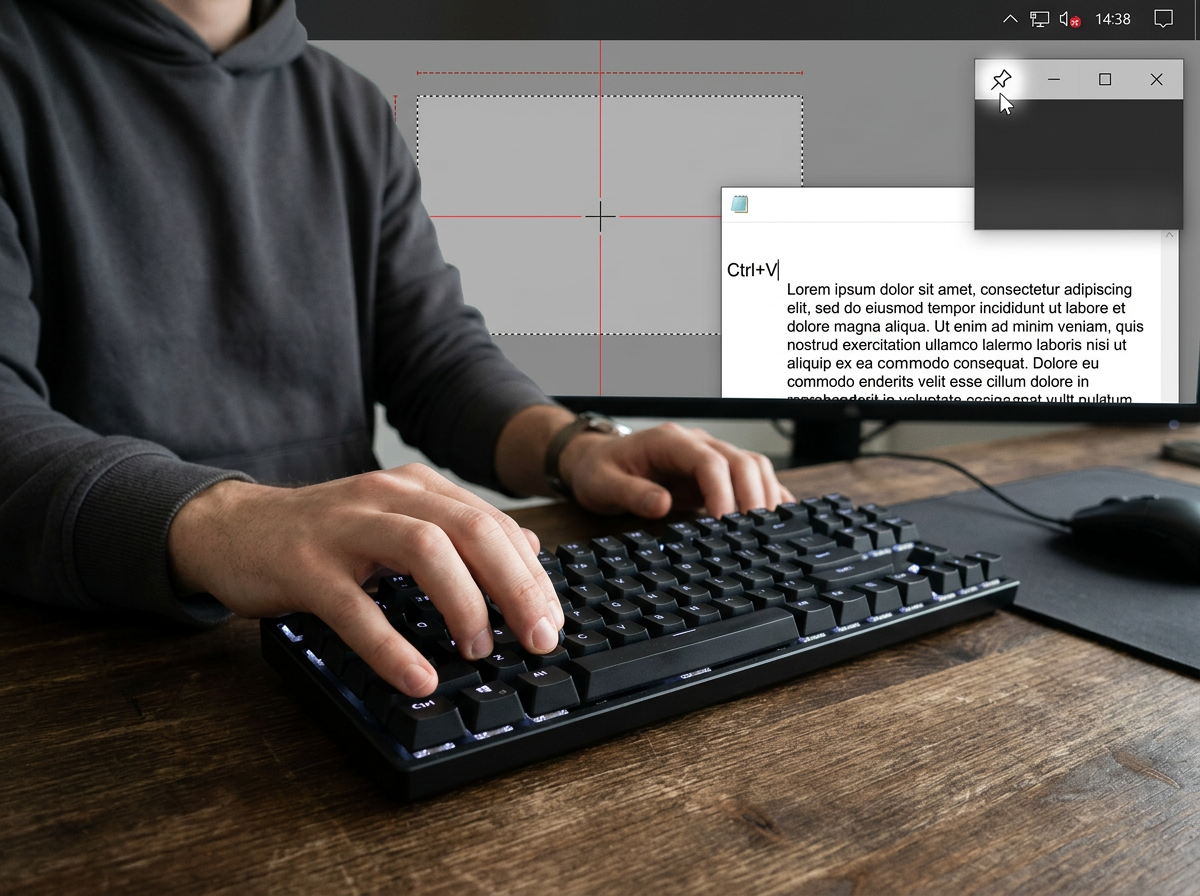
Those “quality of life” toggles are the ones that sneak up on you: you take a screenshot and expect crosshair picking, you paste and want plain text, you hit a key combo for a quick mute, or you need “always on top” for one stubborn window. None of these feels big enough to justify an app—until you remove PowerToys and lose five tiny helpers across a week.
The simplest way to replace that pile is to use one flexible automation tool instead of chasing five single-purpose utilities. AutoHotkey is the usual fit because it can cover hotkeys, small window actions (like “always on top”), and text transforms with a few short scripts. You’ll spend an hour learning just enough syntax, and you’ll occasionally babysit a script after a Windows update or a keyboard layout change.
Keep it practical: recreate only the 2–3 toggles you trigger without thinking, bind them to the same keys, and leave the rest alone. Once those micro-habits stop breaking, you’re ready for the cutover plan: install order, conflict checks, and the exact moment you uninstall.
A clean cutover plan: install order, hotkey conflicts, and the moment you uninstall
That “exact moment” should come after you’ve run your replacements for a full day with PowerToys still installed but effectively inert. Install in dependency order: window manager first (because it changes how you move), then launcher, then indexer, then renamer, then your small-toggle tool (like AutoHotkey). Each install should end with one task: recreate a single real layout, one real launch hotkey, one real file search, one 30-file rename, one “always on top” toggle.
Hotkey conflicts are where cutovers fail quietly. Don’t guess—open each app’s hotkey settings and force uniqueness (especially Alt+Space, Win+Space, and anything using Win+Shift). Then disable matching PowerToys modules (not just “run at startup”) so you’re testing the new trigger, not whichever app wins the race at login.
Uninstall only after a reboot proves your defaults stick: layouts load, launcher opens, search is instant, right-click rename still appears. Expect one consequence: shell extensions and automation scripts can break after Windows updates. Keep installers (or winget commands) and a short “my hotkeys” note so recovery is a 10-minute fix, not a lost morning.