You’re not overthinking it: stable today vs. secure tomorrow
If this PC is the one you use every day, “don’t touch it” can feel like the safest plan—until you see another security prompt, another headline, another reminder that Windows 10 won’t be supported forever. Upgrading to Windows 11 isn’t hard in the abstract, but on a real home or small-office setup it can change the parts you don’t think about until they fail: sign-in methods, default apps, printer drivers, and how fast the machine feels on the same workload.
The practical tension is simple: stability is something you’ve already earned, while security is something you have to keep paying for. If your work depends on one printer, one accounting app, or one remote-access tool, the “cost” of a bad upgrade is immediate downtime. But waiting has a cost too, especially once updates slow and third-party software starts assuming Windows 11. The goal here is to make this a checkable decision, not a leap of faith.
What would actually change on your everyday PC?
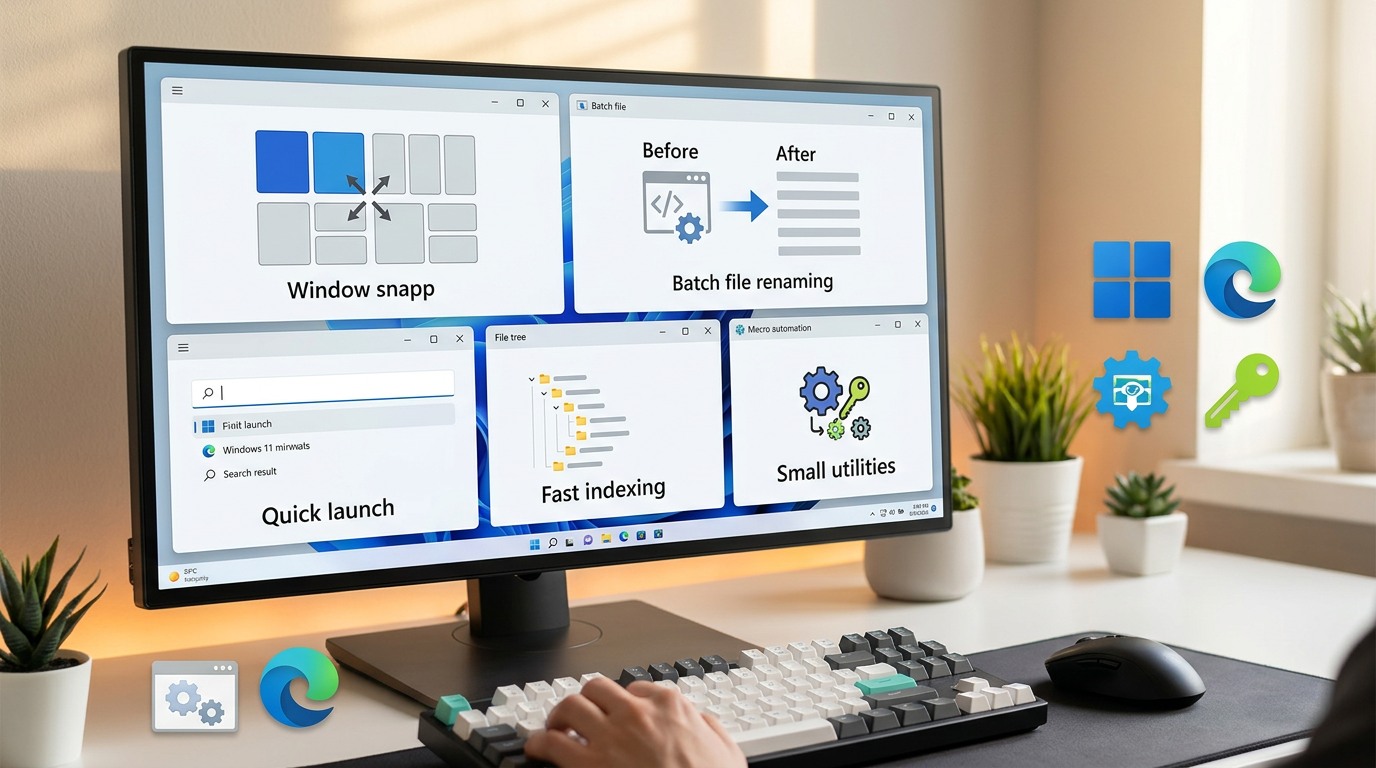
That “checkable decision” starts with what you’d notice in a normal week: how you sign in, where your settings live, and whether your everyday tools behave the same. Windows 11 is still Windows, so browsing, email, Office, and video calls usually feel familiar. The changes show up around the edges: a centered taskbar and a different Start menu, a tighter default-app setup (PDFs, photos, links), and more nudges toward using a Microsoft account and cloud sync.
Performance is the other day-to-day difference, and it can cut both ways. On newer hardware with an SSD and plenty of RAM, Windows 11 often feels as fast as Windows 10. On older “still fine” PCs, extra background security features can make wake-from-sleep, app launching, or multitasking feel a bit heavier. That’s why the next step isn’t “can it install,” but whether your specific machine can upgrade cleanly without driver or firmware surprises.
Can your current PC upgrade cleanly—or is it a workaround waiting to fail?
Those “driver or firmware surprises” usually show up when a PC can technically run Windows 11, but only after you force it past a requirement or ignore a warning. In real life, that’s when you see Secure Boot turned off, a TPM that’s present but not enabled, or an old BIOS mode that needs switching. Each fix can be reasonable, but every “just this one tweak” raises the chance you’ll spend your next Monday morning chasing a boot issue instead of working.
A clean upgrade looks boring: Windows Update offers it, your manufacturer still lists Windows 11 drivers for your exact model, and you can update BIOS/UEFI without drama. Before you click install, check three things: the PC Health Check result, whether TPM 2.0 and Secure Boot are enabled in firmware, and your free disk space (aim for at least 30–40GB). If you’re being pushed toward registry hacks, third-party installers, or “it should be fine” forum steps, treat that as a sign to wait or plan a replacement.
Even with a clean path, the parts most likely to bite you aren’t Windows itself—they’re the extras you plug in and depend on every day.
Where upgrades usually hurt: printers, scanners, accounting apps
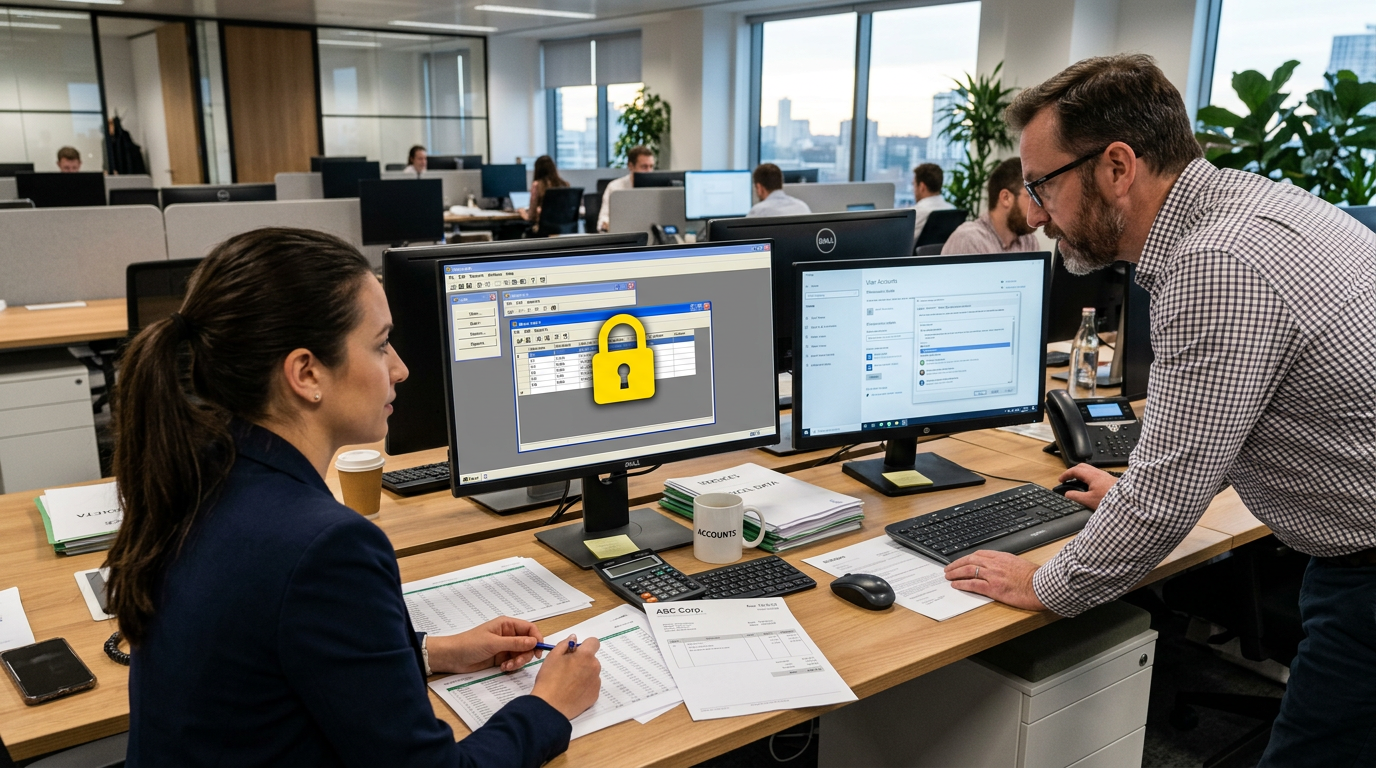
Those “extras” usually fail in the most annoying way: everything looks fine after the upgrade, then Monday arrives and something won’t connect, scan, or sign in. Printers are the classic culprit—especially older USB models, label printers, and anything using a “universal” driver. If the manufacturer doesn’t list Windows 11 support for your exact model, assume you may need a different driver, a different connection method, or a replacement.
Scanners and multi-function devices are next, because their scan apps and TWAIN/WIA drivers are often old and fragile. Accounting and line-of-business apps (QuickBooks, Sage, old Access-based tools) tend to break less from Windows 11 itself and more from .NET versions, permissions, or add-ins.
Before upgrading, make a short list of the “must work” devices and apps, then confirm Windows 11 support and current installers for each—because the next step is building a plan that assumes something will need a rollback.
If your PC already feels ‘just okay,’ will Windows 11 make it worse?
That rollback plan matters most when your PC already feels “just okay”: it boots, it runs your browser and email, but it’s not snappy. In that situation, Windows 11 usually won’t turn a usable PC into a brick, but it can expose thin margins—2–3 seconds longer to wake, a little more stutter with many tabs, or a heavier feel when antivirus, cloud sync, and a video call overlap.
The quick check is practical: open your normal workload and watch Task Manager for a day. If memory sits near full or the disk is pegged at 100% during routine stuff, the upgrade may feel worse because you’re already bottlenecked. If you have 8GB RAM and a hard drive (not an SSD), expect the most friction. The trade-off is simple: you can upgrade and then chase performance fixes, or stabilize first (SSD/RAM, startup apps) so the upgrade doesn’t become the thing you blame.
Either way, performance isn’t the only “worse” that matters—support ending changes what “safe enough” looks like day to day.
Staying on Windows 10: what ‘support ends’ means in real life
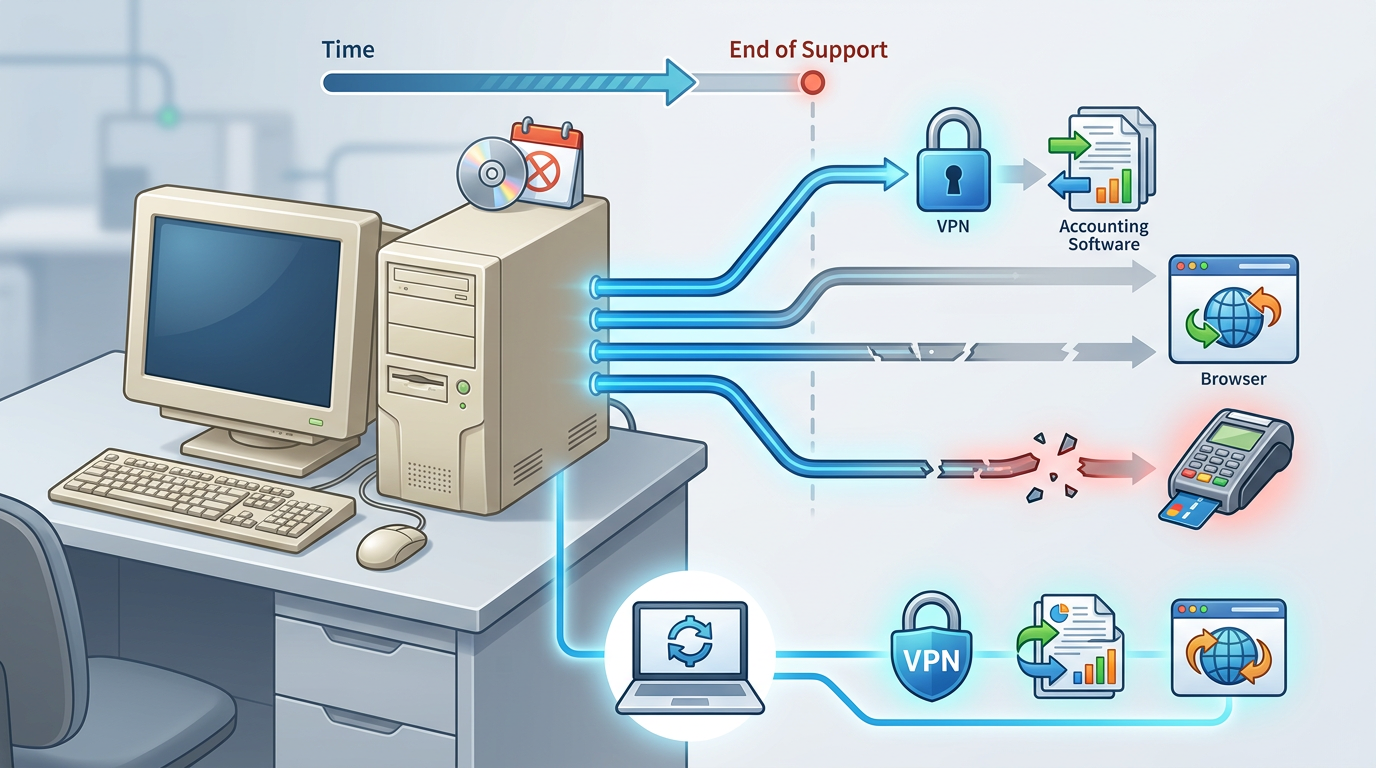
When support ends, the biggest change isn’t a warning pop-up—it’s that “safe enough” stops being a default setting. For Windows 10, Microsoft’s end-of-support date is October 14, 2025. After that, you should assume there are no more regular security fixes for newly found Windows flaws, even if everything looks normal on screen.
In real life, that shows up as slow drift, not instant failure. A PC can keep turning on, printing, and running your apps, but it becomes easier to get hit by the kind of attack that relies on unpatched Windows issues. Over time, you’ll also see second-order breakage: an accounting app that drops Windows 10 from its “supported” list, or a browser/plugin update that becomes stricter about older components. For small offices, it can also become a compliance problem if you handle customer data or take card payments.
If you stay, you’re choosing extra process: tighter backups, fewer “random downloads,” and a plan for what you’ll do when one key tool stops updating. That’s why it helps to set up an upgrade plan that assumes you may need to undo it.
Want the safety net? Set up a ‘nothing breaks’ upgrade plan first
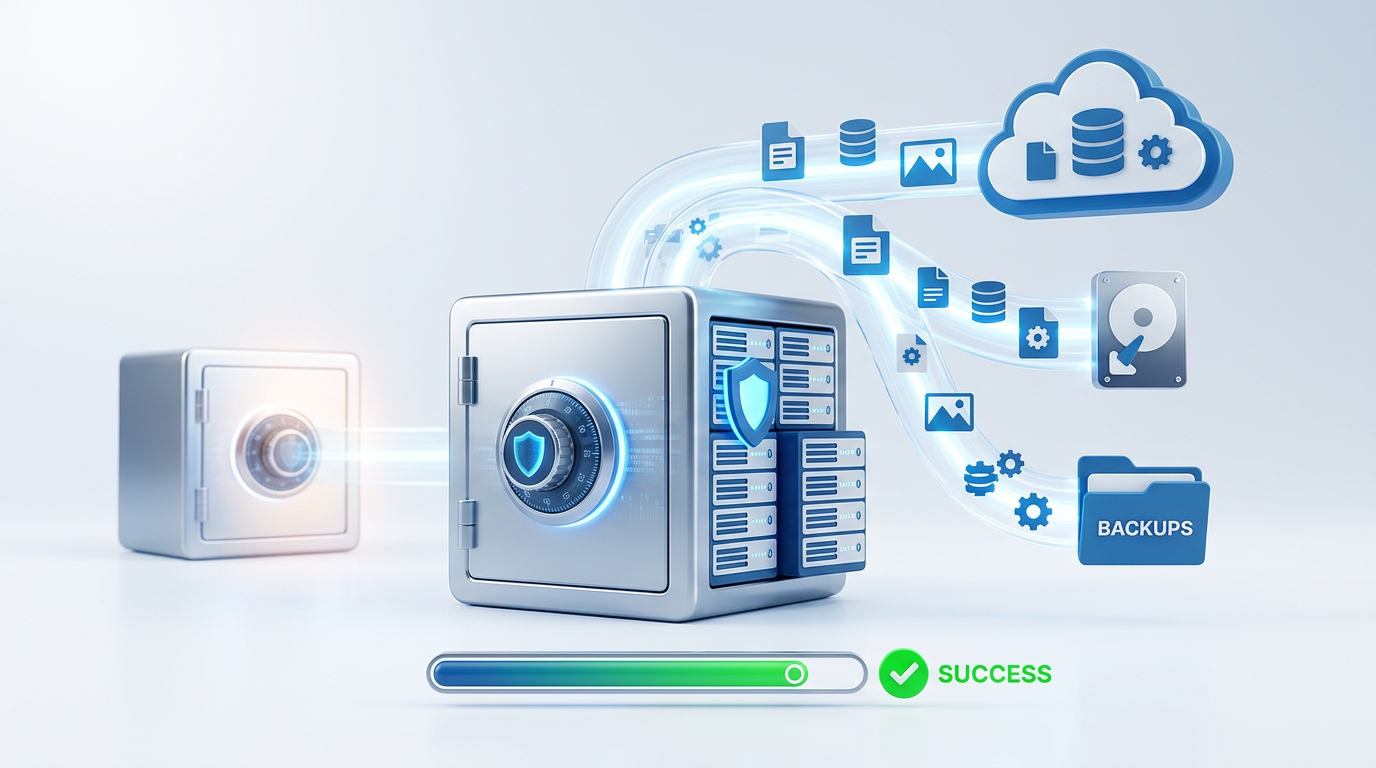
That “undo it” part is where most upgrades go wrong: people click through, let Windows do its thing, and only then remember the one printer driver they can’t easily replace. A “nothing breaks” plan is really a “nothing surprises you” plan, and it starts with two actions: make a full backup you can restore (not just “my files are synced”), and write down your must-have apps, device models, and login details.
Then test the risky bits while you still have a working baseline. Download the latest Windows 11 installers for your accounting app, and confirm your printer/scanner has a Windows 11 driver on the manufacturer site. If possible, run the upgrade when you can afford a rollback—Friday night or a slow afternoon—because the trade-off is time: you’re spending an hour planning to avoid losing a day fixing.
So which path fits you right now—upgrade, wait, or plan a replacement?
Once “upgrade now” stops feeling like a gamble, the choice usually comes down to how much you trust your specific setup. Upgrade now if Windows Update offers Windows 11, your model has current Windows 11 drivers on the manufacturer site, and your must-work printer/accounting app has a supported installer you’ve already downloaded.
Wait if you’re being nudged toward registry tweaks, unsupported installs, or you rely on one older device with shaky driver info. Plan a replacement if the PC runs a hard drive, struggles with 8GB RAM under your normal workload, or needs multiple firmware workarounds just to qualify.
The mental shift: pick the path that reduces “Monday risk,” not the one that feels simplest on install day.