When backups become urgent (and why “later” usually costs more)
You usually think about backups right after something breaks: a plugin update whitescreens the site, a theme change wipes your layout, or your host has an outage at the worst time. In that moment, “I’ll set it up later” turns into “I need it back in the next hour.”
Waiting often costs more because you end up paying with time and stress. You hunt through old emails for logins, open a support ticket, and realize the last backup is weeks old. If you sell appointments or products, a day of downtime can mean refunds and missed leads.
The goal isn’t perfect. It’s choosing a backup approach you can actually run and restore.
What would you need to restore: a quick rollback, or the whole site?

That “restore” part is where most backup plans fall apart. In a real mess, you’re usually trying to do one of two things: roll back a bad change fast, or rebuild the whole site after something bigger.
A quick rollback means you want yesterday’s working version after an update breaks checkout or a new plugin conflicts with your theme. For that, you need recent, frequent restore points and a way to put them back without guessing which files to replace. A full-site restore is different. If your host account gets wiped, your site gets hacked, or you move servers, you need everything: WordPress files, the database, uploads, and often a copy of your wp-config settings.
The catch: “database-only” exports or media syncs feel reassuring, but they won’t recreate your exact site. Once you know which restore you’re aiming for, the right backup option becomes easier to choose.
Option 1: Relying on your host’s backups—when it’s enough, and when it isn’t
That choice—quick rollback or full restore—is where your host’s backups can either save you fast or leave you stuck waiting. Many hosts take daily backups and give you a “restore” button in your control panel. If you mostly need to undo a bad update from yesterday, that can be enough, especially if restores are one-click and you can pick a specific date.
But host backups often come with limits that matter in a real incident. Some are kept for only 7–14 days, some charge a fee to restore, and some only restore the entire account, not a single site or database. If you get hacked, a daily backup might just reintroduce the same problem if the infection started days earlier.
Before you rely on it, check three things: how often backups run, how long they’re kept, and whether you can download a copy off-site. If any of those are unclear, you’ll want a backup you control.
Option 2: A backup plugin that runs on a schedule (most hands-off for WordPress)
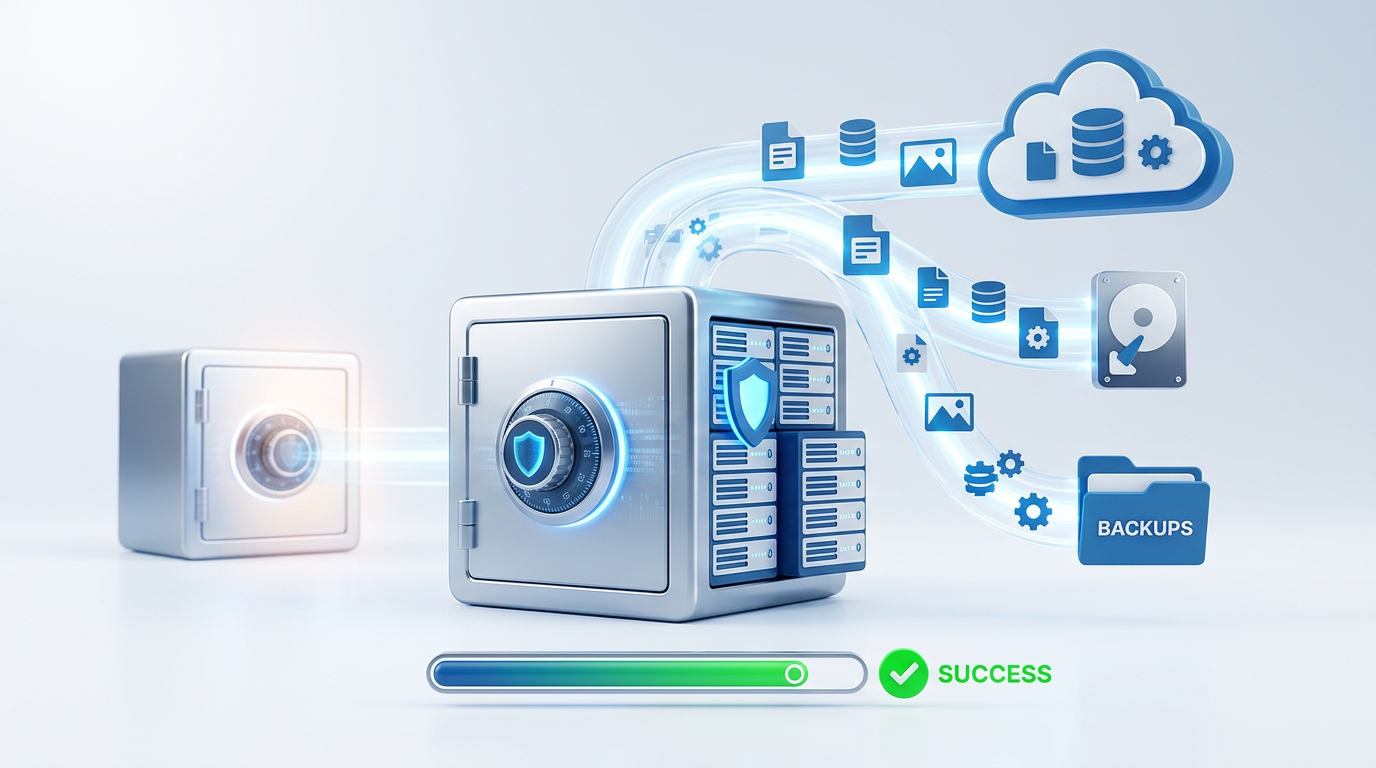
When your host can’t tell you exactly what’s being saved—or won’t let you download it—you end up needing a backup you control. A scheduled WordPress backup plugin is usually the most hands-off way to get there: it runs automatically, captures both files and the database, and can send copies to off-site storage like Google Drive, Dropbox, or Amazon S3.
In a typical small-business setup, a daily backup is the baseline, and “before updates” backups are the real lifesaver. If you post new content, take orders, or book appointments every day, add more frequent database backups (even every few hours). That keeps you from losing a full day of orders because one plugin update went sideways at 3 p.m.
The real-world catch is cost and space. Larger media libraries make backups slower, and some plugins throttle restores unless you pay. Also, if your site is already hacked, a plugin can back up the infection too. You still need to confirm it’s saving off-site and that you can actually restore from it.
Option 3: Manual exports for low-change sites (simple, but easy to forget)
That need to confirm you can actually restore is where manual exports look tempting: they’re simple, and you can hold the file in your own hands. If your site rarely changes—say it’s a brochure site you update once a month—a manual backup can be “good enough” as long as you do it on purpose.
For WordPress, that usually means exporting the database (or using the built-in Tools → Export for content) and grabbing a copy of your wp-content folder, since that’s where your uploads, themes, and plugins live. Save the files somewhere off-site, like Google Drive, and name them with the date so you can spot the newest one under pressure.
The problem is the human part. You’ll forget, you’ll export only content and miss media, or you’ll do it right before a trip and never do it again. If you pick this route, tie it to a recurring calendar reminder and always run it right before updates.
Option 4: Cloud snapshots and sync storage—useful, but not always a full backup

That calendar reminder often turns into “I’ll just keep a copy in Dropbox,” and sometimes that does help. If you use a managed host, a server snapshot (or a full account snapshot in your cloud dashboard) can roll you back fast after a bad deploy or a server crash. And sync storage is great for keeping your media library and key documents off your laptop.
But snapshots and sync folders usually don’t understand your site. A synced folder might miss your database entirely, or capture it mid-write. A snapshot might restore the whole server, including whatever broke things in the first place. If you switch hosts, you may not be able to “restore” a snapshot anywhere else, so it becomes a safety net you can’t move.
If you use these tools, treat them as a layer, not the plan: keep at least one portable backup file you can download and restore somewhere new. Then prove you can actually put it back.
Before you trust it: the 10-minute “can I actually restore?” check
“Prove you can actually put it back” usually gets skipped until the day you’re staring at a broken site. The fastest way to remove that uncertainty is a quick restore drill you can do in about 10 minutes, before you need it.
Start by finding your newest backup and confirming it includes both the database and files (or clearly says “full site”). Download one copy to your computer so you know it’s portable, not trapped inside a host dashboard. Then open it: a ZIP should show folders like wp-content, and a database backup should be a .sql (or similar), not just “posts.” If your tool supports it, run a test restore to a staging site or a temporary URL. If it doesn’t, at least locate the exact “Restore” button and read what it will overwrite.
Big backups can take minutes to download, and cheap plans may block staging. Still, once you can restore on purpose, choosing a setup stops feeling like a gamble.
Pick one setup today, then add one safety layer when you’re ready
Once you can restore on purpose, the decision gets simpler: pick the one setup you’ll actually keep running. If your host has clear daily backups and you can download them, start there. If not, use a scheduled plugin with off-site storage. If your site barely changes, commit to manual exports before every update and once a month. If you’re on a cloud server, keep snapshots—but don’t call them your only backup.
Then add one safety layer when you have bandwidth: a second off-site destination, a longer retention window (30–90 days), or a quarterly test restore. It costs money and storage, and it takes a little time, but it’s cheaper than rebuilding your site under pressure.