When “something breaks” stops feeling hypothetical
You don’t think about backups when the site feels “fine.” Then a plugin update whitescreens your homepage, an editor trashes a page you needed, or your host has an outage during a sale. Suddenly the question isn’t “Should I back up?” It’s “What can I get back, and how fast?”
The problem is that “backup” gets treated like a single button, but WordPress isn’t a single thing. If you only copy your theme files, your posts and orders can still vanish. If you only export the database, your images and layout can still be missing. Getting clear on what you’re protecting is the first step.
So what are you actually backing up: files, database, or both?

That “WordPress isn’t a single thing” line shows up fast when you try to restore. Most sites split into two buckets: files and the database. Files are your theme, plugins, uploads (images, PDFs), and sometimes custom code. The database is your posts, pages, settings, users, comments, form entries, and—if you sell—orders and customer data.
If you back up only files, you can bring back the look, but your newest content and sales can disappear. If you back up only the database, your pages may load with broken images, missing downloads, or a theme that doesn’t match what you had. A common real-world mess: you restore a database export and your homepage text is back, but every product image is gone because /wp-content/uploads wasn’t included.
So for most self-hosted WordPress sites, the default is simple: back up both. The only trade-off is bigger backup size, which can make storage and upload time the thing you notice first.
How often should you back up if you’re posting weekly (and selling daily)?
That bigger size is why “how often” matters: you want frequent enough backups to avoid losing real work, without making every backup take so long it fails. Think in terms of what you can afford to redo. If losing a day of orders would hurt, daily isn’t optional.
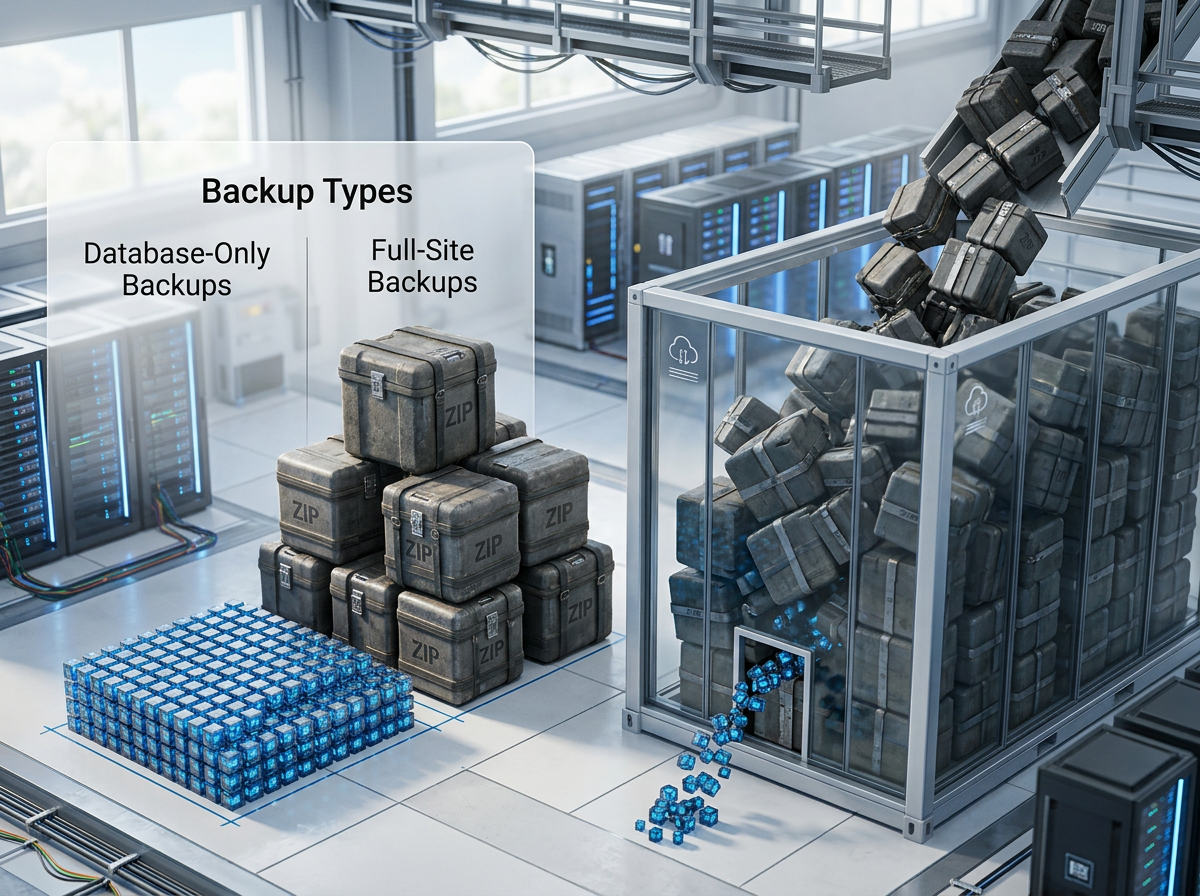
For most solo WordPress sites that publish weekly but sell daily, a practical baseline is: database backups every day (or every few hours if you get steady orders), and full-site backups (files + database) at least weekly. Add an on-demand backup right before anything risky: plugin/theme updates, changing payment settings, switching themes, or doing a big content cleanup. That “before updates” backup is the one people miss, and it’s the one that saves you when an update breaks checkout.
The trade-off is time and storage, which is why the method you pick needs to run quietly in the background.
Picking a method when you don’t want a maintenance hobby
That method has to run quietly, because the moment backups start throwing warnings, they slide to the bottom of your list. Most people end up choosing between three options: your host’s backup tool, a WordPress backup plugin, or a manual routine (exports plus file copies). The right choice is the one you’ll still be doing three months from now.
If your host offers automated daily backups with one-click restores, that’s often the lowest-effort baseline. The friction is lock-in: restores may only work on that host, and “download a copy” can be buried or limited. A good plugin is more portable and can push backups straight to Google Drive, Dropbox, or S3, which matters if you ever need to move hosts fast. The downside is that plugins can break after updates, or time out on cheap hosting when your uploads folder gets big.
Manual backups work in a pinch (a database export plus copying /wp-content), but they turn into a maintenance hobby fast. If you go manual, treat it as “before risky changes only,” not your main plan.
Your backup isn’t safe until it’s off-site (and not in your email)
Most people feel “covered” because a zip file exists somewhere on the same server, or because a plugin emailed them a link once. Then the host has a bad day, your account gets suspended after a malware scan, or a hacked admin user deletes backups along with pages. In those moments, an on-server backup isn’t a backup. It’s just another copy that can disappear at the same time.
Off-site means the backup lands in a separate place you can still reach if WordPress and your host login are both down. For most solo site owners, that’s a cloud storage target like Google Drive, Dropbox, or Amazon S3, or a backup service your host supports. The practical friction: storage fills up, permissions expire, and “connected accounts” break quietly after a password change.
Also skip email as storage. Attachments get size-limited, inboxes get purged, and finding the right file during a crisis is slower than you think. Keeping backups out of your server is what makes the rest of your plan worth doing.
How many copies to keep before storage gets annoying
Storage gets annoying the moment you stop pruning. You set daily backups, they land in Drive or S3, and a month later you’re paying for space you didn’t know you were using—or your backups start failing because the bucket is full.
A simple retention rule that works for most solo WordPress sites: keep 7 daily copies (so you can roll back a bad update), 4 weekly copies (so you can recover from something you don’t notice right away), and 3 monthly copies (so you have a longer “oh no” window). If you take database-only backups more often, keep more of those (they’re smaller), and keep fewer full-site zips (they’re the storage hog). Longer history costs money and makes it harder to spot the backup you actually need during a restore.
Once retention is set, the last step is proving a backup can actually come back to life.
Do a 15-minute restore test so you’re not guessing during a crisis
That “can actually come back to life” part is where most backup plans fail: you don’t find out until checkout is broken and you’re staring at a pile of zip files. Set a timer for 15 minutes and do a simple restore test on a staging site or a cheap temporary WordPress install. Pick one recent full-site backup, restore it, and confirm three things: you can log in, pages load with images, and your latest posts/products/orders are there.
The friction you’ll hit is usually boring: the backup is missing /wp-content/uploads, the database restore times out, or you don’t know where your host hides the restore button. Fix that now, write down the exact restore steps, and keep that note somewhere outside WordPress.