You’re about to lose signal—what “download” actually means in each app
You’re in the boarding line, you see “Download,” and you assume you’re safe. Then you hit airplane mode later and the app acts like the video never existed. That’s because “download” doesn’t mean the same thing everywhere: some apps store a locked file you can only play inside that app, some require a quick license check before they’ll play offline, and some let you download only certain titles or only on mobile plans. Even when it works, downloads can expire or disappear if the title leaves the service.
The practical takeaway is simple: treat downloads like rented access, not an MP4 you own. If you’re using multiple profiles or devices, the same show can behave differently depending on where you saved it. And if your phone is low on storage, the app may quietly default to lower quality or fail mid-download without making it obvious.
Once you accept that “download” is really “offline permission plus a file,” the rest becomes a checklist: pick the right device and profile first, then hunt down the specific download controls for each service.
First decision: which device (and profile) should hold the downloads this trip?
That checklist starts with a choice you usually make by habit: you tap “Download” on whatever device is in your hand. On a short commute, that’s fine. On a flight, it’s how you end up with half a season stranded on the work phone that’s about to run out of battery, or on a tablet you didn’t actually pack.
Pick the device that will be in your seat pocket and reliably unlocked. If you’ll watch on a tablet, download on the tablet—casting and AirPlay often won’t work offline, and some apps block external playback from downloads. Also check storage reality: a 64GB phone that’s already full of photos will fail in the middle of a long download, and some apps won’t warn you until the end.
Then choose the profile you’ll use in transit. Kids profiles, shared household profiles, and “travel” profiles can have different download rules, and switching profiles later can make your offline library look empty. With that set, you’re ready for the scavenger hunt: where each app hides the download button.
Finding the download button when every service hides it differently
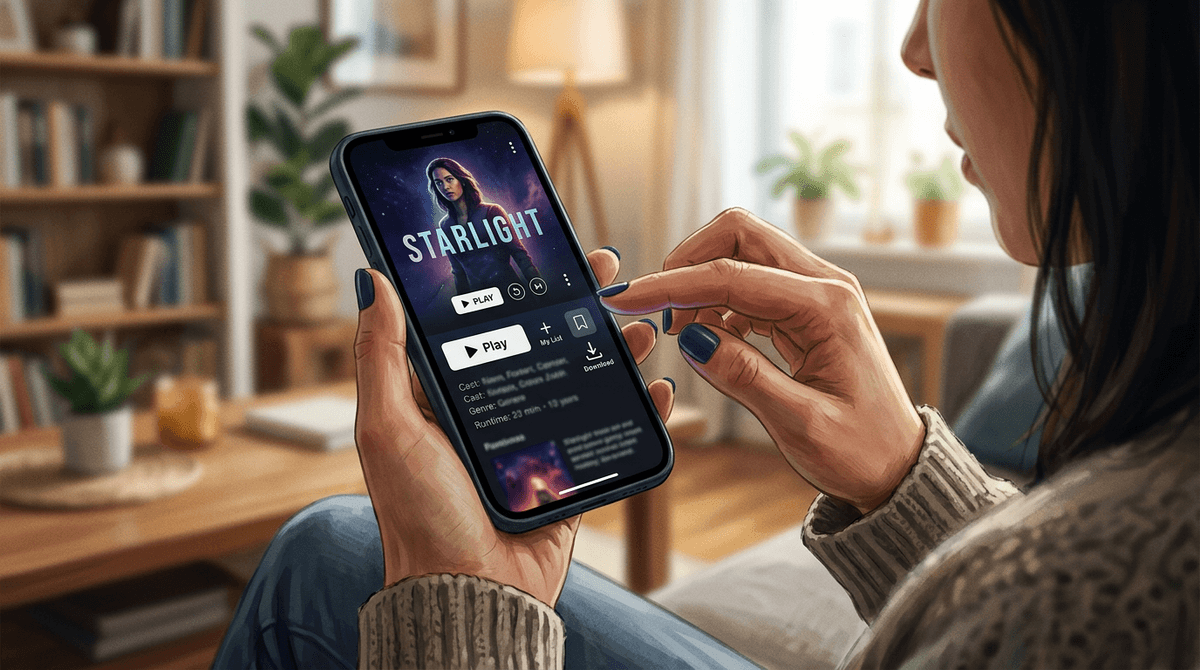
On most services, you don’t miss downloads because they’re unavailable—you miss them because you’re staring at the wrong screen. Some apps show a big “Download” arrow on the title page, others tuck it behind a three-dot menu, and a few only reveal it after you start playing. If you’re hunting, go to the show or movie’s detail page first, then scan for an arrow, “Save offline,” or a “…” overflow menu. For series, the button is often per-episode, not for the whole season.
Two shortcuts help across nearly every app: use search (download controls are more consistent on the detail page than in “Continue Watching”), and look for a dedicated “Downloads” tab in the bottom navigation—then a “Find something to download” link that jumps you into eligible titles. The annoying part is that some apps show the button in one profile but not another, or hide it when you’re on cellular and a setting blocks downloads.
If the button is missing entirely, it usually isn’t you—it’s the title. That’s the next thing to diagnose.
Why that episode isn’t downloadable (and what to do instead)
When an episode has no download button, the usual pattern is simple: the service doesn’t have offline rights for that specific title, or your plan/profile/device doesn’t qualify. You’ll see this a lot with newer releases, add-on channels, live feeds, or titles that rotate in and out of the catalog. If you’re on an ad-supported tier, some services limit or block downloads outright, and a kids or restricted profile can hide titles that are otherwise available.
Before you give up, try three quick checks while you still have Wi‑Fi. Switch to the main profile you’ll watch with, open the title’s detail page (not “Continue Watching”), and confirm you’re signed in on that device. Then look for a “Download” option on a different episode—sometimes only part of a season is cleared.
If it’s still blocked, your best workaround is practical, not clever: pick an alternate title that does download, or purchase/rent that specific episode in a store app that supports offline playback. That decision is easier if you make it now, not at 35,000 feet.
Quality vs storage: picking settings you won’t regret at 35,000 feet
That “make it now” decision usually comes down to one slider you ignore until your device runs out of space: download quality. If you leave everything on “Best,” a couple of movies can eat most of a phone, especially if it’s already crowded with photos and apps. If you force “Data Saver,” the file fits, but fast motion and dark scenes can turn into blocky mush on a tablet.
Use the screen you’ll actually watch on as your guide. On a phone, “Standard” is often the safest default because it keeps episodes small enough that you can grab more than you think you need. On a tablet, bump one step up for anything you care about looking clean—then budget fewer downloads. If the app offers “Wi‑Fi only” plus a quality setting, turn both on; it prevents an accidental cellular download and keeps one bad tap from burning a day of data.
The annoying constraint is storage math you can’t dodge: higher quality also means longer downloads, more failures on shaky hotel Wi‑Fi, and less room for everything else you need on the trip. Once you pick settings, do one final proof: play a downloaded title with the network fully off.
The offline test: prove it works before you leave Wi‑Fi
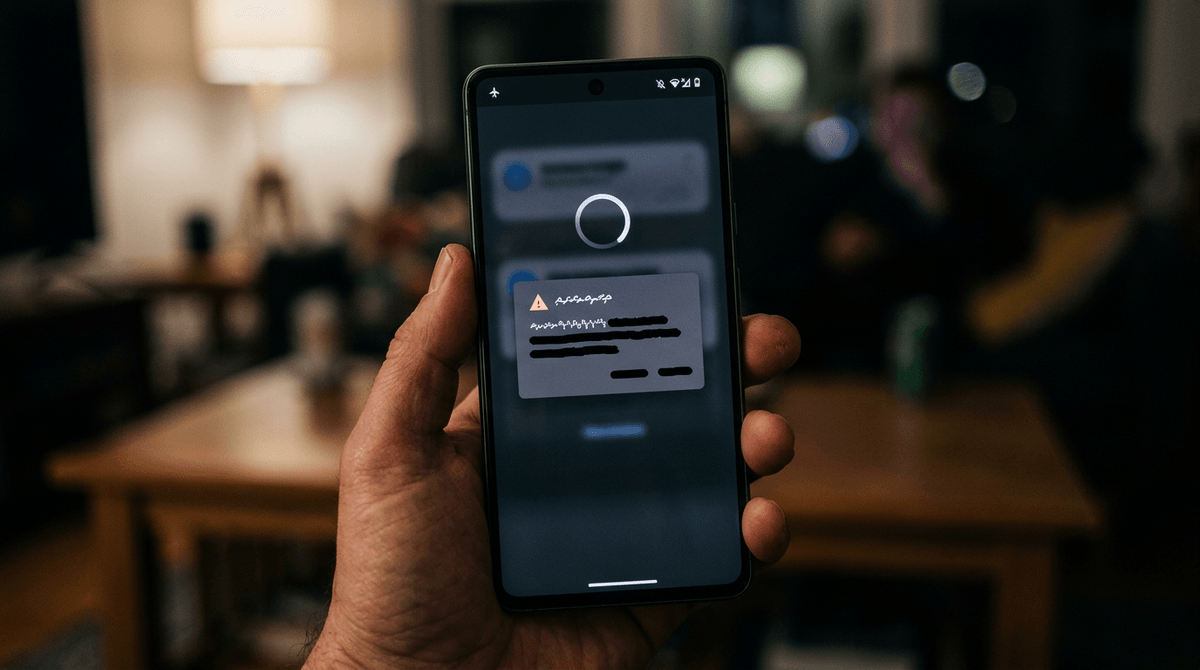
That final proof feels like overkill until you’re seated and the app suddenly wants to “refresh.” While you still have solid Wi‑Fi, turn on airplane mode (and manually disable Wi‑Fi if your phone tries to reconnect), then open the app and go straight to its Downloads/Offline library. Don’t rely on the home screen—some services won’t surface downloads there without a connection.
Start playback, scrub 30–60 seconds forward, and confirm audio stays in sync. If the app throws a sign‑in prompt, a “device limit” message, or shows a spinner forever, you’ve learned the real risk: some downloads need a quick license check and won’t work if you haven’t opened the app recently. Fix it now by signing in, re-downloading one item, or switching profiles back to the one you’ll use in transit.
Also check basics that fail quietly: Bluetooth headphones pairing, subtitles, and brightness. Then you can leave Wi‑Fi knowing the file and the permission both survived, which makes the next set of gotchas easier to spot.
Expiration windows, device limits, and other gotchas that kill a download
Those “gotchas” usually show up as a download that’s visible but won’t play, because the timer or the license rules changed since you saved it. Many services start an expiration clock the moment you download, and a second clock after you press play. If you download a season a week before a trip, a few episodes can flip to “expired” mid-flight. The fix is boring but reliable: open the app on Wi‑Fi the night before and hit refresh/re-download on anything you care about.
Device limits cause the same kind of surprise. A household plan might allow downloads, but only on a set number of devices, and “just testing on the iPad” can quietly push your phone out. Before you travel, delete old downloads on devices you won’t bring and sign out of unused devices if the service tracks them that way.
One more failure mode: app updates and password changes. Either can force a sign-in, which you can’t complete offline. Update apps and confirm playback while you still have a connection, then keep your offline library stable until departure.
A simple routine for every trip: download, verify, and pack your storage
Keeping your offline library stable until departure is the whole point of a routine you can repeat without thinking. The day before you leave, pick the device and profile you’ll actually use, plug in power, connect to strong Wi‑Fi, and set one download quality for the trip (don’t mix settings unless you’re willing to micromanage storage). Download your “must-watch” items first, then fill the remaining space with lighter episodes.
Then run the offline test for real: airplane mode, open the app, play one title, scrub ahead, and confirm audio, subtitles, and headphones behave. If anything prompts a sign-in, fix it immediately or re-download that item.
Right before you walk out, clear space for the rest of your travel needs. Delete old downloads you won’t watch, keep 5–10GB free so the device doesn’t choke on photos or updates, and avoid last-minute app updates on airport Wi‑Fi.