You’re not buying “MR”—you’re buying 1–3 hours of daily use
Most people don’t put on a headset and “do mixed reality.” They sit down to answer email, jump on a call, review a doc, then try to unwind with a show—often in the same 1–3 hour block. In that window, the specs stop mattering and the small annoyances start stacking: blurry passthrough when you glance at your keyboard, text that makes you lean forward, a headset that shifts when you look down, or an app that forces a workaround.
Vision Pro and Quest Pro can both do the headline demo, but you’re paying for how often you’ll choose to wear it anyway—plus the time you’ll lose when something doesn’t fit your room or your routine. That reality shows up fast in the first ten minutes.
The first 10 minutes: setup friction, room fit, and whether passthrough feels usable
Those first ten minutes usually look the same: you put it on, tighten something, and try to get back to “normal” while still seeing your desk. If passthrough looks smeared or wobbly when you glance down at a keyboard, you’ll start lifting the headset or peeking under it, which breaks the whole point of staying present. Vision Pro generally wins on passthrough clarity for desk tasks, especially when you’re reading a phone or checking a watch. Quest Pro can work, but it’s easier to notice noise, blur, or shifting exposure when your room lighting changes.
Room fit is the next surprise. If your desk is close to a wall, if you work off a laptop on a small table, or if you turn to grab a notebook, boundary prompts and recentering can become a daily tax. Also, plan for setup time you’ll repeat: strap fit, battery placement, and quickly finding your “sweet spot” for sharpness. If that feels fiddly once, it’ll feel worse before every call.
Can you actually read small text on virtual screens without squinting?
If finding your “sweet spot” feels fiddly before every call, small text is where that hassle turns into fatigue. The usual moment is simple: you open Gmail or a spreadsheet, set a couple virtual windows, and realize you’re leaning forward or bumping the zoom level just to stop squinting.
In practice, Vision Pro is more forgiving for desk work because fine UI elements stay readable at more angles, so you can glance with your eyes instead of turning your whole head. Quest Pro can be usable for big UI and media, but tiny fonts and dense tables are where you’ll notice softness at the edges, glare, and the need to keep windows closer and larger than you expected. If you plan to run a Mac/PC desktop inside the headset, readability also depends on the streaming path: a slightly soft encode, a moment of network jitter, or the wrong scaling setting can undo the best optics.
Once text is “good enough,” the next limiter shows up fast: whether it stays comfortable on your face for three hours.
One-hour comfort test becomes a three-hour reality (face pressure, heat, balance)
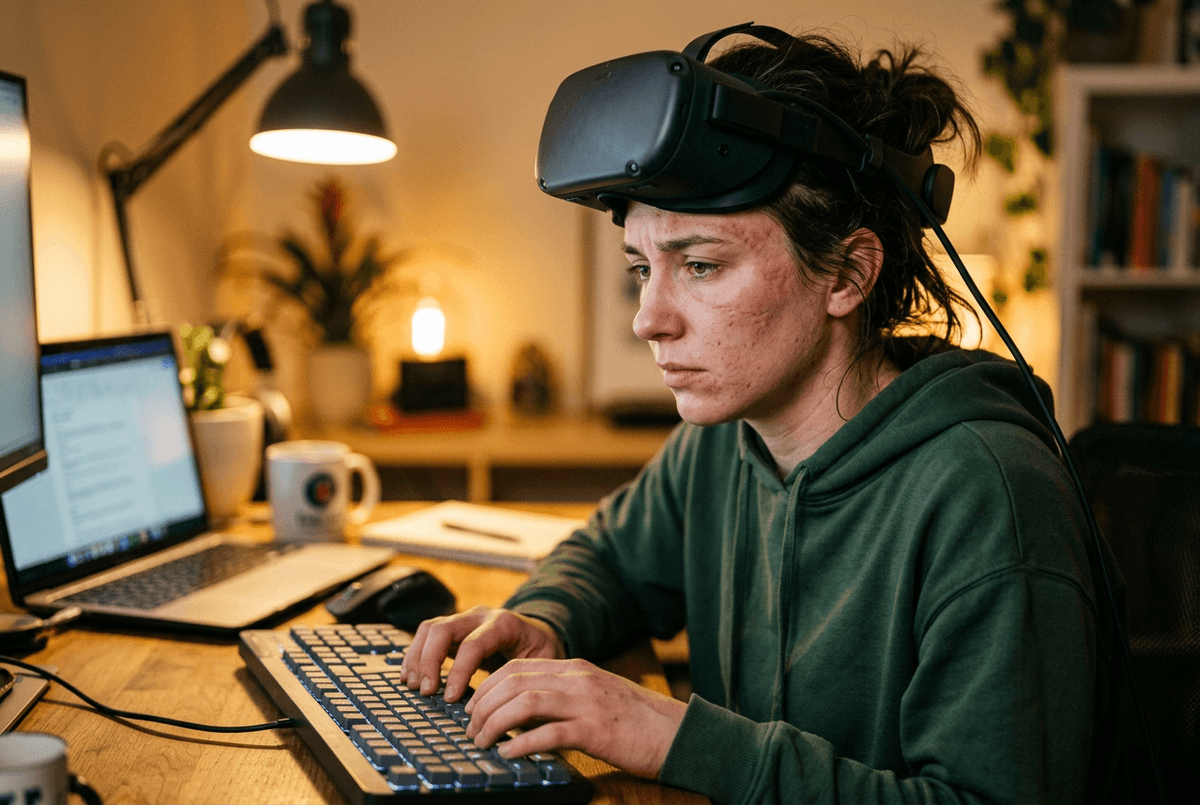
It usually feels fine for the first hour because you’re still adjusting—re-seating the headset, shifting the strap, taking it off to grab water. Three hours looks different: your cheeks start to ache, your forehead gets a hot spot, and the headset begins to feel like it’s “pulling” when you look down at your keyboard. If you catch yourself loosening it for relief, the next thing you notice is the image drifting because the fit moved off the sharp zone.
With Vision Pro, the front weight and light seal pressure are what most people run into first. If the seal is slightly wrong for your face, you can get pressure on the cheekbones or under the eyes, and it adds up during calls where you don’t want to keep readjusting. Quest Pro often feels less claustrophobic because it can float off the face, but the counterbalance still matters; if the back pad sits high or the dial is too tight, you’ll feel it at the base of your skull.
Heat is the quiet deal-breaker. A warm room, long video playback, or a focused work session can turn “fine” into “I need a break,” and that break resets your flow. Before you decide, try a real block: 30 minutes typing, 30 minutes a call, then an hour of reading—without taking it off to “fix” comfort.
Typing, pointing, and switching apps: where input methods either disappear—or steal attention
That “I need a break” moment often starts with your hands, not your face. You’re mid-email, you reach for the trackpad, and suddenly you’re thinking about the headset again because the cursor didn’t go where you expected, or a window won’t take focus. For desk work, the best input is the one that fades out: physical keyboard and trackpad/mouse doing most of the heavy lifting, with quick, reliable ways to move and resize windows.
Vision Pro’s eye-and-pinch can feel fast for selecting UI, but it also creates a new failure mode: if your eyes are tired or you’re glancing between a virtual window and your real keyboard, you can mis-select and lose your place. It works best when you’re interacting with big targets and doing short bursts of UI work, not when you’re constantly precision-pointing in dense apps. Pairing a Bluetooth keyboard and trackpad helps, but it’s still one more layer to keep connected and charged.
Quest Pro leans on controllers and hand tracking; controllers are consistent, but holding them for “work” is the definition of extra. Hand tracking can be good for casual taps, yet it’s easy to spend effort keeping hands in view. The real test is app switching: if you can’t jump between chat, docs, and a remote desktop in one or two actions, you’ll start avoiding the headset on busy days.
When you leave the desk: media nights, travel, and ‘light VR’ expectations
If you can’t jump between apps quickly, you’ll also hesitate to use the headset when the goal isn’t “work”—it’s just to relax. A typical media night is: dim lights, a bigger virtual screen, maybe lying back. Vision Pro’s image and passthrough help it feel more like “TV, but adjustable,” yet the front weight and seal can make lounging positions harder, and you’re managing an external battery pack.
Travel turns small hassles into deal-breakers. On a plane or in a hotel, you want fast fit, stable tracking in odd lighting, and a setup you can do without a “where’s the right strap setting?” loop. Quest Pro tends to pack and wear more like a gadget you can grab, but the payoff is usually better for big-screen media than for reading dense text or doing precise “desktop” tasks.
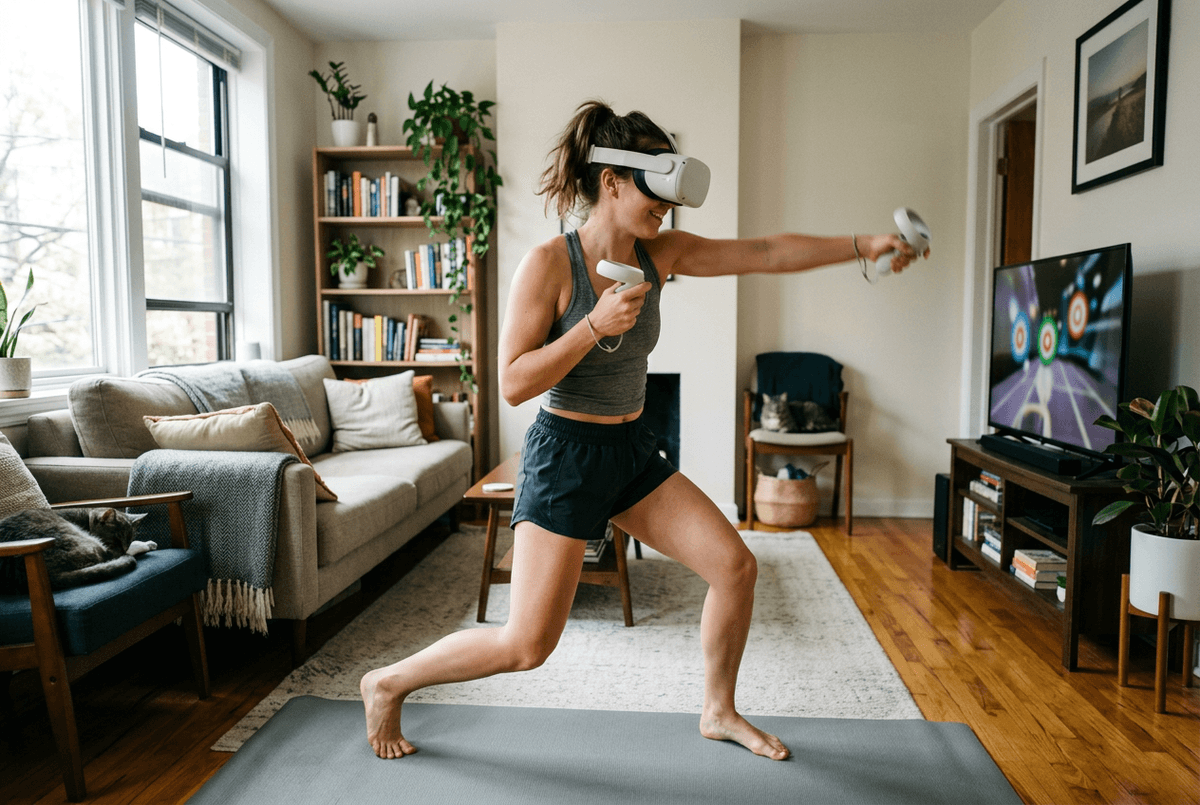
“Light VR” expectations are where people overbuy. If you mean occasional immersive games or fitness, Quest Pro’s controllers and library are the practical path; with Vision Pro, you’re more often in apps that behave like spatial screens. Decide which one you’ll actually do on a random Tuesday night.
The money question: buy now, pick the compromise, or wait without FOMO
That “random Tuesday night” test is also the cleanest money test: what will you use often enough to justify the hit. If your daily plan is readable virtual monitors, clear passthrough, and hands-free control for calls, Vision Pro is the safer bet—but you’re paying a premium for that comfort with sharpness, plus you may still need a better strap fit and a battery routine. If you want media plus occasional real VR, Quest Pro is the better value, but accept bigger windows, more input juggling, and less “forget it’s on” time.
Waiting is rational if your work depends on specific apps behaving cleanly, or if you can’t try the fit first. Set a deadline (like 60 days), then buy the headset that wins your exact desk + media scenario, not the spec sheet.