You’ve got Windows 11—now which Microsoft apps are actually worth your time?
You open a new Windows 11 PC and the Start menu is packed: Mail, Photos, Xbox, News, “Get Help,” and a dozen things you didn’t ask for. Most people either ignore all of it or install the first third-party app they recognize, then wonder why the desktop feels cluttered two weeks later. The better move is to pick a few Microsoft-made tools that solve everyday problems fast—capturing snippets, tracking tasks, dumping notes, linking your phone, and recording your screen—then stop adding more until those earn a spot.
This isn’t about “using what came with the PC” out of loyalty. It’s about reducing setup time and avoiding apps that overlap. The catch is that Microsoft apps often hide behind generic names, and some features only shine after one small setting change. A quick scan of what’s already installed will surface the winners without turning your first day into a download binge.
Before you install anything: a 5-minute scan of what’s already on your PC

That quick scan starts in the Start menu. Type “To Do,” “OneNote,” “Phone Link,” “Clipchamp,” and “PowerToys” one by one and see what opens. If you find the app, pin it to Start or the taskbar right then, while you’re thinking about it. If you don’t, note it—some of these aren’t preinstalled on every PC, and you’ll save time later by downloading with a purpose.
Now open Settings > Apps > Installed apps and sort by “Date installed.” That shows what arrived with the PC versus what you added. Watch for near-duplicates (two note apps, multiple “photo” tools) and uninstall anything you already know you won’t use. The practical snag: some built-in apps reinstall after updates, so keep this list handy.
Once the clutter is quieter, the small “minutes stolen” annoyances become obvious—which is exactly where PowerToys earns its keep.
PowerToys: when tiny annoyances start stealing minutes
Those “minutes stolen” annoyances usually look harmless: windows that won’t line up, files you can’t rename in bulk, or that one app that always opens in the wrong spot. If you fix them one by one with workarounds, you’ll keep paying the time tax. PowerToys is Microsoft’s grab-bag of small utilities that smooth those edges without you hunting for a different app for each problem.
Start with two that pay off fast. FancyZones lets you set simple window layouts, so your browser and a document snap into the same spots every time. PowerRename adds a safe bulk-rename option in File Explorer, which helps the first time you dump phone photos or downloads into a folder and want names that make sense. If you copy text all day, Text Extractor can pull words out of an image or screen snippet, so you don’t retype a serial number or tracking code.
The real-world hassle: PowerToys runs in the background, and some tools use keyboard shortcuts that can conflict with what you already use. Install it, turn on only two or three modules, and then you’re ready for the next tool that keeps your day from living in your head: To Do.
Microsoft To Do: if your day is run by sticky notes and memory
To Do earns its keep the first time you think “I’ll remember that” and don’t. The typical pattern is a few sticky notes, a half-finished email you keep reopening, and a mental list that gets wiped the moment a meeting runs long. Microsoft To Do gives you one reliable place to park tasks, then nudges them back in front of you when it’s time to act.
Set up one list for “Today” work and one for “Personal,” then use My Day each morning to pull in what actually matters. When something has a deadline, add a due date and a reminder so it shows up without you checking. The limitation you’ll hit fast: if you dump everything into one giant list, it turns into a scroll-fest and you’ll stop trusting it. Keep lists small, and move reference material into OneNote when a “task” is really a note.
OneNote: the moment you need one place for everything you’re learning
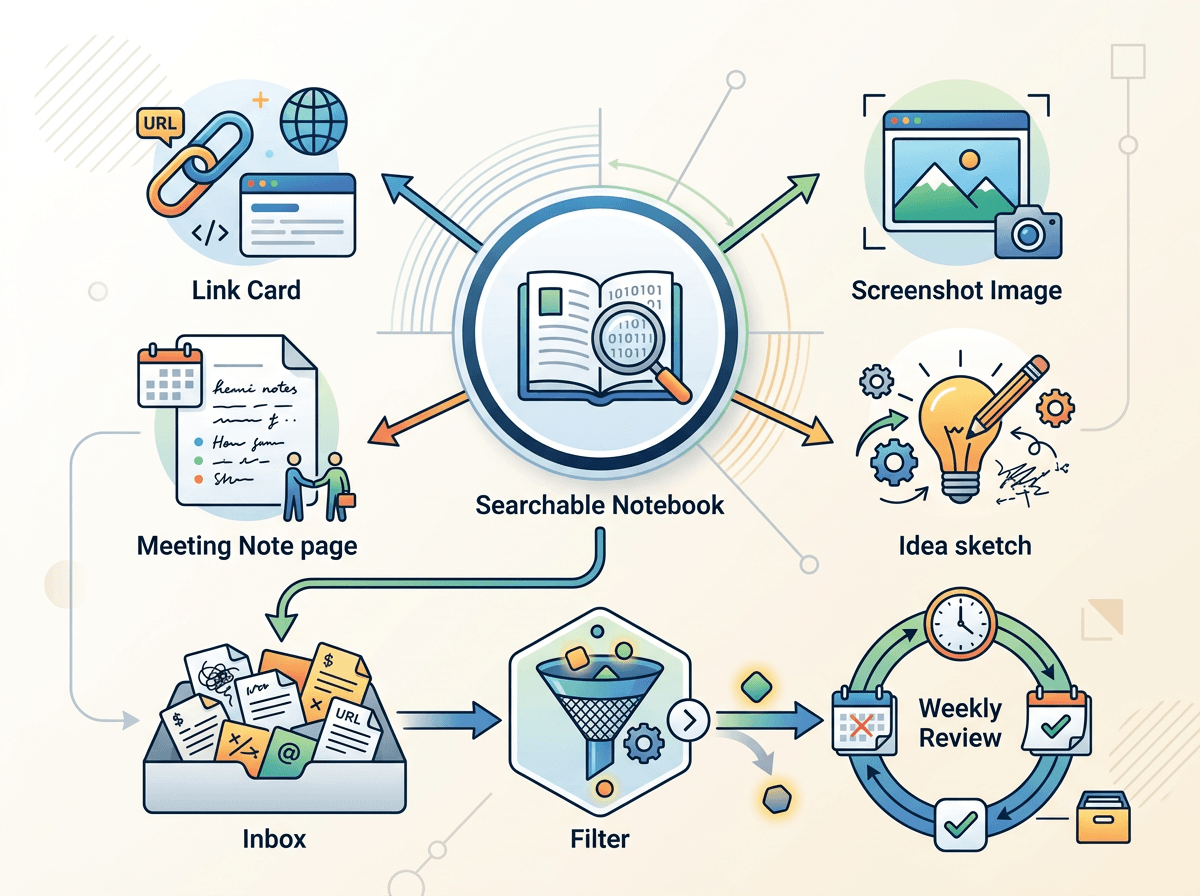
That “move reference material into OneNote” moment usually hits when a simple task starts collecting baggage: a link, a screenshot, a meeting note, and a half-formed idea you’ll need next week. If you keep that stuff in random places—Downloads, sticky notes, browser bookmarks—you’ll waste time re-finding it. OneNote gives you a single, searchable notebook where those scraps can live together, organized just enough to stay useful.
Start small: make one notebook called “Work” (or “School”), then create pages named after projects or topics. When you copy something worth keeping, paste it into the right page and add one plain-language heading so search has something to grab. The real annoyance: OneNote can turn into a junk drawer if you clip everything. Keep one “Inbox” page, review it once a week, and promote only what you’ll actually reuse.
Phone Link: keeping your phone nearby without losing focus
That weekly “Inbox” review often fails for one simple reason: the details you need are trapped on your phone. A text with an address, a photo of a receipt, a two-factor code—so you pick up the phone “for a second,” then surface ten minutes later in another app. Phone Link keeps the useful parts of your phone on your PC so you can grab what you need and stay put.
Use it for three moves that reduce context switching fast: read and reply to texts from your desktop, drag a recent photo into an email or OneNote page, and handle quick calls without hunting for your handset. The snag is setup and reliability: it works best with Android, and iPhone support is more limited; notifications can also get noisy if you mirror everything. Start by allowing only Messages and Photos, then add more if it stays calm.
Once your phone stops hijacking attention, you’re ready for the tool that makes “I need to show this” painless: Clipchamp.
Clipchamp: when you need a quick screen recording or video that looks ‘done’
That “I need to show this” moment is usually simple: a bug you can’t explain in words, a quick walkthrough for a coworker, or a class project that needs to look presentable without learning a pro editor. Clipchamp fits when you want to capture your screen, trim the dead time, add a title or captions, and export something you won’t feel weird sending.
Keep it practical. Record the whole screen or a single window, then cut the first and last few seconds so viewers don’t watch you hunt for the right tab. If you’re teaching, add on-screen text for the two or three steps people always miss. The real constraint: exports and effects can chew CPU and time on cheaper laptops, and some features sit behind a paid plan. If Clipchamp feels sluggish, lower the output resolution and keep edits minimal.
Once you’ve tried it once, you’ll know if it belongs on your taskbar—or if it’s a “when needed” tool in Start.
Your first-week plan: try these five and keep what earns a spot on your taskbar
If Clipchamp feels like a “when needed” tool, treat the rest the same way for one week. Pin PowerToys, To Do, OneNote, Phone Link, and Clipchamp to Start, and put only two on the taskbar: To Do and whichever app you open without thinking (often OneNote). Then set one tiny trigger for each: turn on two PowerToys modules, add 10 tasks to To Do, make one OneNote “Inbox” page, connect Phone Link for Messages + Photos, and record a 30‑second Clipchamp test.
The hard part is restraint. If you add Slack, Notion, or a third screen recorder on day two, you won’t learn what these do well. At the end of the week, unpin anything you didn’t open three times, and keep what saved you time without adding noise.