When everything feels heavy, why a tiny visual reset can still help
You sit down to work and the screen greets you with the same gray login, the same cluttered desktop, the same little sense that anything is starting fresh. When you already feel behind, that sameness can quietly add weight.
A tiny visual reset helps because it changes the first few seconds of contact with your computer. Rotating, high-quality photos can give your brain a clean “start here” cue without asking you to reorganize your whole setup. The trade-off is real: some images can feel noisy or pull your attention when you’re trying to focus.
That’s why the first decision isn’t “should I customize my PC,” but which moment needs the lift most.
Lock screen or desktop—which moment actually needs the lift?
That “which moment” question usually comes down to two places: the lock screen when you arrive, or the desktop once you’re in. If you tend to hesitate before logging on—checking your phone, stalling, feeling a little dread—the lock screen is the better target. It’s the first thing you see, and it can turn that split second into a calmer on-ramp.
If you log in fast but get stuck after—tabs everywhere, files scattered, no clear starting point—then your desktop matters more. A fresh background won’t fix clutter, but it can make the space feel less stale while you pick one task to begin. The trade-off: a busy desktop image can fight with icons and make everything feel messier.
Choose one to start. You can always add the other later, but testing one change at a time keeps it from turning into a project.
Two-minute setup: turning on Windows Spotlight without hunting through menus
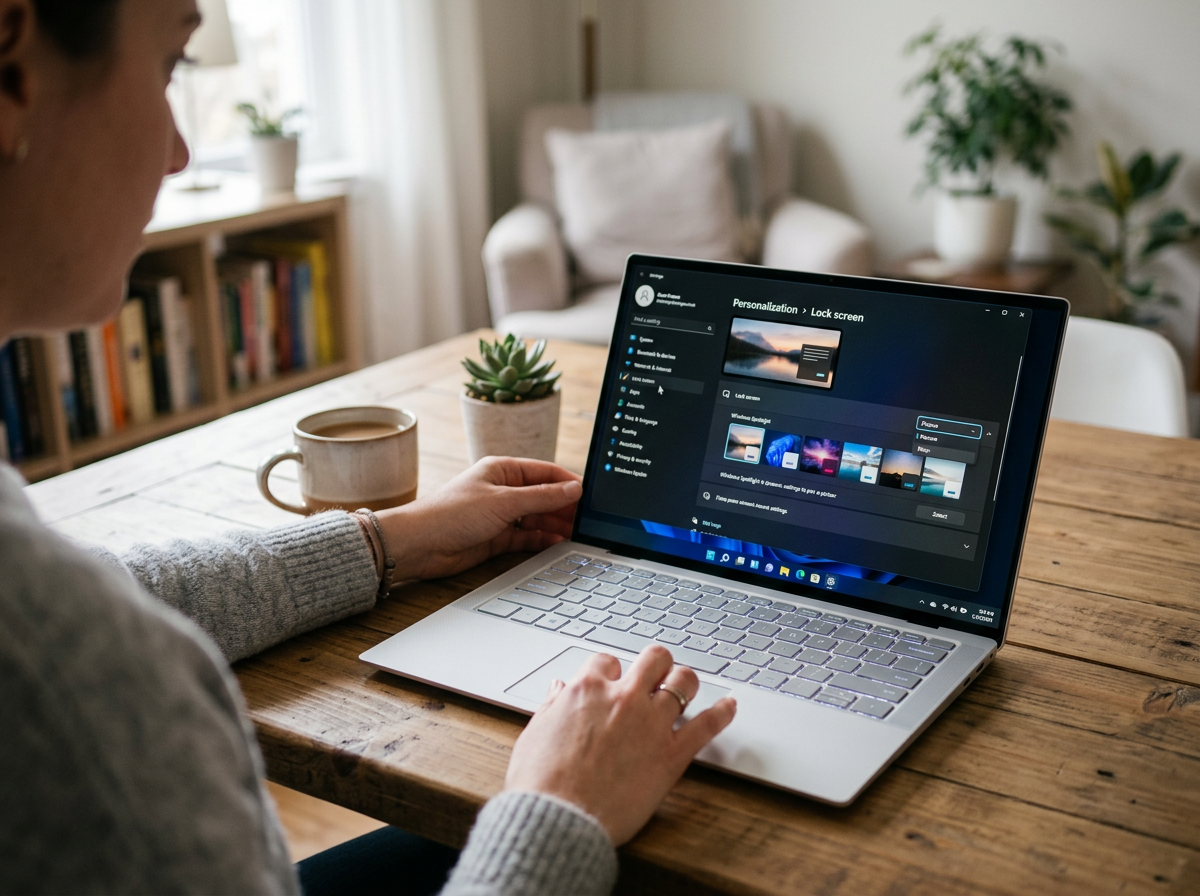
Once you’ve picked your moment (lock screen or desktop), the best outcome is getting it turned on without wandering through five different Settings pages. On Windows 11, open Settings > Personalization > Lock screen, then set Personalize your lock screen to Windows spotlight. If you want it on the desktop too, go to Settings > Personalization > Background, and choose Windows spotlight.
On Windows 10, the path is similar: Settings > Personalization > Lock screen, then pick Windows spotlight under Background. For the desktop, go to Background in the same Personalization area and choose it there if it’s available.
One small friction: Spotlight needs an internet connection to rotate images, so on a spotty café Wi‑Fi it can fall back to something bland. Once it’s on, the real question becomes whether the photos feel steadying—or strangely draining.
Do the photos feel motivating—or oddly draining? Here’s how to steer them
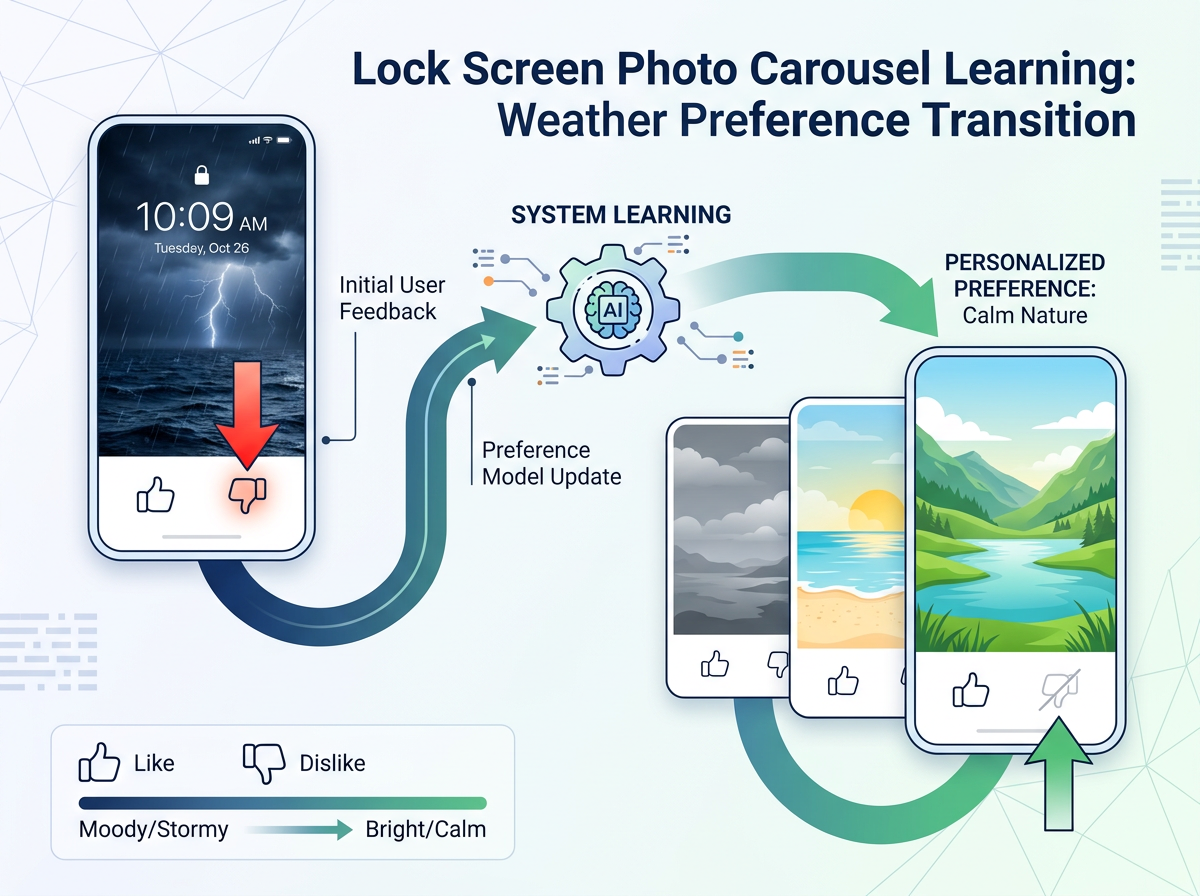
Sometimes you unlock your PC and the photo lands well—clean, bright, easy to breathe around. Other times it’s a crowded city scene, a dark stormy sky, or a close-up that feels tense, and you notice a tiny drop in your willingness to start. That reaction matters more than whether the image is “good.”
Steer it with the built-in feedback. On the lock screen, use the small “Like what you see?” prompt to say yes or no so Spotlight learns your taste over time. If you keep getting images that feel heavy, switch your target: try Spotlight on the lock screen only, and keep the desktop on a calmer, fixed picture so your working space stays predictable.
Also watch what the image does to readability. If icons disappear into the background or your eyes keep scanning the picture, it’s doing the opposite of a reset. In that case, pick a simpler desktop background (or turn Spotlight off there) and let the rotation live only in the “arrival” moment—then you can decide what happens when you’re actually working.
If Spotlight starts stealing attention during work hours
That “arrival moment” approach works until you catch yourself doing a quick image check every time you Alt‑Tab, or you pause to read the little Spotlight trivia instead of opening the document you came for. If you notice that pull, treat it like any other workspace distraction: limit when it shows up, not whether it exists.
The simplest fix is to keep Spotlight on the lock screen and make the desktop boring on purpose. Set a solid color or a calm, low-detail photo for your background so your icons and open windows stay readable. If you like having some variety, use Windows 11’s “Picture” background and rotate a small folder of a few handpicked images—enough to feel fresh, not enough to feel new all day.
One real trade-off: the more often the visual changes, the more often your brain checks it for “what’s different.” If you need deep focus, a stable desktop buys you back those micro-seconds, and you can save the lift for the next unlock.
The “nope” plan: switching back instantly and trying a gentler alternative
That “save the lift for the next unlock” idea only works if you can bail out fast when it doesn’t feel good. If Spotlight makes your screen feel too busy, or you notice a low-key dread when a certain kind of image pops up, don’t troubleshoot it for a week. Flip it back the same way you turned it on.
On Windows 11, go to Settings > Personalization > Lock screen (or Background) and change Windows spotlight to Picture or Slideshow. On Windows 10, it’s Settings > Personalization > Lock screen (or Background) and swap Background away from Spotlight.
The gentler alternative is a small, handpicked folder: 5–10 calm images that rotate daily or hourly. The trade-off is you have to pick them once—but after that, you still get “new” without surprises. Then it’s easier to turn the whole thing into a simple ritual.
Turning it into a repeatable fresh-start ritual (without thinking about it again)
That “new without surprises” folder is what makes this stick, because it turns a one-time choice into a repeatable start. Pick a trigger you already do: opening the laptop, sitting down after lunch, or coming back from class. When you hit the lock screen, take one breath, read the first line of your to-do list, then log in. That’s the whole ritual. Keep it short so it doesn’t become another task.
If you want it to run on autopilot, set your desktop to a stable, low-detail image and let rotation live on the lock screen only. The trade-off is you’ll see “fresh” less often, but you’ll also stop scanning for what changed every time you switch windows.