You want “no matter what” safety—what that promise can’t cover (and what you can cover anyway)
You install a “secure” app, flip a couple toggles, and hope you can stop thinking about it. That’s reasonable—but “no matter what” safety isn’t something any free app can promise, because some failures happen outside the app: you approve a fake login, you reuse a password, you lose an unlocked phone, or a cloud backup quietly copies your data elsewhere.
What you can do is cover the most common ways people actually get burned, using a small set of reputable tools with clear jobs. Stronger setup now means fewer emergencies later.
The key question is simple: which disaster are you trying to survive first—takeover, loss, or leaks?
Which disaster are you actually trying to survive first: takeover, loss, or leaks?
That answer changes what you set up first, because different failures punish different habits. Account takeover is the “someone gets in” problem: a reused password from an old breach, a convincing phishing page, or a weak recovery email. If that’s your fear, you prioritize a password manager and stronger sign-ins before you touch file tools.
Loss is the “your device is gone” problem: a stolen phone, a dead laptop, or a reset that wipes local notes and photos. If that’s your fear, you prioritize clean backups and a way to resync safely. The friction here is storage and discipline—if you don’t test a restore once, you don’t actually know what you saved.
Leaks are the “your data spreads” problem: cloud sharing links, chat backups, or sending the right file to the wrong person. If that’s your fear, you prioritize encryption and messaging choices, even if it adds one extra step when you share.
App 1 — Bitwarden: when passwords are the weak link (and you’re tired of thinking about them)
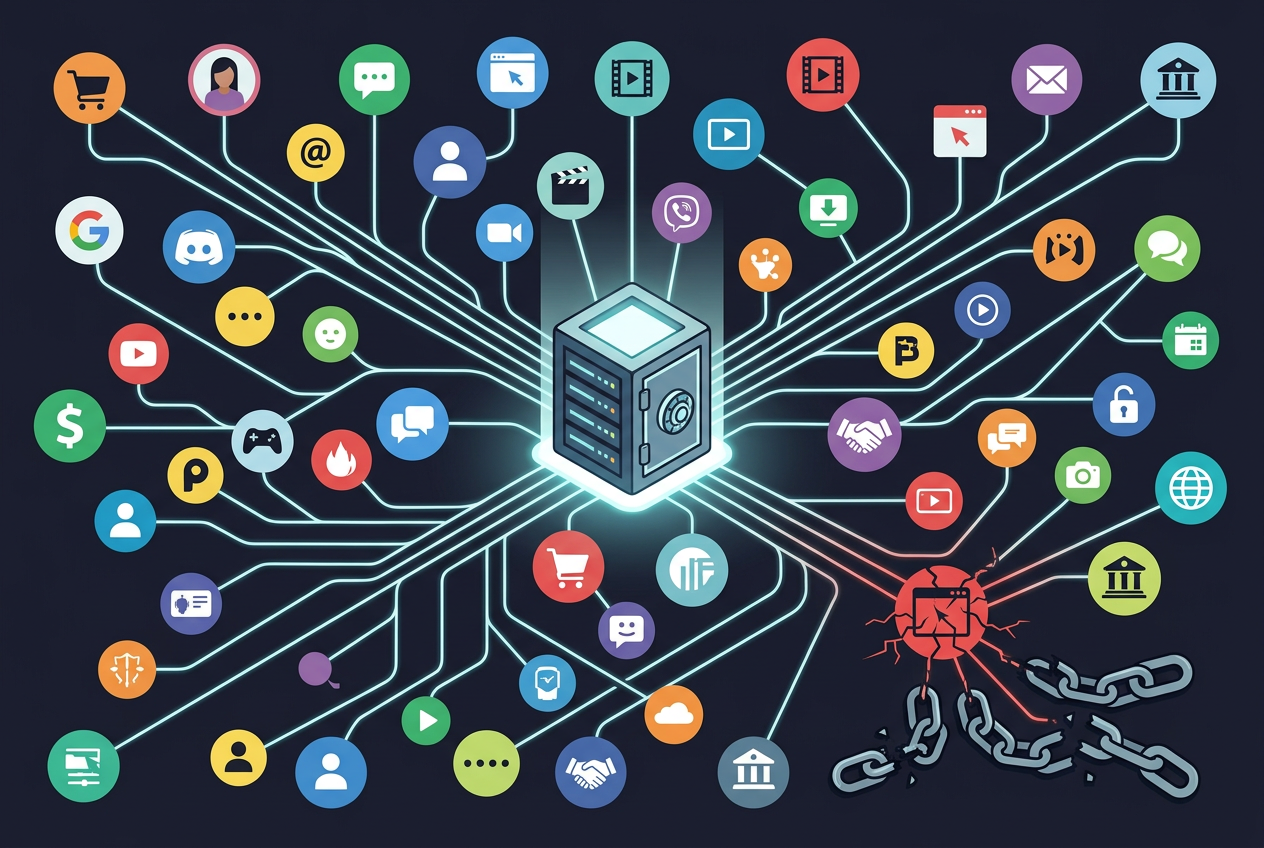
If takeover is the disaster you picked, the fastest win is stopping password reuse without relying on willpower. Bitwarden does that by generating long, unique passwords and filling them for you across your phone and laptop, so one breached site doesn’t become a master key to everything else.
Setup is simple: install it everywhere you sign in, import passwords if you already have them saved, then replace the worst offenders first (email, banking, Apple/Google, and your recovery email). The practical friction is the master password. If you forget it, you can lock yourself out of your vault, so write it down and store it somewhere physically safe.
Bitwarden doesn’t stop you from approving a fake login page, and it can’t protect accounts that still allow weak recovery options. That’s why the next layer is proving it’s really you when your password isn’t enough.
App 2 — 2FAS Authenticator: the moment your password isn’t enough
That “next layer” is what kicks in when a stolen password shows up in a login attempt. 2FAS Authenticator adds a second proof—usually a rotating code or an approval prompt—so the password alone can’t complete the sign-in. In real life, this matters most for email, your password manager, and any account that can reset other accounts.
Use 2FAS when a site offers “Authenticator app” (TOTP) instead of SMS. SMS is better than nothing, but SIM swaps and phone-number recycling are real problems. The setup friction is recovery: if you lose your phone and you didn’t save the site’s backup codes (or you didn’t transfer tokens to a new device), you can lock yourself out. Print or securely store backup codes as you enable 2FA, one account at a time.
2FAS reduces takeover risk, but it doesn’t help if your device disappears with your files on it. That’s where local sync and restore planning starts to matter.
App 3 — Syncthing: if your device disappears tonight, what’s left?
That’s usually when people realize “backup” meant “on the same device.” If your laptop dies or your phone gets stolen, the question isn’t whether your files were private—it’s whether they still exist anywhere you control. Syncthing is built for that “loss” scenario by syncing folders directly between your devices (and optionally a spare machine), without parking your data on someone else’s server.
A practical setup is boring on purpose: pick one or two folders that actually matter (photos export, Documents, a notes folder), then sync them between your phone and laptop. If you have an always-on computer at home, make it the third copy. The key choice is versioning: turn it on so an accidental delete or a ransomware hit doesn’t instantly spread and wipe everything everywhere.
The friction is real: your devices need time online to catch up, and you must protect the “hub” device with a strong login and full-disk encryption. Syncthing keeps you resilient to loss, but it won’t help when you need to share files safely with other people.
App 4 — Cryptomator: sharing or storing files without trusting the cloud
That “share a folder” moment is where leaks happen: you upload tax PDFs or scans to a cloud drive, send a link, and later realize the provider (or a compromised account) can expose the raw files. Cryptomator avoids that by encrypting files before they leave your device, inside a “vault” you control. You can store that vault in Google Drive, iCloud, OneDrive, or a USB stick—what sits there is scrambled data unless someone has your vault password.
The practical workflow is simple: keep the vault for sensitive stuff (IDs, medical, legal), then share only the encrypted vault folder or move specific encrypted files. The friction is that convenience takes a hit: names and previews aren’t readable in the cloud, and if you forget the vault password, there’s no “reset” that can bring your files back.
Cryptomator reduces cloud leaks, but it doesn’t fix the problem of private conversations living forever in backups.
App 5 — Signal: private messaging when screenshots and backups are the real enemy
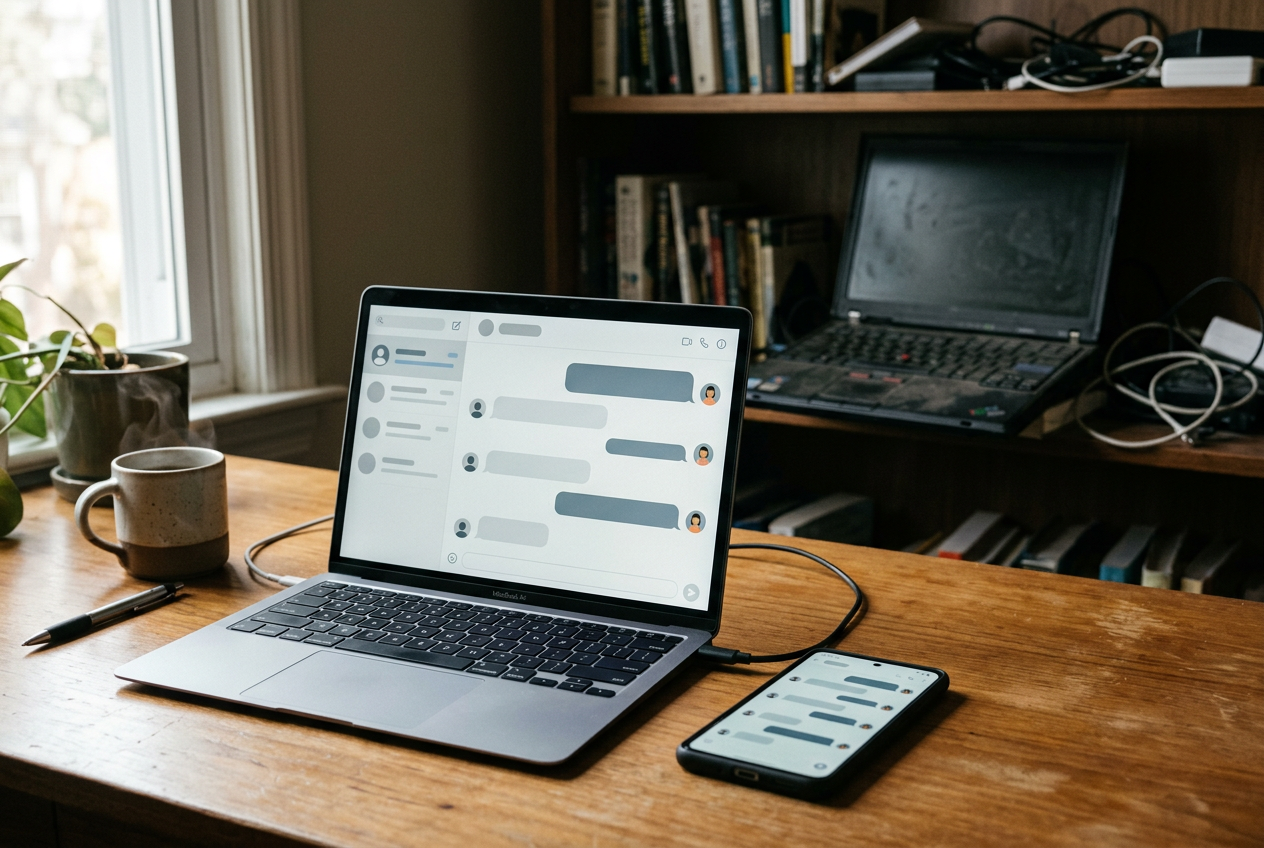
That “forever in backups” issue shows up fastest in messaging: you delete a chat, then find it again in iCloud/Google backups, on a linked desktop, or in a notification preview. Signal is the cleanest free default when you want strong end-to-end encryption without having to reason about which app is “safe” every time you text.
What it protects well is the content in transit and on Signal’s servers. The trade-off is that your risks shift to your devices: screenshots, someone opening your unlocked phone, and OS-level backups. Turn on disappearing messages for sensitive threads, disable chat backups if you can’t keep them encrypted, and lock the app with a PIN/biometric. Also check your linked devices—an old laptop you forgot about is still a copy.
Signal reduces leaks, but it won’t stay protective if you never revisit your settings after a busy month.
Your 10-minute monthly routine (so the toolkit stays protective when life gets messy)
That “busy month” is exactly when small slips pile up: a new account gets a reused password, a 2FA backup code never gets saved, or a synced folder quietly stops updating. Set a calendar reminder for 10 minutes and do the same checks every time.
Open Bitwarden and run a quick health pass: change any reused/weak passwords you see, starting with email and financial accounts. In 2FAS, confirm your main tokens are present and that you can find your printed/saved backup codes (don’t “trust” memory). In Syncthing, verify last sync times and that versioning is still on for your important folders.
Then spot-check one Cryptomator vault file opens correctly, and in Signal review linked devices and your lock/disappearing-message settings. If any step feels annoying, that’s your warning sign to simplify before the next emergency.